Business process mapping software helps businesses visualize workflows, identify operational bottlenecks, and improve process efficiency across departments. With numerous tools available, choosing the right solution can be challenging.
In this guide, DIGI-TEXX will help you explore the 10 best business process mapping software options, compare their key features, pros and cons, pricing, and ideal use cases to find the right fit for your business.

>>> See more:
Beyond choosing the right business process mapping software, businesses may also need professional support to execute and optimize their workflows. DIGI-TEXX provides Business Process Outsourcing (BPO) services, helping organizations streamline back-office operations, data processing, and document management. By combining AI-powered technologies with skilled human expertise, DIGI-TEXX helps reduce manual workloads, improve operational efficiency, and allow businesses to focus on their core activities.
10 Best Business Process Mapping Software To Streamline Workflows
| Software | Best For | Key Features | Pros | Cons | Pricing |
| Lucidchart | Technical process mapping | BPMN diagrams, AI diagram generation, data linking, conditional formatting | Advanced diagramming; supports complex workflows | Learning curve; some features require paid plans | Free plan; paid from $9/month |
| Miro | Team brainstorming | Infinite canvas, real-time collaboration, templates, AI tools | Flexible workspace; excellent collaboration | Large boards can become difficult to manage | Free plan; paid from $8/member/month |
| Whimsical | Speed and simplicity | AI flowcharts, keyboard shortcuts, mind maps, integrated Docs | Fast diagram creation; simple interface | Limited customization and advanced modeling | Free plan; paid from $10/editor/month |
| FigJam | Designers and product teams | User flow mapping, Figma integration, voting, interactive whiteboard | Strong design collaboration; easy to use | Less suitable for formal BPMN modeling | Free plan; paid from $3/month for Collab seats |
| Microsoft Visio | Microsoft-based businesses | BPMN 2.0, swimlane diagrams, data visualization, Microsoft 365 integration | Professional diagramming; strong Microsoft integration | Advanced features require higher-tier plans | Limited version in eligible Microsoft 365 plans; paid from $5/user/month |
| draw.io | Free and offline diagramming | Flowcharts, BPMN diagrams, desktop app, local file storage | Free core features; offline access | Less advanced collaboration; dated interface | Completely free |
| Canva | Visual presentations | Flowchart templates, whiteboards, drag-and-drop editor, Brand Kit | Easy to use; extensive design resources | Limited technical diagramming capabilities | Free plan; Pro from $12/month |
| Process Street | Checklist completion | Workflow checklists, conditional logic, task assignments, approval automation | Standardizes recurring tasks; tracks execution | Not designed for freeform visual mapping | Custom pricing |
| Pipefy | Workflow automation | No-code workflow builder, forms, conditional logic, automation | Automates business operations; easy configuration | Less focused on visual process diagrams | Free plan; paid plans use custom pricing |
| Mural | Collaborative workshops | Visual canvas, workshop templates, voting, private mode, facilitation tools | Excellent workshop facilitation; supports team decision-making | Not a dedicated BPMN modeling platform | Free plan; paid from $9.99/member/month |
Lucidchart – Best Process Mapping Tool For Technical Depth
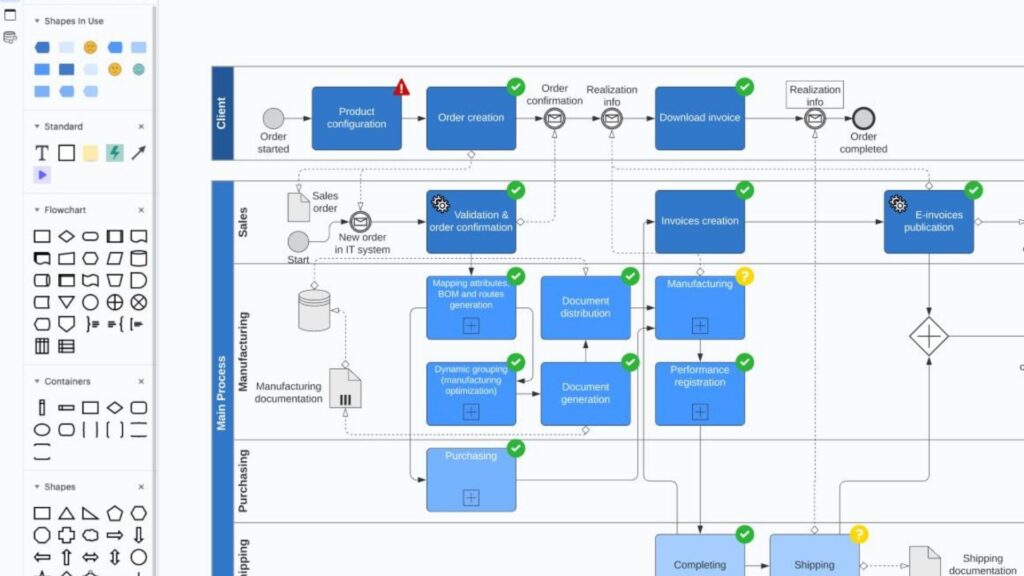
Lucidchart is a diagramming platform designed for businesses that need to document, analyze, and communicate complex processes. It stands out for its technical depth, making it particularly useful for IT departments, business analysts, operations managers, and enterprise architecture teams.
Unlike basic flowchart applications, Lucidchart supports detailed process documentation, BPMN diagrams, organizational charts, entity relationship diagrams (ERDs), and system architecture maps. Users can build workflows using drag-and-drop shapes, standardized symbols, and customizable connectors without creating every element from scratch.
The platform also supports data-linked diagrams. Teams can connect shapes to information stored in Excel, Google Sheets, or CSV files, allowing process maps to reflect underlying business data. Conditional formatting can highlight specific conditions, such as missing task owners or process steps that require attention.
Key Features
- BPMN and technical diagramming: Create business process diagrams using standardized BPMN symbols, flowcharts, UML diagrams, and ERDs.
- AI-powered diagram generation: Generate flowcharts, mind maps, and other diagrams from text prompts.
- Data linking: Connect diagram shapes to external datasets, including Excel, Google Sheets, and CSV files.
- Conditional formatting: Apply visual rules to identify missing information, exceptions, and process conditions.
- Layers and revision history: Organize complex diagrams into separate layers, review changes, and restore previous versions.
- Team collaboration: Allow multiple users to edit diagrams, leave comments, and share process documentation.
Pros:
- Extensive diagramming capabilities for technical and business processes.
- Supports BPMN-based process documentation and complex workflows.
- Data linking helps teams maintain more informative process maps.
- Provides templates for common business processes, including lead qualification and customer support.
Cons:
- The extensive feature set can make the interface challenging for first-time users.
- Advanced diagramming features may be unnecessary for teams with simple workflows.
- Paid subscriptions are required for unlimited editable documents and more advanced capabilities.
Pricing
- Free: $0, with up to 3 editable documents and 60 shapes per document.
- Individual: Starts at $9/month.
- Team and Enterprise: Pricing depends on the selected plan and team requirements.
The Individual plan includes unlimited documents and shapes, premium templates, presentation mode, and 1 GB of cloud storage.
Best For: IT teams, business analysts, process improvement specialists, and enterprises that need detailed process maps, BPMN diagrams, and data-connected documentation.
>>> See more:
- Back Office Services: Definition, Examples & Outsourcing Guide 2026
- Back Office Support Services: How To Reduce Workload And Scale Operations
- Ecommerce Back Office Support Services For Fast Growth
Miro – Best Process Mapping Tool For Team Brainstorming
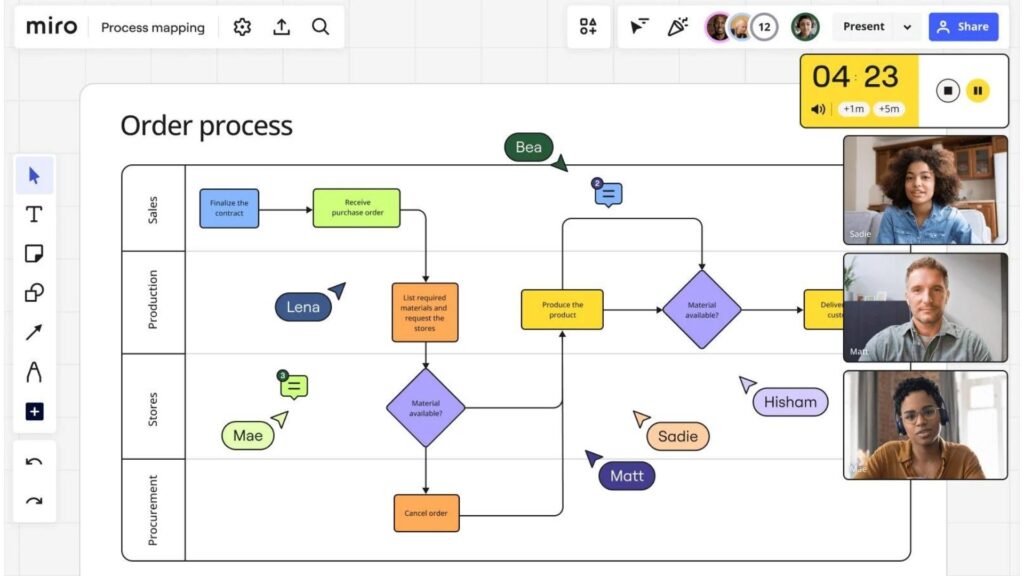
Miro is a visual collaboration platform that helps teams brainstorm, organize ideas, and map business processes in a shared workspace. Its infinite canvas makes it particularly suitable for projects where workflows are still being discussed, refined, or redesigned.
Instead of requiring users to follow a rigid diagramming structure, Miro provides a flexible environment where participants can combine flowchart shapes, sticky notes, connectors, comments, and images. This approach is useful when different departments need to contribute their perspectives before agreeing on a final process.
For example, an operations team can use Miro to map an order fulfillment process. Sales representatives can outline order intake, warehouse employees can identify inventory checks, and logistics staff can add shipping and delivery steps. The team can then connect these activities to identify unclear handoffs or unnecessary approvals.
Miro also supports structured diagramming, including flowcharts, process maps, and technical diagrams. Its integrations with project management and productivity applications help teams bring existing work into the same visual workspace.
Key Features
- Infinite collaborative canvas: Build process maps without being restricted to a fixed page size.
- Process mapping templates: Start with ready-made templates for flowcharts, workflows, customer journeys, and organizational processes.
- Real-time collaboration: Allow team members to add notes, edit diagrams, and provide feedback simultaneously.
- AI diagram generation: Generate diagrams and summarize information using available AI credits.
- Facilitation tools: Use timers, voting, and private mode to organize workshops and reach decisions.
- Third-party integrations: Connect Miro with tools such as Jira, Asana, Microsoft applications, and Google Workspace.
Pros:
- Excellent for cross-functional brainstorming and process discovery.
- Flexible canvas supports both simple workflows and large process maps.
- Large template library reduces the time needed to start a project.
- Collaboration tools make it easier to collect feedback from remote teams.
Cons:
- Large boards can become difficult to navigate without consistent organization.
- It is less suitable for highly structured BPMN documentation than specialized diagramming software.
- AI capabilities and advanced collaboration features depend on subscription limits.
Pricing
- Free: $0, with 3 editable boards.
- Starter: Starts at $8/member/month, billed annually.
- Business and Enterprise: Higher-tier plans with additional collaboration, integration, and administrative features.
The Starter plan includes unlimited private boards, visitor editing, and 25 AI credits per member per month.
Best For: Remote teams, project managers, operations departments, and businesses that need to brainstorm, redesign, and review workflows collaboratively.
Whimsical – Best Process Mapping Tool For Speed and Focus
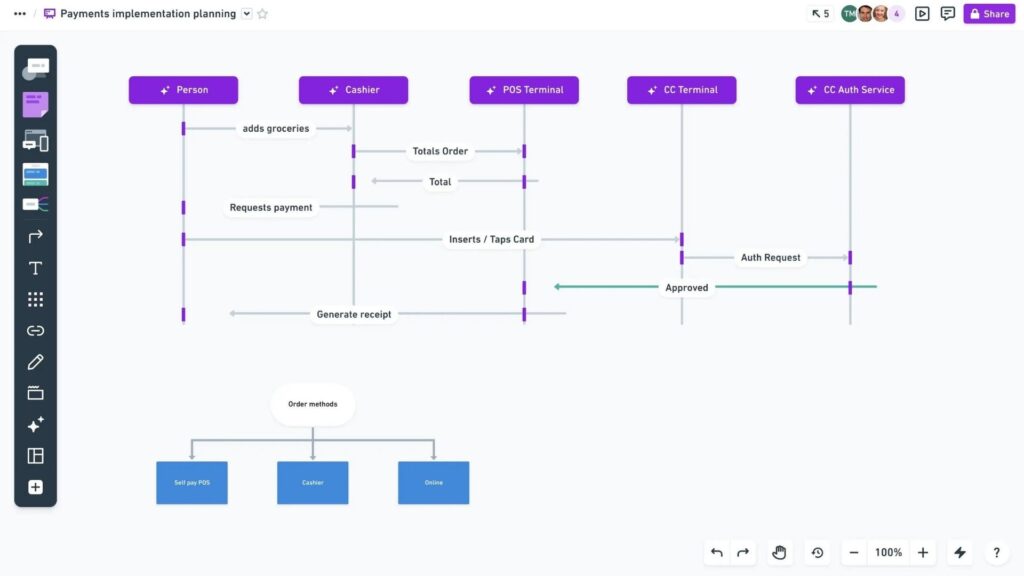
Whimsical is a lightweight visual workspace that prioritizes speed and simplicity. It is designed for users who want to turn ideas into clear process diagrams without spending too much time adjusting layouts, formatting shapes, or configuring complex diagramming settings.
Its streamlined editor makes creating flowcharts particularly straightforward. Users can add shapes, connect steps, and expand workflows using keyboard shortcuts. This is helpful when documenting everyday business procedures, such as employee onboarding, invoice approvals, customer support requests, or content publishing.
Whimsical also offers AI-assisted diagram generation. Users can describe a process in text and use AI to generate a visual starting point, which they can then edit to reflect the actual workflow.
Another useful feature is its built-in Docs functionality. Teams can combine written instructions with embedded diagrams, making it easier to maintain standard operating procedures (SOPs). When the original diagram changes, its embedded version can stay synchronized, reducing the need to update multiple documents manually.
Key Features
- Fast flowchart creation: Build process diagrams using keyboard shortcuts and an intuitive editor.
- AI diagram generation: Turn text descriptions into flowcharts and mind maps.
- Mind mapping: Organize business ideas, dependencies, and decision-making structures.
- Integrated documentation: Combine written procedures with diagrams in Whimsical Docs.
- Reusable templates: Start with existing flowchart and workflow layouts.
- Team collaboration: Share boards, invite collaborators, and collect feedback.
Pros:
- Simple interface with a short learning curve.
- Fast diagram creation without extensive formatting.
- Combines process diagrams and written documentation in one workspace.
- Suitable for creating SOP illustrations and communicating workflows to non-technical stakeholders.
Cons:
- Limited customization compared with more advanced diagramming platforms.
- Not designed for highly complex, data-connected enterprise process models.
- The free plan has restrictions on monthly board objects and document blocks.
- AI usage is subject to credit limits.
Pricing
- Free: $0, with 50 board objects and 50 document blocks per month.
- Pro: $10/editor/month, billed annually.
- Business: $20/editor/month, billed annually.
The Pro plan provides unlimited board objects and document blocks, while Business adds organizational controls such as private teams and SAML single sign-on.
Best For: Small businesses, startup teams, product managers, and professionals who need to create straightforward process maps, flowcharts, and SOP documentation quickly.
>>> See more:
- Healthcare Back-Office Support Services For Efficient Operations
- Insurance Back Office Support Services That Streamline Operations & Drive Growth
- Accounts Payable Outsourcing: Pros, Cons, Costs And Top Providers
FigJam – Best Process Mapping Tool For Designers
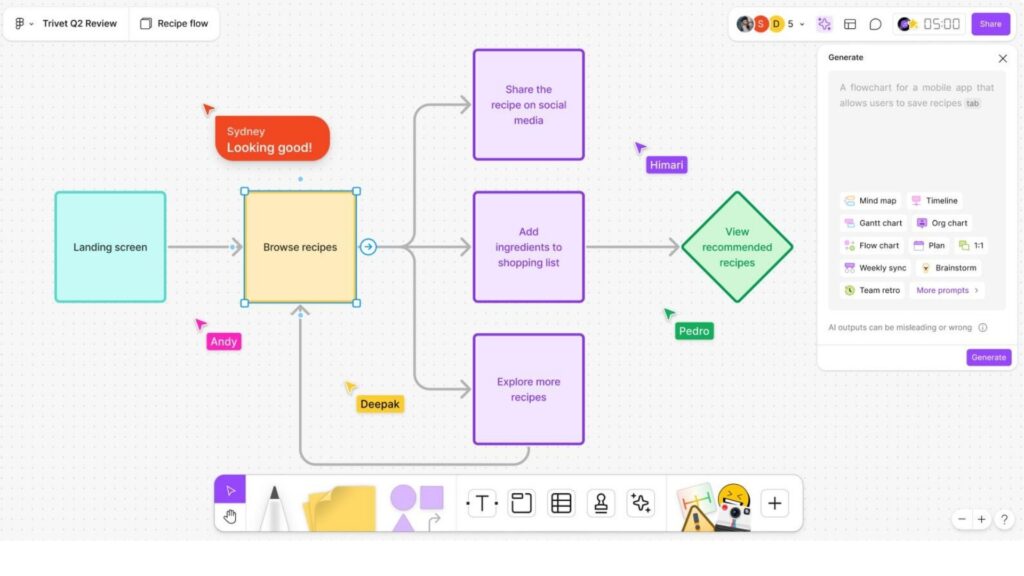
FigJam is a collaborative whiteboard developed by Figma. Although it is primarily associated with product design and UX collaboration, its visual tools also make it useful for mapping business processes, customer journeys, and cross-functional workflows.
What distinguishes FigJam is its connection to the broader Figma design environment. Product and design teams can use the same workspace to discuss requirements, map user journeys, organize ideas, and plan the steps involved in developing a digital product.
For example, a product team designing an online checkout experience can use FigJam to map the customer journey from product selection to payment confirmation. Designers can identify decision points, such as failed payments or unavailable inventory, while developers and product managers can discuss how each scenario should be handled.
FigJam also includes interactive workshop features. Teams can use voting to prioritize ideas, timers to manage brainstorming sessions, and sticky notes to collect feedback. These capabilities are particularly useful when stakeholders need to agree on a process before the design or development work begins.
Key Features
- Figma integration: Connect process maps with design files, components, and product planning activities.
- User flow mapping: Visualize user journeys, decision points, and interactions between different screens.
- Interactive whiteboard: Combine sticky notes, shapes, connectors, and diagrams.
- Workshop tools: Use voting, timers, stamps, and other interactive elements.
- Templates: Start with predefined layouts for brainstorming, user journeys, flowcharts, and project planning.
- Team collaboration: Allow designers, developers, and product managers to work together in real time.
Pros:
- Works naturally within the Figma design ecosystem.
- Particularly useful for connecting business workflows with user experience design.
- Interactive features support collaborative workshops.
- A free Starter plan allows teams to explore FigJam before upgrading.
Cons:
- Less suitable for formal BPMN modeling and complex enterprise process documentation.
- Some advanced capabilities depend on the Figma subscription and seat type.
- May be unnecessary for organizations that do not use Figma for product design.
Pricing
- Starter: Free, with limited access to Figma products.
- Professional: Collab seats start at $3/month, Dev seats at $12/month, and Full seats at $16/month.
- Organization: Collab seats start at $5/month, Dev seats at $25/month, and Full seats at $55/month.
- Enterprise: Collab seats start at $5/month, Dev seats at $35/month, and Full seats at $90/month.
Prices are based on annual billing. For teams primarily using FigJam, the Professional Collab seat at $3/month is generally the relevant starting point.
Best For: UX/UI designers, product managers, design agencies, and product development teams that need to map user flows and coordinate business processes alongside design work.
Microsoft Visio – Best Process Mapping Tool For Microsoft Shops
Microsoft Visio is a professional diagramming application designed to help organizations create, document, and communicate complex business processes. It is particularly suitable for companies that already rely on Microsoft 365 applications for daily operations.
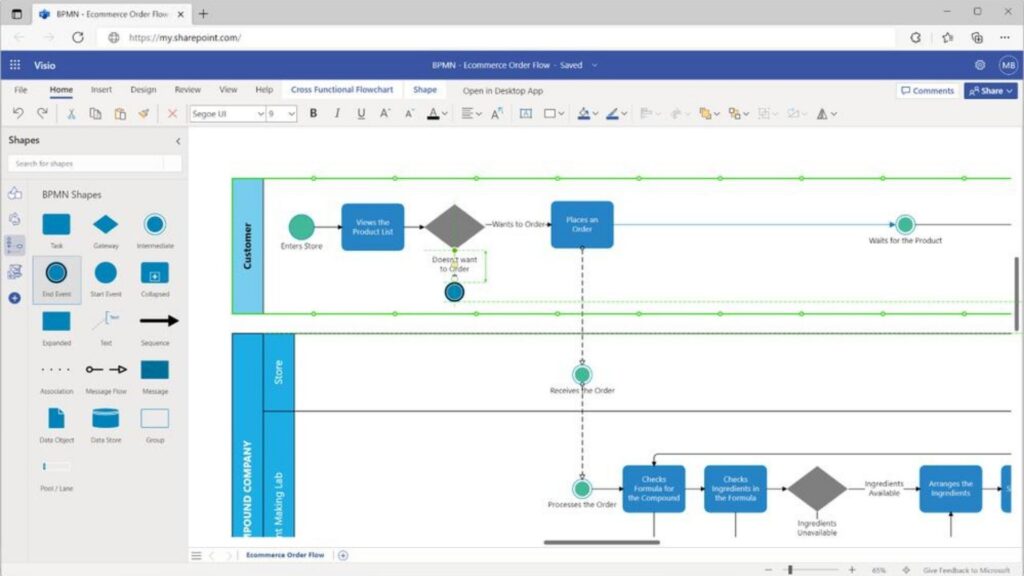
Visio provides a wide range of diagramming tools, including flowcharts, cross-functional flowcharts, organizational charts, network diagrams, and BPMN diagrams. Its swimlane functionality is especially useful for business process mapping because it separates activities by department, team, or individual role.
For instance, a purchase approval workflow can be divided into procurement, finance, and management swimlanes. Each lane shows who is responsible for a specific task, when an approval is required, and where a process moves between departments. This makes responsibilities and handoffs easier to understand.
Integration is another major advantage. Visio works with Microsoft applications such as Excel, Word, PowerPoint, and Teams. Organizations using Power Automate can also connect process documentation with workflow automation, depending on their Visio plan and configuration.
One important distinction is that the basic Visio experience included in eligible Microsoft 365 commercial plans is not equivalent to the full desktop application. Advanced BPMN 2.0 diagrams and offline desktop access require Visio Plan 2.
Key Features
- BPMN 2.0 diagramming: Create standardized business process models using professional diagramming shapes.
- Cross-functional flowcharts: Separate activities by department or job role using swimlanes.
- Microsoft 365 integration: Work with diagrams in Microsoft Teams and connect information from other Microsoft applications.
- Data visualization: Link diagram elements to external data and display information through data graphics.
- Extensive shape libraries: Access thousands of shapes for business, IT, network, and organizational diagrams.
- Offline desktop application: Create and edit diagrams locally with Visio Plan 2.
Pros:
- Strong support for formal process documentation and BPMN 2.0.
- Integrates naturally with the Microsoft 365 environment.
- Swimlane diagrams help clarify departmental responsibilities.
- Suitable for regulated businesses that need structured process documentation.
- Supports Visio file formats for sharing diagrams across compatible applications.
Cons:
- Advanced features require a separate paid subscription.
- The interface may feel less intuitive to users accustomed to modern collaborative whiteboards.
- Visio Plan 2 is more expensive than lightweight process mapping alternatives.
- Desktop access and offline editing are not included in every plan.
Pricing
- Visio in Microsoft 365: Included in eligible Microsoft 365 commercial plans, with basic diagramming capabilities.
- Visio Plan 1: $5/user/month, billed annually.
- Visio Plan 2: $15/user/month, billed annually.
Plan 2 includes the desktop application, offline file support, advanced process diagrams, and BPMN 2.0 capabilities.
Best For: Businesses using Microsoft 365, IT departments, enterprise operations teams, and organizations that need formal process documentation with BPMN 2.0 support.
>>> See more:
- Accounts Receivable Service | Invoicing, Billing & AR Management
- Administrative Support Outsourcing: Services, Benefits & Providers
- AI In BPO: Benefits, Applications, Challenges & Future Trends
draw.io – Best Process Mapping Tool For Free, Offline Use
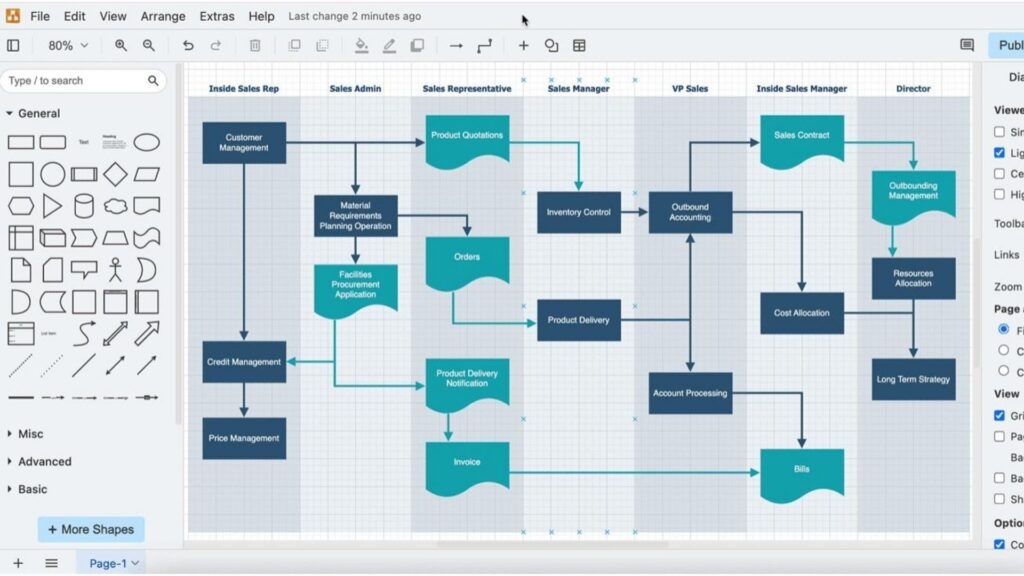
draw.io (also known as diagrams.net) is a free diagramming application that allows users to create flowcharts, process maps, network diagrams, organizational charts, and other visual documentation without paying for a standard subscription.
Its biggest advantage is the combination of free diagramming and local file control. Unlike many cloud-first applications, draw.io offers a standalone desktop application for Windows, macOS, and Linux. Users can create diagrams without an internet connection and save their files directly on their devices.
This makes it particularly useful for small businesses, technical teams, and organizations that want greater control over where their process documentation is stored.
For example, an IT department can use draw.io to document an internal incident response process, showing how employees report issues, how support teams categorize incidents, and when problems are escalated to technical specialists. The resulting diagram can be stored locally or in an approved cloud location.
The platform also supports a wide range of diagram formats and integrations, including Google Drive, OneDrive, GitHub, GitLab, Confluence, and Jira. However, some cloud-based storage and online features are unavailable when working completely offline.
Key Features
- Free diagram editor: Create business process maps, flowcharts, UML diagrams, and technical diagrams without a paid subscription.
- Offline desktop application: Work without an internet connection on Windows, macOS, and Linux.
- Flexible file storage: Save diagrams locally, in a browser, or through supported cloud storage services.
- Diagram templates: Use predefined shapes and layouts to build common workflows.
- Third-party integrations: Connect diagrams with platforms such as Google Drive, Microsoft OneDrive, GitHub, and Confluence.
- Custom shape libraries: Create and reuse custom diagram elements through the editor’s shape library and scratchpad.
Pros:
- Completely free for standard diagramming.
- Supports offline work through its desktop application.
- Gives users control over where diagram files are stored.
- Covers a wide range of business and technical diagramming requirements.
- Does not require a paid subscription to access its core editor.
Cons:
- The interface is less polished than some modern collaborative diagramming platforms.
- Real-time collaboration and cloud-based workflows depend on the selected integration and storage setup.
- Some online functions, such as cloud storage and template loading, are unavailable offline.
- Does not offer the same built-in AI diagram generation capabilities as some competing platforms.
Pricing
- Online editor: Free.
- Desktop application: Free.
- Core diagramming functionality: No subscription required.
Paid services may apply to certain third-party integrations or infrastructure used alongside draw.io, but the standard application remains free.
Best For: Startups, small businesses, IT professionals, and organizations looking for business process mapping software free of subscription fees, particularly when offline access and local file storage are important.
Canva – Best Process Mapping Tool For Visual Presentations
Canva is a visual design platform that also provides whiteboarding and diagramming tools. While it is not a dedicated business process management application, it is a practical option for companies that want to create attractive process maps and communicate workflows through presentations or internal documentation.
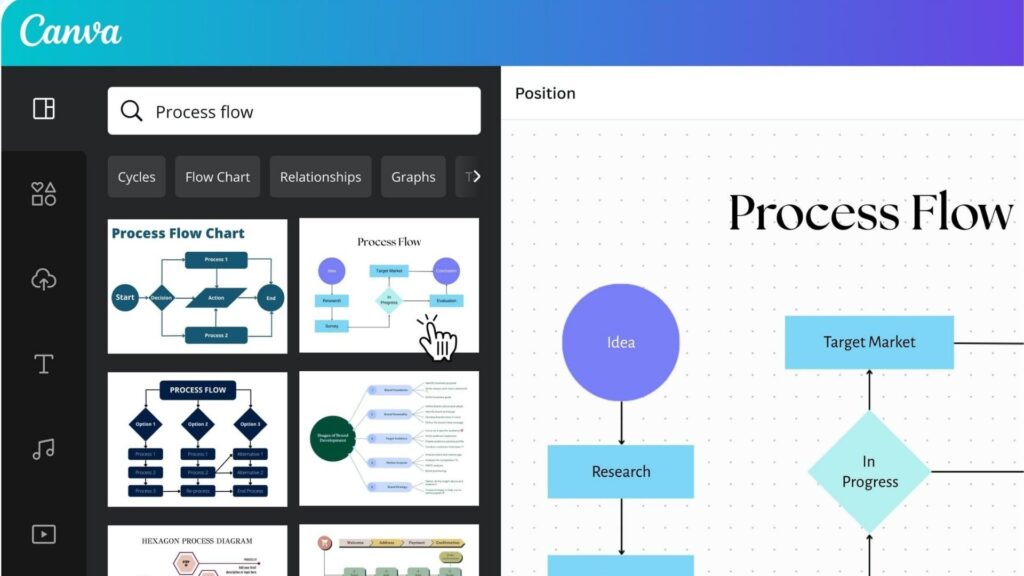
Canva’s main strength is its extensive collection of templates and design resources. Users can customize flowcharts with brand colors, icons, illustrations, text, and other visual elements. This makes it easier to turn operational information into diagrams that employees and stakeholders can understand quickly.
For example, a company can create an employee onboarding process map that shows each stage, from submitting employment documents to completing orientation and receiving system access. The diagram can then be incorporated into an onboarding presentation or shared as part of an internal training document.
Canva also provides collaborative whiteboards where team members can contribute ideas, add sticky notes, and organize information. However, its primary focus remains visual communication rather than technical process modeling. Businesses managing complex workflows with multiple dependencies may find specialized diagramming applications more suitable.
Key Features
- Flowchart templates: Start with ready-made layouts for business processes and organizational workflows.
- Visual customization: Apply brand colors, typography, illustrations, icons, and graphics.
- Collaborative whiteboards: Allow multiple users to contribute ideas and organize process information.
- Presentation integration: Convert process diagrams into slides for meetings, training, and stakeholder communication.
- Drag-and-drop editor: Add and arrange visual elements without advanced design skills.
- Brand Kit: Maintain consistent visual styles across business diagrams and presentations.
Pros:
- Extensive template and graphic libraries.
- Easy for non-technical users to create visually appealing diagrams.
- Useful for employee training, presentations, and internal communications.
- Free plan available for individuals and small teams.
- Combines process visualization with broader design and presentation capabilities.
Cons:
- Not designed for complex BPMN modeling or advanced process analysis.
- Maintaining connector alignment can become challenging in large diagrams.
- Limited capabilities for managing process dependencies and operational execution.
- Premium assets and advanced collaboration features may require paid plans.
Pricing
- Free: $0.
- Canva Pro: $144/year for one person.
- Canva Business: $250/year per person.
- Enterprise: Custom pricing.
Canva’s Free plan includes basic design and whiteboard capabilities, while paid plans provide additional templates, premium assets, AI features, and collaboration tools.
Best For: Marketing teams, HR departments, trainers, small businesses, and managers who need presentation-ready process maps rather than highly technical workflow models.
>>> See more:
- Outsourcing Advantages & Disadvantages: What Businesses Should Know?
- Why Retail Outsourcing Is A Smart Strategy for Retail Businesses
- Supply Chain Business Process Outsourcing (BPO) 2026
Process Street – Best Process Mapping Tool For Checklist Completion
Process Street takes a different approach to business process mapping. Rather than focusing primarily on drawing diagrams, it helps organizations turn documented procedures into actionable workflows that employees can execute and track.
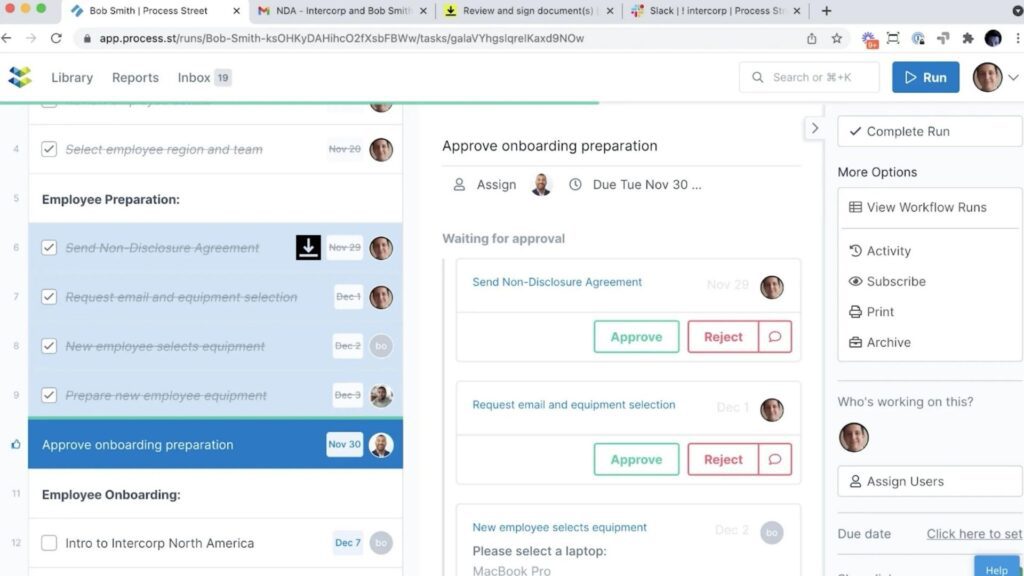
This distinction makes Process Street particularly valuable for businesses that need to ensure recurring tasks are completed consistently. Teams can create structured workflows, assign responsibilities, set due dates, collect information through forms, and monitor completion progress.
For example, an employee onboarding process can be documented as a workflow containing tasks such as preparing employment documents, creating system accounts, scheduling training, and assigning equipment. Each time a new employee joins, the team can launch a new workflow and track every required task.
Conditional logic is another important capability. Depending on the information submitted, the workflow can display different tasks or instructions. For instance, an onboarding workflow may include additional compliance steps for employees working in specific locations.
Process Street also supports approval workflows. When a task requires managerial authorization, the process can pause until the responsible person reviews and approves it. This helps reduce missed steps and makes recurring operations easier to monitor.
Key Features
- Workflow checklists: Convert documented procedures into actionable, repeatable checklists.
- Conditional logic: Display different tasks depending on user responses or workflow conditions.
- Task assignments: Assign responsibilities to employees and track completion.
- Approval workflows: Require managerial approval before specific tasks can proceed.
- Forms and data collection: Gather information needed to execute business procedures.
- Workflow reporting: Monitor progress and review operational performance through dashboards.
- Automation and integrations: Connect workflows with other business applications through supported integrations and automation tools.
Pros:
- Turns documented processes into workflows employees can follow.
- Helps standardize recurring operational activities.
- Conditional logic supports processes with multiple scenarios.
- Task assignments and approvals improve accountability.
- Useful for maintaining consistent SOP execution and tracking completion.
Cons:
- Less suitable for visual process mapping and freeform flowchart creation.
- May be unnecessarily complex for businesses that only need simple diagrams.
- Pricing is not publicly displayed as a fixed per-user rate.
- Advanced automation and integrations may require higher-tier plans.
Pricing
Process Street uses custom-quoted pricing. Businesses need to contact its sales team or request a demo to receive a plan based on their requirements. The platform offers different plan configurations, including Startup, Pro, and Enterprise options.
Best For: Operations teams, HR departments, compliance managers, and businesses that need to standardize recurring processes through checklists, task assignments, and automated approvals.
Pipefy – Best Process Mapping Tool For Workflow Automation
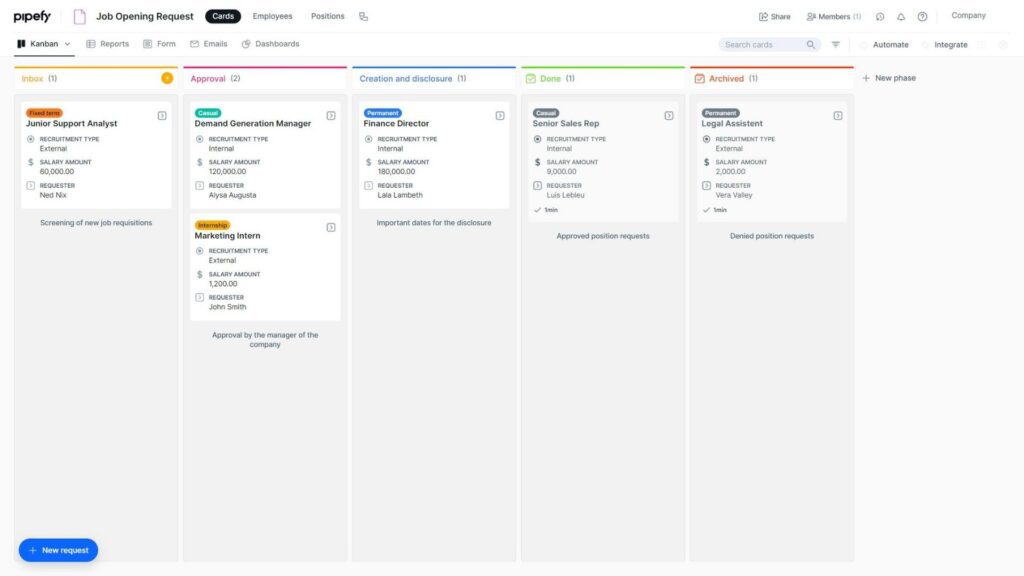
Pipefy is a no-code business process management platform designed to help companies organize requests, manage operational workflows, and automate repetitive tasks.
Unlike traditional diagramming tools, Pipefy focuses on turning business procedures into structured workflows that teams can manage and execute. Its visual workflow builder allows users to define process stages, configure forms, assign responsibilities, and establish rules for moving work from one stage to another.
For example, a procurement department can create a purchasing workflow that starts when an employee submits a purchase request. The request then moves through budget verification, manager approval, vendor selection, and payment processing. Each stage can have its own requirements, responsible employees, and automated actions.
Pipefy is also useful for departments that handle high volumes of internal requests. HR teams can manage recruitment and employee onboarding, finance teams can organize accounts payable, and IT departments can track service requests through standardized workflows.
Its conditional logic and automation capabilities help businesses reduce manual coordination. Instead of relying on email exchanges to determine what happens next, teams can establish rules that trigger actions when specific conditions are met.
Key Features
- Visual workflow builder: Create structured processes with defined stages and responsibilities.
- Custom forms: Collect information from employees, customers, and external requesters.
- Conditional logic: Configure workflows to follow different paths based on submitted information.
- Workflow automation: Trigger actions and notifications when predefined conditions are met.
- Request management: Centralize incoming requests and track their progress.
- Process analytics: Monitor activity, productivity, and operational performance through dashboards.
- Integrations and API: Connect workflows with other business systems through available integrations and API capabilities.
Pros:
- Combines process organization with workflow execution and automation.
- No-code configuration makes it accessible to non-technical teams.
- Supports recurring processes across HR, finance, procurement, and IT.
- Conditional logic helps manage processes with different approval requirements.
- Offers a free Starter plan for smaller teams.
Cons:
- More focused on workflow execution than detailed visual process diagramming.
- Complex implementations may require configuration and process planning.
- Advanced integrations, permissions, and automation capabilities require higher-tier plans.
- Businesses with extensive enterprise requirements may need assistance from the vendor.
Pricing
- Starter: Free, supporting up to 5 processes and 10 users.
- Business: Custom pricing.
- Enterprise: Custom pricing.
The free plan includes basic automation, process templates, and request tracking. Business and Enterprise plans add capabilities such as unlimited processes, conditional logic, expanded integrations, and more advanced administrative controls.
Best For: Small and mid-sized businesses, finance teams, HR departments, procurement teams, and operations managers that want to automate structured workflows without extensive coding.
Mural – Best Process Mapping Tool For Collaborative Workshops
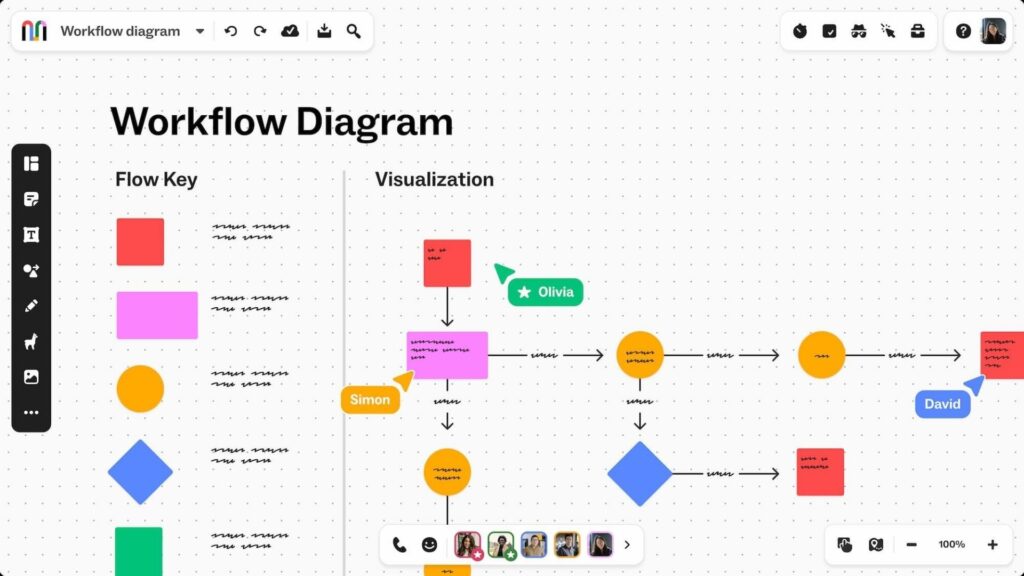
Mural is a visual collaboration platform designed to help teams map processes, explore ideas, and solve operational challenges through structured workshops.
Like Miro, Mural provides a shared visual workspace. However, it places particular emphasis on workshop facilitation. Its tools help facilitators guide discussions, collect individual contributions, organize ideas, and move teams toward decisions.
This makes Mural useful during process discovery and improvement projects, especially when employees from different departments need to review an existing workflow together.
For example, a company reviewing its customer complaint handling process can invite representatives from customer service, operations, and quality assurance to a shared board. Each participant can document common issues, identify delays, and suggest changes. The team can then group similar problems, prioritize improvements through voting, and create a revised process map.
Mural provides mapping and diagramming tools, sticky notes, templates, and interactive workshop features. Its private mode can help participants contribute independently before seeing other responses, reducing the influence of early opinions during group discussions.
Key Features
- Collaborative process mapping: Visualize workflows, organizational structures, and operational relationships on a shared canvas.
- Workshop templates: Use ready-made layouts for process improvement, brainstorming, and strategic planning.
- Facilitation tools: Manage workshops with timers, participant summoning, facilitator controls, and structured outlines.
- Private mode: Allow participants to contribute ideas independently before sharing them with the group.
- Voting and prioritization: Collect anonymous votes to identify the most important issues or proposed improvements.
- Sticky notes and visual elements: Organize feedback, group related ideas, and build process diagrams.
- Integrations: Connect with productivity and collaboration applications such as Microsoft Teams, Zoom, Jira, and Slack.
Pros:
- Strong workshop facilitation capabilities for distributed teams.
- Makes it easier to collect input from multiple departments.
- Voting and private mode support structured decision-making.
- Templates help teams organize process improvement sessions.
- Suitable for visualizing complex problems before designing a new workflow.
Cons:
- Primarily a collaboration and workshop platform rather than a dedicated BPMN modeling solution.
- Large boards may require careful organization to remain understandable.
- Teams that only need formal process documentation may prefer specialized diagramming software.
- Some advanced administrative and security features require higher-tier plans.
Pricing
- Free: $0, with 3 editable murals at a time.
- Team+: Starts at $9.99/member/month, billed annually.
- Business: Starts at $17.99/member/month, billed annually.
- Enterprise: Custom pricing.
The Team+ plan includes unlimited editable murals, private rooms, Mural AI, and additional collaboration features. Business adds capabilities such as single sign-on and advanced integrations.
Best For: Remote teams, business consultants, facilitators, and organizations conducting cross-functional workshops or process improvement initiatives.
>>> See more:
- List Of 25 Data Management Outsourcing Companies In The USA
- Best 20 Email Support Outsourcing Companies In The USA 2026
- Top 12 IT Help Desk Outsourcing Companies In USA 2026
How To Choose The Best Business Process Mapping Software
Choosing the best business process mapping software involves more than comparing diagramming features. Businesses need to consider how easily a tool can visualize workflows, support team collaboration, integrate with existing systems, and accommodate different process improvement needs.
Whether you are looking for business process mapping software free of charge, exploring Microsoft Visio process mapping, or evaluating tools for Six Sigma initiatives, the following criteria can help you make an informed decision.
1. Process Mapping And Diagramming Capabilities
A suitable tool should support essential diagramming formats, including flowcharts, swimlane diagrams, and BPMN models. Advanced options may also provide specialized features for Six Sigma process mapping, helping teams identify bottlenecks, visualize dependencies, and document process improvements.
2. Ease Of Use And Customization
Consider whether the software offers an intuitive interface, drag-and-drop editing, customizable shapes, and ready-made process mapping templates. These features help users create process maps efficiently without requiring extensive technical or diagramming experience.
3. Collaboration And Team Management
For cross-functional workflows, look for real-time editing, shared workspaces, comments, and feedback tools. These capabilities allow employees from different departments to review process maps, clarify responsibilities, and coordinate workflow improvements.
4. Integrations And Workflow Automation
Check whether the software connects with business applications such as Microsoft 365, Google Workspace, project management platforms, and communication tools. Workflow automation, conditional logic, and task assignments are also valuable for businesses that want to move beyond visual documentation and manage process execution.
5. Pricing And Free Plan Availability
Compare subscription costs, user limits, diagram restrictions, and access to advanced features. Some business process mapping software free plans provide enough functionality for individuals or small teams, while larger organizations may need paid plans for unlimited diagrams, advanced collaboration, or administrative controls.
6. Use Cases And Scalability
Evaluate how well each tool supports your specific requirements, from creating simple process mapping examples to documenting complex enterprise workflows. For example, Microsoft Visio may suit businesses that need structured BPMN diagrams, while collaborative whiteboard tools may be more appropriate for brainstorming and process discovery. The software should also accommodate additional users and increasingly complex workflows as your business grows.
>>> See more:
- Top 10 Live Chat Support Outsourcing Companies In The USA 2026
- 12 Accounts Payable Automation Software Compared For USA Businesses
- Outsourcing Software Development: A Complete Business Guide
FAQs About Business Process Mapping Software
Does Microsoft Office Have A Process Mapping Tool?
Yes. Microsoft offers Microsoft Visio, a dedicated diagramming application for creating business process maps, flowcharts, organizational charts, and technical diagrams.
For businesses already using Microsoft 365, Visio provides several integration advantages:
- Visio in Microsoft 365: Offers basic diagramming capabilities, including flowcharts, organizational charts, and real-time collaboration in eligible commercial plans.
- Visio Plan 1: Adds more diagramming templates, cross-functional flowcharts, and advanced web-based editing.
- Visio Plan 2: Includes the desktop application, offline editing, advanced process diagrams, and BPMN 2.0 support.
If you are searching for free process mapping tools Microsoft offers, start by checking whether your existing Microsoft 365 subscription includes Visio. However, advanced process modeling requires a separate Visio subscription.
What Is The Best Free Business Process Mapping Software?
The best free business process mapping software depends on whether you prioritize diagramming capabilities, collaboration, or workflow automation.
Here are four options worth considering:
| Software | Free plan | Main advantage |
| draw.io | Completely free | Offline diagramming and local file storage |
| Lucidchart | Yes | Professional flowcharts and process diagrams |
| Miro | Yes | Collaborative whiteboarding and brainstorming |
| Pipefy | Yes | Basic workflow management and automation |
Which BPM Tool Is The Best?
There is no single best business process management (BPM) tool for every organization. The right choice depends on whether your priority is process modeling, workflow automation, operational monitoring, or continuous improvement.
For example:
- Lucidchart: A strong option for detailed process modeling, technical diagrams, and BPMN documentation.
- Microsoft Visio: Suitable for enterprises that need standardized process diagrams and Microsoft 365 integration.
- Pipefy: Best suited to businesses that want to automate workflows, manage requests, and coordinate approvals.
- Process Street: A practical choice for turning documented procedures into repeatable checklists.
- Miro: Useful for collaborative process discovery and redesign.
Businesses following Lean or Six Sigma methodologies should also consider whether their chosen platform supports detailed process analysis.
For example, Six Sigma process mapping tools should make it easy to visualize process inputs, activities, decision points, and outputs. They should also help teams identify bottlenecks, unnecessary steps, and sources of variation.
Lucidchart and Visio are suitable for documenting structured process flows, while Miro and Mural are useful for collaborative improvement workshops.
Ultimately, the best BPM tool is one that supports your improvement methodology and helps employees consistently follow the processes your organization has established.
What Is The Best Software For Mapping?
The best software for mapping depends on what you want to visualize.
If your goal is to map business operations, workflows, or departmental responsibilities, consider these options:
- Lucidchart: Best for detailed business process maps, BPMN diagrams, and technical documentation.
- Microsoft Visio: Best for professional flowcharts and cross-functional process maps.
- draw.io: Best for free diagramming with offline access.
- Miro: Best for collaborative workflow mapping and brainstorming.
- Canva: Best for visually appealing process diagrams and presentations.
When comparing mapping applications, look beyond the number of templates available. Consider whether the software supports the diagram types you need, allows employees to collaborate, and makes it easy to update process documentation.
For instance, a simple customer onboarding process may only require a flowchart template. However, a complex procurement workflow involving multiple departments, approval stages, and exception handling may require BPMN diagrams or swimlane mapping.
Choose a platform that can accommodate your current requirements while remaining flexible enough to support future process improvements.
Choosing the right business process mapping software can help your organization streamline workflows, improve cross-departmental collaboration, and reduce operational inefficiencies. Whether you need advanced BPMN diagrams, collaborative process mapping, or workflow automation, the 10 tools above offer different capabilities to support your business goals.
However, mapping processes is only one part of operational improvement. Businesses also need efficient execution, accurate data processing, and well-managed workflows to achieve sustainable results. DIGI-TEXX provides BPO, data processing, and digital transformation services to help businesses optimize back-office operations, improve process efficiency, and scale their operations with greater flexibility. Contact DIGI-TEXX to explore solutions tailored to your business needs.
DIGI-TEXX Contact Information:
🌐 Website: https://digi-texx.com/
📞 Hotline: +84 28 3715 5325
✉️ Email: [email protected]
🏢 Address:
- Headquarters: Anna Building, QTSC, Trung My Tay Ward
- Office 1: German House, 33 Le Duan, Saigon Ward
- Office 2: DIGI-TEXX Building, 477-479 An Duong Vuong, Binh Phu Ward
- Office 3: Innovation Solution Center, ISC Hau Giang, 198 19 Thang 8 street, Vi Tan Ward
Reference:
- American Society for Quality. (n.d.). Flowchart. https://asq.org/quality-resources/flowchart
- American Productivity & Quality Center. (2026, March 10). How to address the top process and performance management challenges for 2026. https://www.apqc.org/resource-library/resource/how-address-top-process-and-performance-management-challenges-2026