

Skin retouching Photoshop is a fundamental technique for enhancing portraits by removing imperfections, balancing skin tones, and preserving natural texture. Whether you are editing professional headshots, beauty photography, or commercial images, mastering the right retouching workflow can help you achieve polished results without making the subject look artificial.
In this article, DIGI-TEXX will guide you through a step-by-step process for professional skin retouching in Photoshop, from blemish removal and skin smoothing to advanced Dodge & Burn techniques.
If you are looking to expand your editing skills, you may also be interested in learning how to edit photos in Lightroom, discovering the best photo editing app for your workflow, or exploring techniques on how to make photos look like film for a more distinctive visual style.
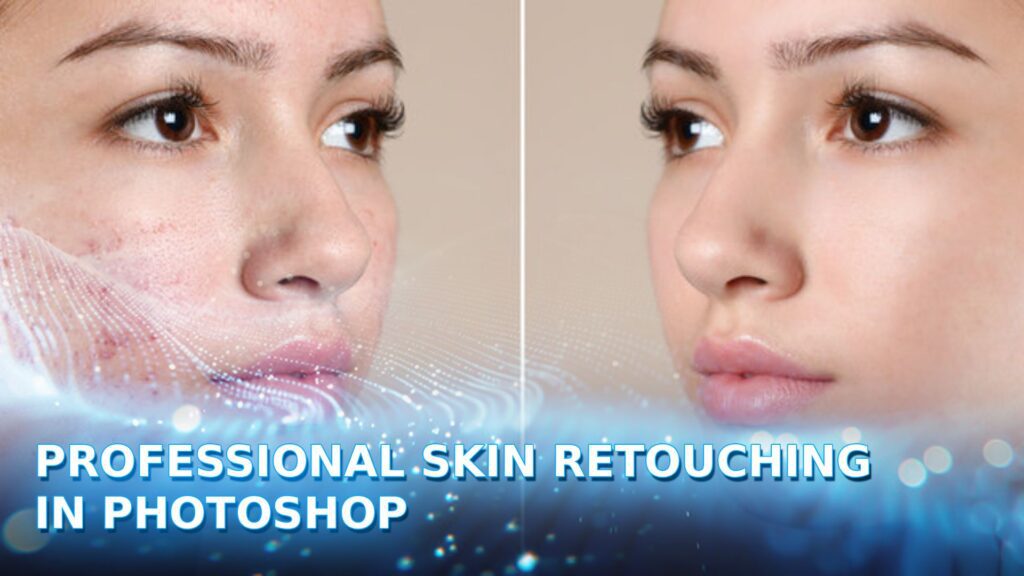
What Is Skin Retouching In Photoshop?
Skin retouching in Photoshop is the process of enhancing a subject’s skin by reducing blemishes, uneven tones, and minor imperfections while preserving natural texture and facial features. The goal is not to create perfectly flawless skin, but to achieve a clean, polished look that still appears realistic.
Professional skin retouching typically involves techniques such as blemish removal, skin smoothing, Dodge & Burn, and color correction. When applied carefully, these adjustments can improve the overall appearance of a portrait without making the skin look overly soft or artificial.
Whether you are editing headshots, beauty portraits, or commercial photography, effective skin retouching helps create professional-quality images while maintaining the subject’s natural character and authenticity.
Professional Skin Retouching In Photoshop: Step-By-Step Guide
The aim is not to remove all the details, but to make the image sharper without compromising the personality of the individual. Keeping this at heart, let’s remove the enigma of the five must-do steps to retouch skin in Photoshop for a pro-level outcome.
Step 1: Open Photoshop And Prepare Your Image
If you have cleaned up blemishes and imperfections already, your picture should already be open in Photoshop, so go to the next step of your skin retouching process.
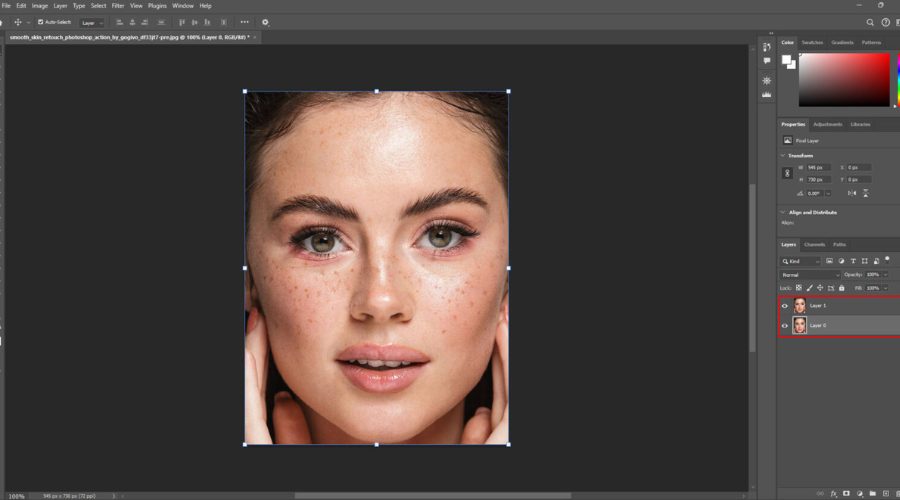
If you’re doing a different image for skin softening, begin by opening Photoshop and opening a high-resolution picture. When you have opened it, copy the picture by utilizing Ctrl/Cmd + J.
Second, right-click on this copied layer and choose Convert to Smart Object. This will enable you to apply smart filters in a non-destructive manner, which is important for professional skin retouching photoshop workflows. Then, copy the Smart Object layer again. Having two smart layers is a particular reason:
- The first Smart Object layer will later blur and smooth the skin.
- The replicated Smart Object layer still has the original skin texture, with all the original details.
>>> See more:
- Average Photo Editing Services Prices by Country
- How to Edit Car Photos | Key Techniques of Car Photo Editing
- Best Free Online Tools for Happy Birthday Photo Editing
Step 2: Remove Blemishes And Imperfections
Use the Spot Healing Brush to click on any blemish that you wish to erase. Photoshop immediately covers up the ruined texture with the smooth skin texture surrounding it and erases the imperfection from view.
To achieve the most natural-looking skin retouching Photoshop results, make your brush size just larger than the pimple itself. You can both enlarge and reduce your brush easily on your keyboard: to enlarge the size of it, press on the right bracket key ( ] ); to reduce the size of it, press on the left bracket key ( [ ]).
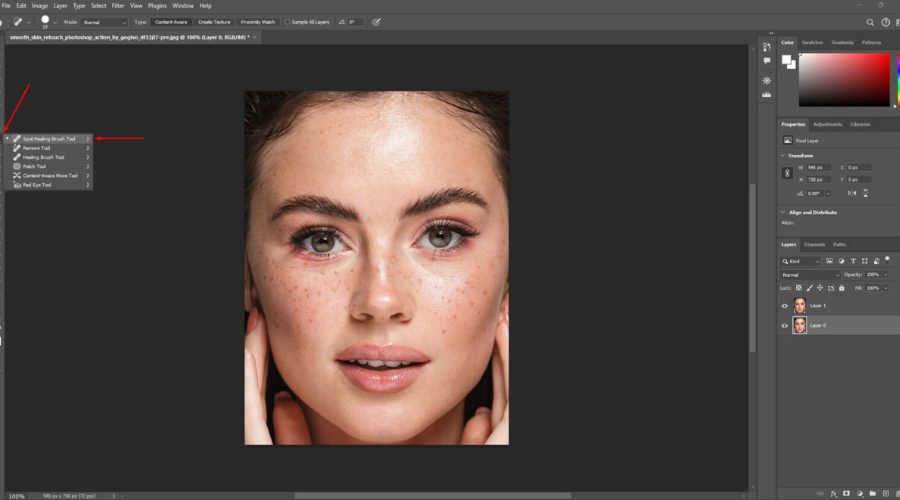
Use the Spot Healing Brush to click on any blemish that you wish to erase
If the spot is not erased the first time, press Ctrl+Z (Windows) / Command+Z (Mac) to reverse, resize your brush if necessary, and try again.
When trying to retouch skin in photoshop, remember that it’s fine to remove temporary issues such as pimples or small spots, but permanent traits such as moles or defining scars shouldn’t really be altered, as they’re a part of someone’s own signature appearance.
Finally, skin retouching is meant to improve one’s natural appearance and not change their identity.
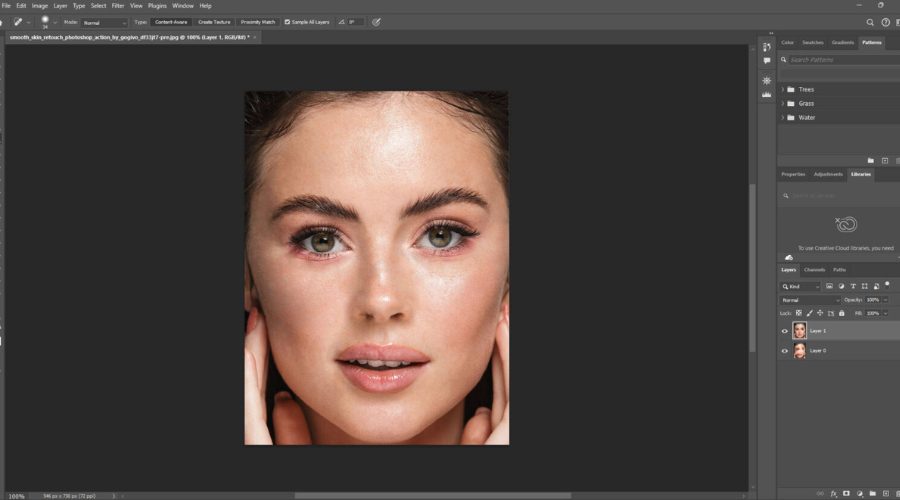
It’s fine to remove temporary issues such as pimples or small spots (Source: Internet)
Step 3: Smooth The Skin (Skin Texture)
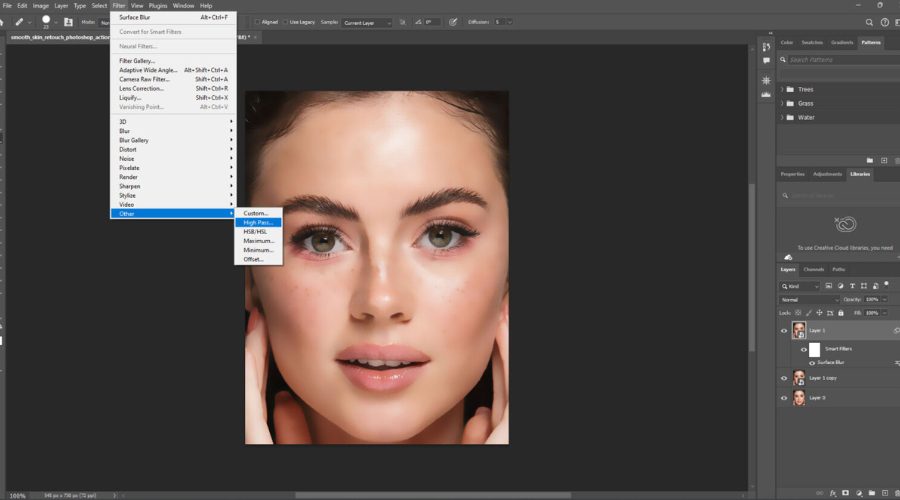
To smoothen the skin texture without losing its natural texture, you can use Photoshop’s Smooth Skin Quick Action. Open your photo in Photoshop, navigate to the Discover panel (through the search icon or Ctrl/Cmd + F), then Browse > Quick Actions > Smooth skin, and Apply.
When you use it for the first time, you will need to download the matching neural filter first. This technique is quick and efficient in eliminating flaws such as fine lines or blemishes without compromising the overall texture, making it a popular action retouch skin photoshop method among both beginners and professional retouchers.
Step 4: Even Out Skin Tone (Dodge & Burn)
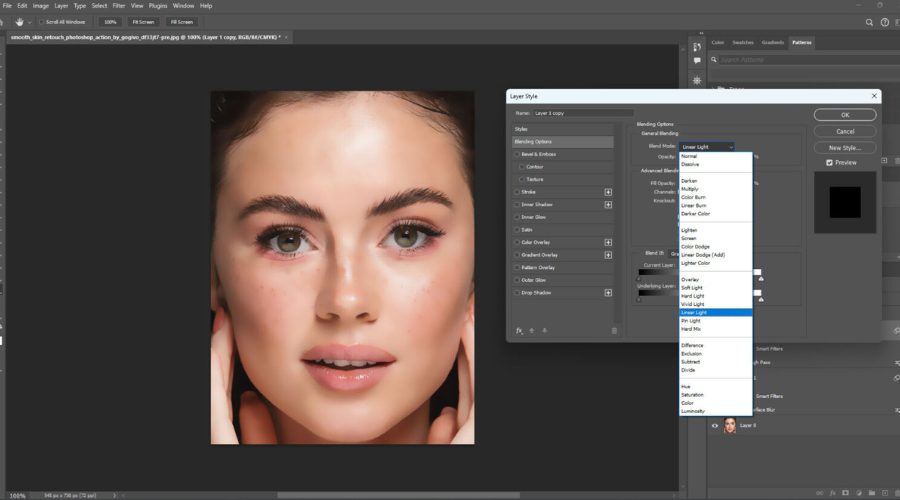
A traditional and very effective technique of trying to retouch skin in Photoshop and evening out the skin tone is the Dodge & Burn technique using soft light or curves adjustment layers. Begin with a new layer using Soft Light blending mode (neutral gray fill).
Next, use a low-opacity soft brush with white to lighten dark areas (dodging) and black to darken highlight spots (burning). This gradually balances skin tone without losing detail. More control is used by professionals with Curves adjustment layers with masks, applying dodge and burn carefully to create realistic effects, a fundamental technique in high-end skin retouching.
>>> See more:
- Top 10 Photo Editing Services Online In 2026: Comparison & Review
- AI Image Processing Tools: Top 10 for Automation In 2026
- Best Product Photo Editing Services For eCommerce: Top Providers Compared
Step 5: Final Adjustments
When texture and tone are perfect, the final details can be added. Final touches are usually color correction, subtle blemish removal, and contrast adjustment to produce a pleasing look.
The majority of retouchers use this order of tasks: Blemish removal → Dodge & Burn → Frequency Separation → Color correction. This linear process maintains skin with a natural look, highlights, shadows, and tone blended, which is a crucial aspect of how professionals retouch skin in Photoshop.
AI Tools In Photoshop For Skin Retouching
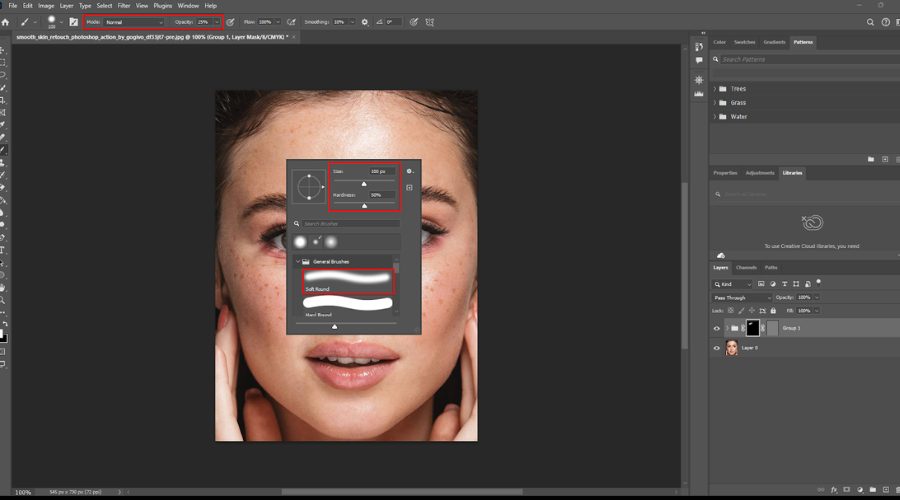
New Photoshop skin retouching is quicker and more accurate due to AI tools. No longer do you spend hours of hand-eye work, but now you can count on AI skin retouching techniques to assist you with keeping the outcome natural and real-looking. Similar AI technologies are also used in image processing for virtual try-on AI model applications, where realistic skin rendering and precise facial feature preservation are essential for creating convincing virtual experiences.
- Neural Filters – Skin Smoothing: This smart AI filter smooths blemishes, wrinkles, and texture at a click while not losing natural details. One of the quickest methods to retouch skin in Photoshop for a professional appearance.
- Neural Filters – Smart Portrait: Above and beyond simple skin adjustments, this tool allows you to refine facial expressions, light conditions, and age without losing personal details. It introduces creative flair to Photoshop skin retouching.
- Remove Tool (Artificial Intelligence-based): Ideal for the elimination of distraction or major blemishes, this tool has AI fill out desired areas with neighboring pixels naturally, fluidly, and seamlessly, making your skin feel smooth and natural.
- Select Subject (AI Selection): Adobe Sensei-powered, it automatically selects and detects the prominent subject in your photo. It is efficient and isolates the skin areas for precise retouching.
- Content-Aware Fill (AI-enabled): AI support allows this tool to eliminate undesirable objects and fill in the chosen region with corresponding textures and tone to hide the edit.
- Camera Raw AI Masks: Adobe Camera Raw AI masking provides easy selection of facial or skin regions without hassle. Use it when making global adjustments prior to going into specific Photoshop skin retouching.
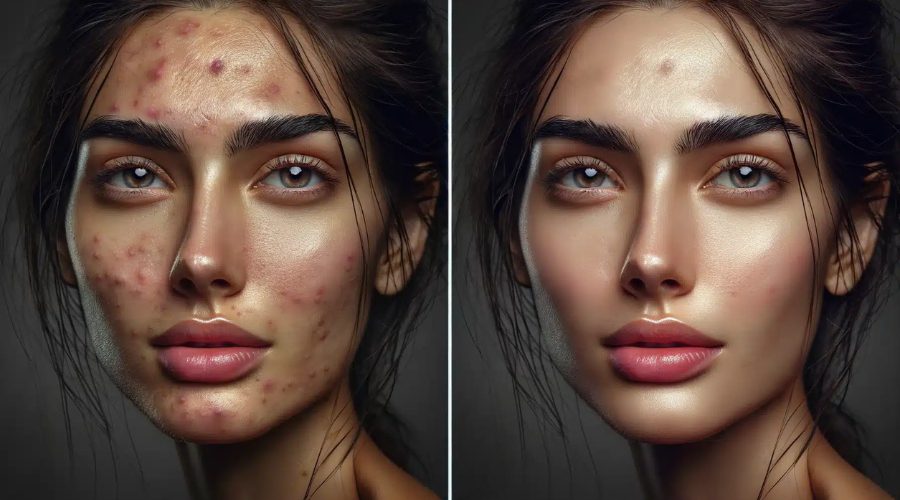
New Photoshop skin retouching is quicker and more accurate due to AI tools
Common Skin Retouching Mistakes To Avoid
Even with powerful Photoshop tools, it is easy to over-edit a portrait and lose its natural appearance. Avoid these common skin retouching mistakes to achieve more professional results:
- Over-smoothing the skin: Excessive smoothing can remove natural pores and texture, creating an unrealistic, plastic-like effect.
- Removing permanent features: While temporary blemishes can be retouched, features such as freckles, moles, or scars should only be removed if necessary, as they contribute to a person’s identity.
- Overusing AI tools: AI-powered filters can speed up skin retouching, but applying them too aggressively may produce unnatural results.
- Ignoring skin tone consistency: Uneven color corrections can make the skin appear patchy or discolored. Always aim for balanced, natural-looking tones.
- Using high-opacity adjustments: Strong edits often look obvious. Working with lower opacity settings allows for smoother, more realistic blending.
- Neglecting the original lighting: Retouching should complement the image’s existing light and shadows rather than flatten facial features.
By preserving skin texture, maintaining natural facial characteristics, and making subtle adjustments, you can create polished portraits that still look authentic.
Quick Tips For Natural Results
As you retouch skin in Photoshop, your aim should be to add beauty without sacrificing reality. Too much editing will result in plastic or unnatural-looking skin, and thus a natural equilibrium is required. Below are some important tips to achieve professional yet subtle skin retouching:
“Retouching should be invisible. If someone notices the retouching before they notice the subject, you’ve gone too far.” — Scott Kelby. This philosophy reflects the importance of preserving natural skin texture and avoiding excessive smoothing, helping portraits look polished without appearing artificial.
- Maintain Skin Texture: Retain pores, tiny details, and natural texture to prevent too-plastic-looking skin.
- Don’t Over-Smooth: Use only sufficient smoothing to eliminate blemishes, without eliminating facial character or natural creases.
- Balance Skin Tone: Adjustment layers or Dodge & Burn can be used to balance skin tones without sacrificing total depth.
- Work with Low Opacity: Using the Healing Brush or Clone Stamp, work on a lower opacity for more delicate, natural blending.
- Pay close Attention to Lighting: Use skin retouching to the direction and tone of the natural light so that the result will look natural.
- Check the Image at Different Zoom Levels: Zoom out occasionally to verify your edits are natural when viewed in full.
- Do Subtle Color Grading: Perform subtle color corrections to achieve even skin tones, not unnatural orange or pink hues.
Too much editing will result in plastic or unnatural-looking skin, and thus, a natural equilibrium is required
While working on skin retouching, don’t forget the eyes — you can check out this guide on how to retouch eyes in Photoshop to make portraits look even more engaging.
Beyond skin work, it’s also important to refine the overall look of the photo; here’s a step-by-step tutorial on how to edit portraits in Photoshop for a polished final result.
FAQs About Skin Retouching
Can Photoshop AI Retouch Skin Automatically?
Yes. Photoshop offers AI-powered tools such as Neural Filters, Remove Tool, and Camera Raw AI Masks that can smooth skin and remove imperfections automatically while maintaining natural detail.
How Can I Smooth Skin Without Losing Texture In Photoshop?
To smooth skin without losing texture in Photoshop, focus on reducing uneven tones rather than completely blurring the skin. One of the most effective methods is to use the Smooth Skin Neural Filter at a low intensity or apply Dodge & Burn techniques to even out highlights and shadows while preserving natural pores and fine details. For more advanced retouching, Frequency Separation allows you to edit skin tone and texture on separate layers, helping maintain a realistic appearance.
The technique behind learning to retouch skin in Photoshop is finding the balance between enhancement and realism. With the proper tools and techniques, you can not only enhance natural beauty but also preserve texture and originality, making your portraits professional and realistic.
Should you require professional assistance beyond personal editing, DIGI-TEXX has expert photo post-production as well as editing services specially crafted to meet diverse business needs. Our proficiency guarantees regular, effective, and natural outcomes, sparing your time and meeting professional standards. For professional results beyond DIY editing, you can explore our photo retouching services to give your images a flawless finish.
DIGI-TEXX Contact Information:
🌐 Website: https://digi-texx.com/
📞 Hotline: +84 28 3715 5325
✉️ Email: [email protected]
🏢 Address:
- Headquarters: Anna Building, QTSC, Trung My Tay Ward
- Office 1: German House, 33 Le Duan, Saigon Ward
- Office 2: DIGI-TEXX Building, 477-479 An Duong Vuong, Binh Phu Ward
- Office 3: Innovation Solution Center, ISC Hau Giang, 198 19 Thang 8 street, Vi Tan Ward
Reference:
- Adobe. Learn to use Neural Filters in Photoshop. Adobe Help Center. https://helpx.adobe.com/sg/photoshop/using/neural-filters.html
- Adobe. Neural Filters list and FAQ. Adobe Help Center. https://helpx.adobe.com/photoshop/using/neural-filters-list-and-faq.html