

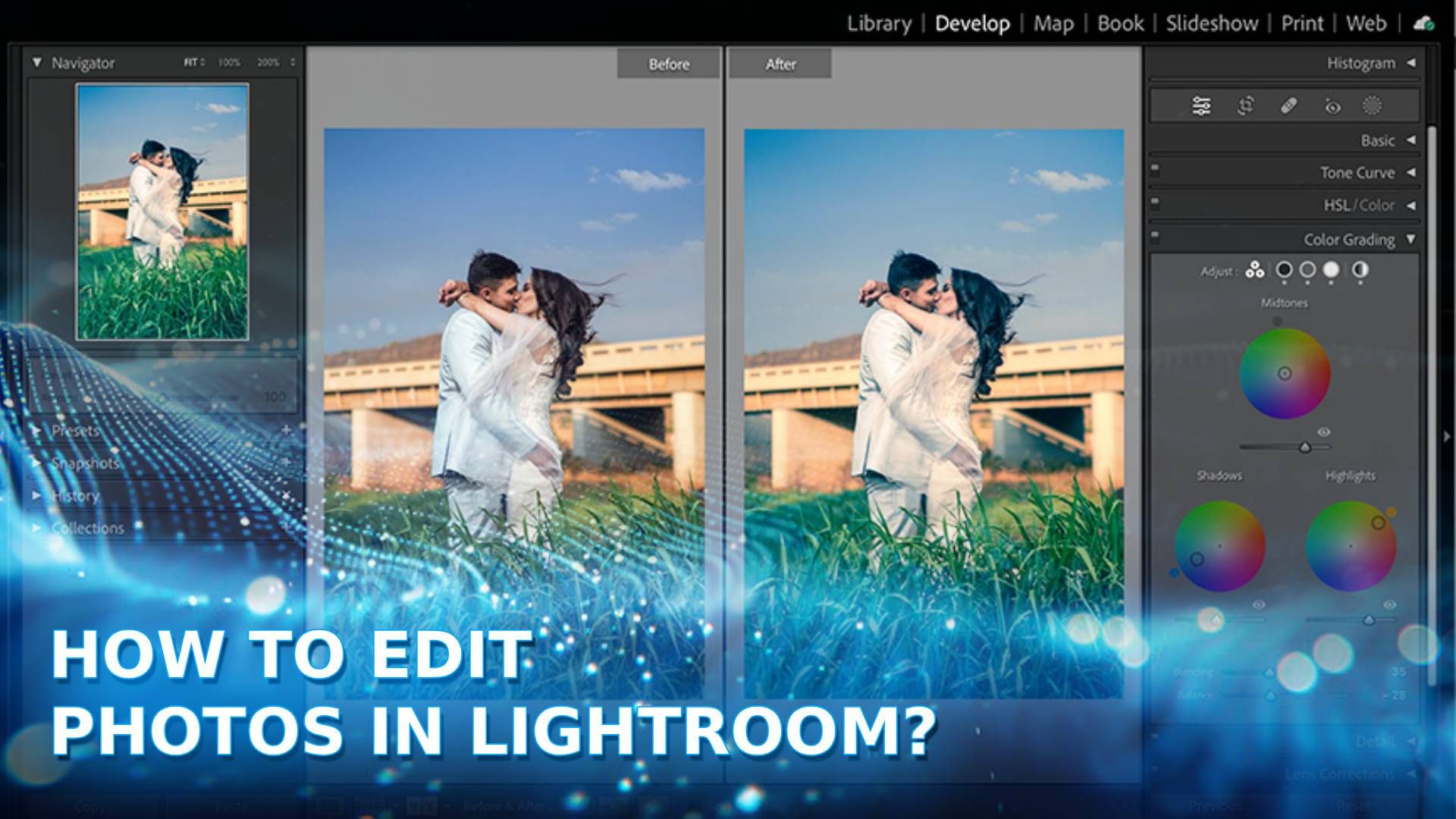
Edit photos in Lightroom can feel overwhelming due to complex toolbars and histograms, often ruining various styles of photo editing with muddy colors. Whether you are learning the basics or evaluating professional photo retouching services from experts like DIGI-TEXX, mastering a standard workflow creates images with professional depth.
To perfectly edit photos in Lightroom, you must follow a sequential workflow. Start by importing RAW files, correct your white balance and exposure in the Basic Panel, enhance specific colors using the HSL Panel, apply local adjustments with AI masking, reduce image noise, and finally use batch editing to sync settings across similar images.
What Do You Need Before Editing In Lightroom?
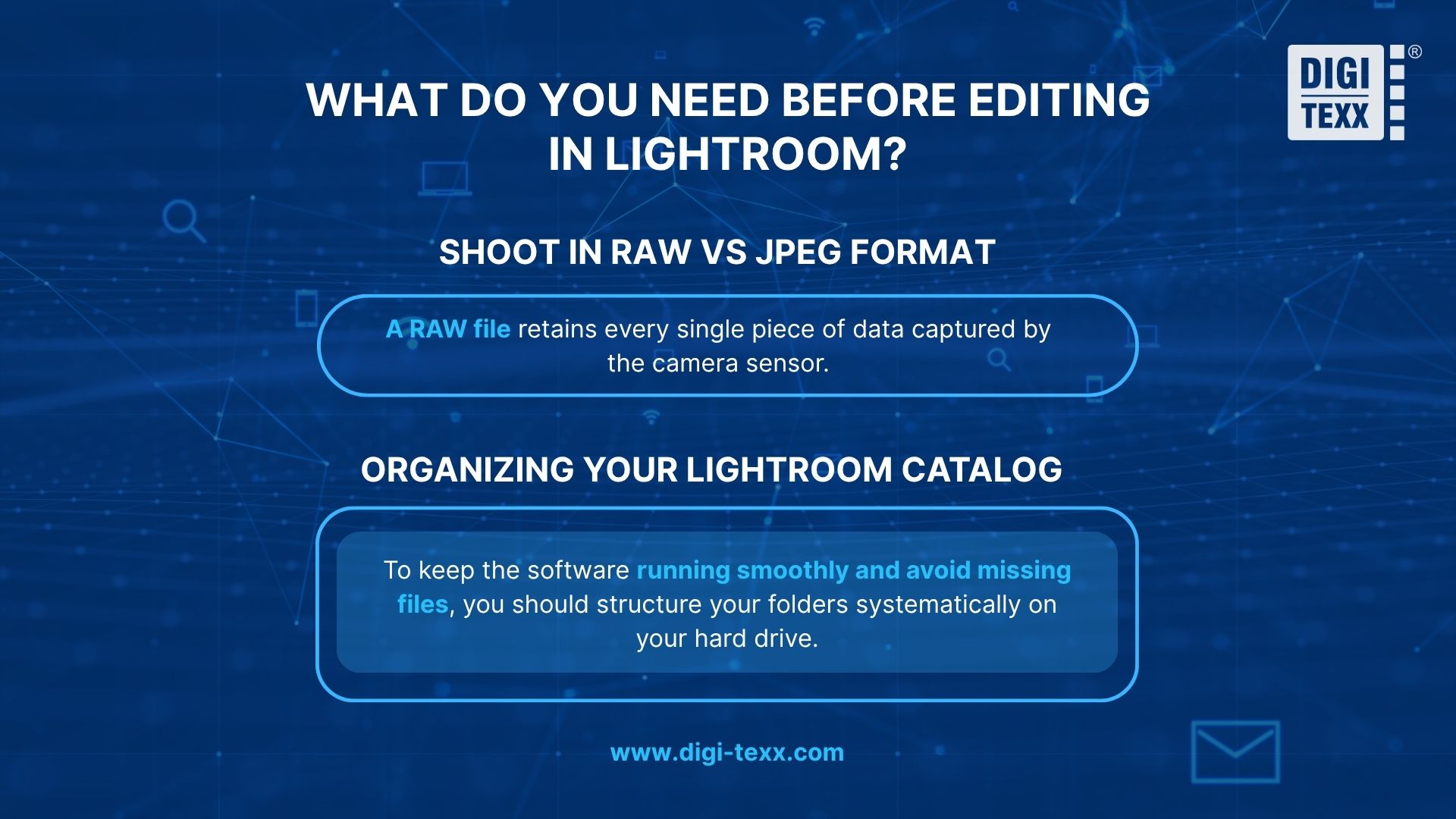
Before you edit photos in Lightroom, you need to establish a solid technical foundation. You must shoot your images in RAW format to retain maximum color data and organize your Lightroom catalog logically to prevent file loss and system lag during the editing process.
Preparing the right file format and structuring your folders logically will determine the success of your post-processing phase.
Shoot In RAW Vs JPEG Format
To maximize the capability of Adobe Lightroom, your first strict rule is to shoot in RAW format. A JPEG file is compressed by your camera, meaning the system permanently discards a massive amount of lighting and color data to save storage space. A RAW file retains every single piece of data captured by the camera sensor.
This data retention provides an incredibly large editing margin. When you capture an image with strong backlighting that leaves your subject completely dark, a RAW file allows you to recover the shadow details cleanly. If you attempt the same shadow recovery on a JPEG file, the image will immediately break apart and show heavy digital noise.
Organizing Your Lightroom Catalog
Adobe Lightroom does not edit your original image files directly. The software uses a non-destructive system. It creates a Catalog that simply records the changes and mathematical adjustments you apply to the image.
To keep the software running smoothly and avoid missing files, you should structure your folders systematically on your hard drive. A highly recommended structure is Year/Month/Project_Name. You must always back up your Catalog file alongside your original raw images to an external hard drive to secure your entire photography project.
>>>See more:
- How To Make A Clipping Path In Illustrator (Step-By-Step)?
- Top 10 Photo Editing Services Online In 2026: Comparison & Review
- Best Product Photo Editing Services For eCommerce: Top Providers Compared
How To Edit Photos In Lightroom To Look Professional?
The 7-step-by-step workflow to edit photos in Lightroom includes fixing white balance, adjusting exposure, tweaking HSL colors, applying AI masking for local edits, sharpening details, healing blemishes, and exporting the final image in the correct color space.
This specific workflow follows standard graphic information processing logic. Moving systematically from basic lighting to detailed color grading helps you maintain complete control over the image. This is the core secret to answering how I edit photos in Lightroom while keeping the final result looking natural.
Step 1: Fix White Balance And Color Temperature
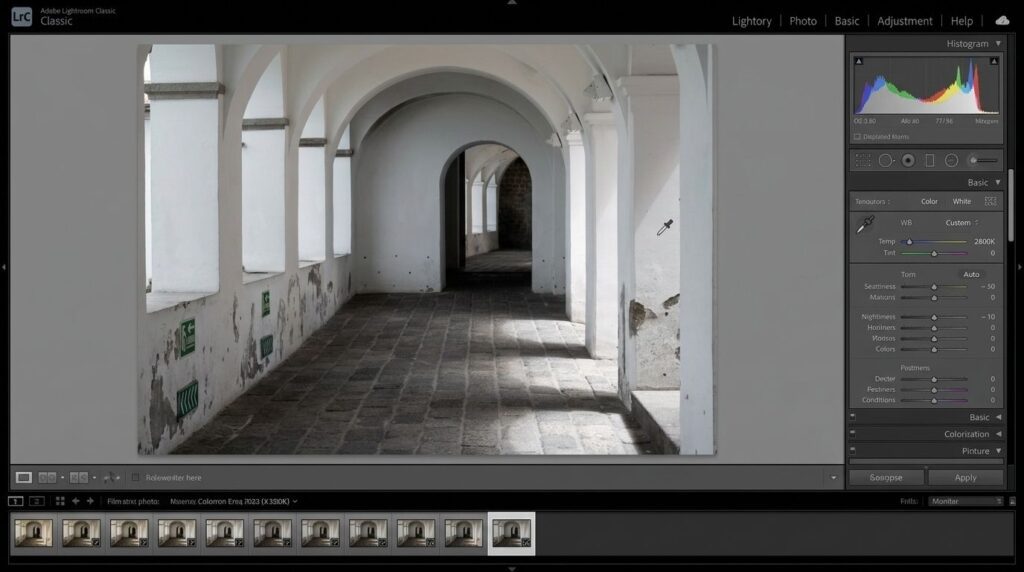
The very first step is to bring the colors of your image back to a neutral state that matches human vision. Accurate white balance is the foundation of high-quality ecommerce product photo retouching services, because if your photo has a heavy yellow tint from indoor lighting, any color grading you apply later will look completely wrong.
You can use the Eyedropper tool located in the Basic Panel. Click on a specific area in your photo that should be pure white or neutral gray. The software will automatically calculate and neutralize the color cast. Alternatively, you can manually move the Temp slider to the left to cool down the image with blue tones or to the right to warm it up with yellow tones. The Tint slider helps you balance green and magenta hues.
Step 2: Adjust Exposure And Contrast (The Basic Panel)
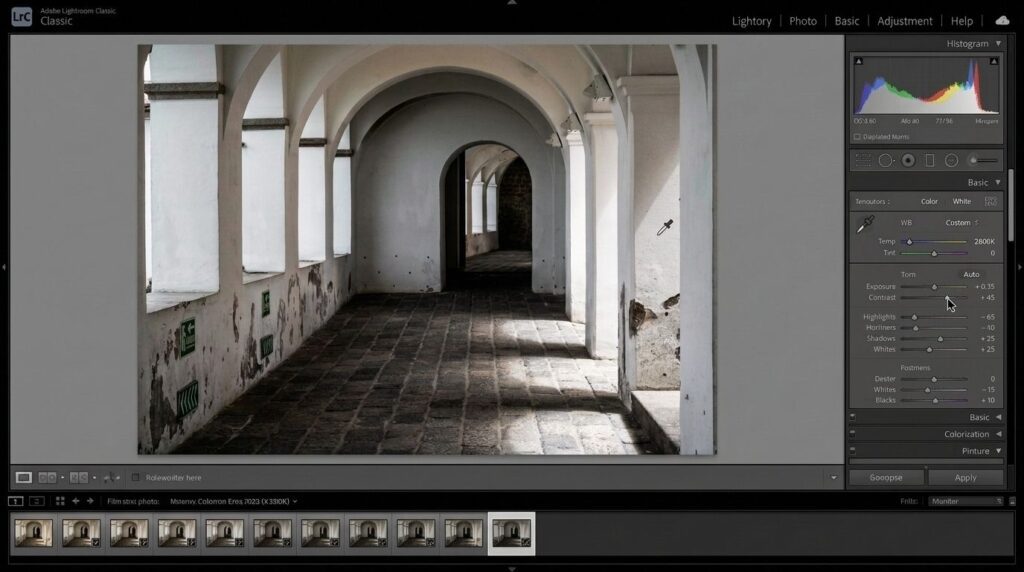
The Basic Panel shapes the foundational lighting structure of your entire frame. This is the most critical area for fixing errors from straight-out-of-camera files. You must watch the Histogram at the top right corner while moving these sliders to ensure you do not destroy data.
- Exposure: This controls the overall brightness of the entire image.
- Contrast: This defines the difference between the brightest and darkest areas. Increasing contrast makes the image punchy and adds visual depth.
- Highlights: This slider targets the brightest details, such as the sky or white clothing. Pulling this slider down into the negative numbers helps you recover details in blown-out clouds.
- Shadows: This slider targets the dark areas. Pushing this slider up into the positive numbers brightens the face of a subject standing in a dark shadow.
- Whites and Blacks: These set the absolute brightest white point and the absolute darkest black point in your image to establish a full dynamic range.
>>> See more:
- Photo Editing Price Guide 2026: Rates, Costs & Examples
- Fashion Photo Editing Services: Benefits, Techniques & Expert Tips
- E-commerce Photo Editing Services: Top Companies & Solutions For Online Stores
Step 3: Enhance Colors With The HSL Panel
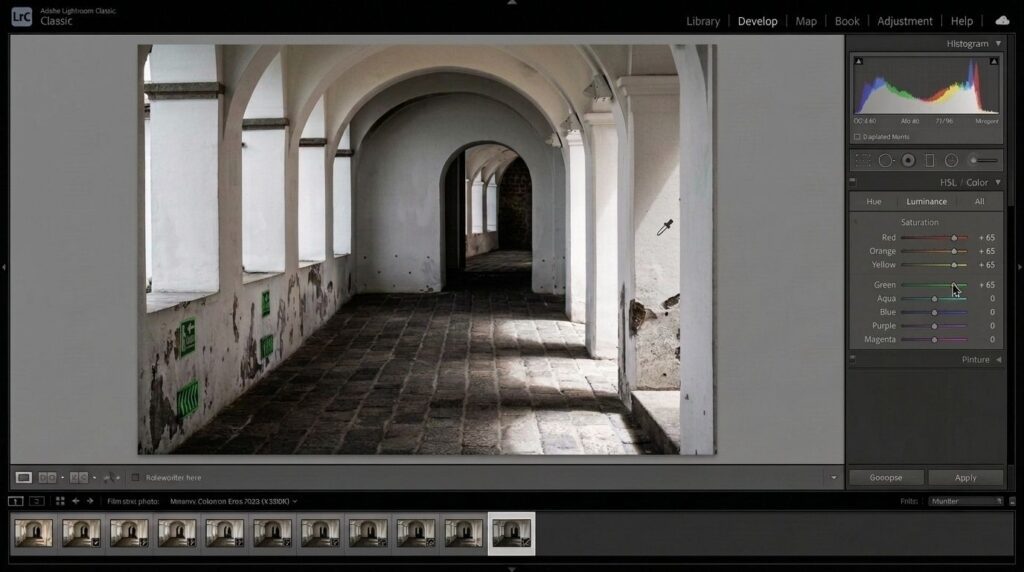
The HSL Panel stands for Hue, Saturation, and Luminance. This tool separates the image into eight distinct color channels. This is where you create a unique visual style for your photography.
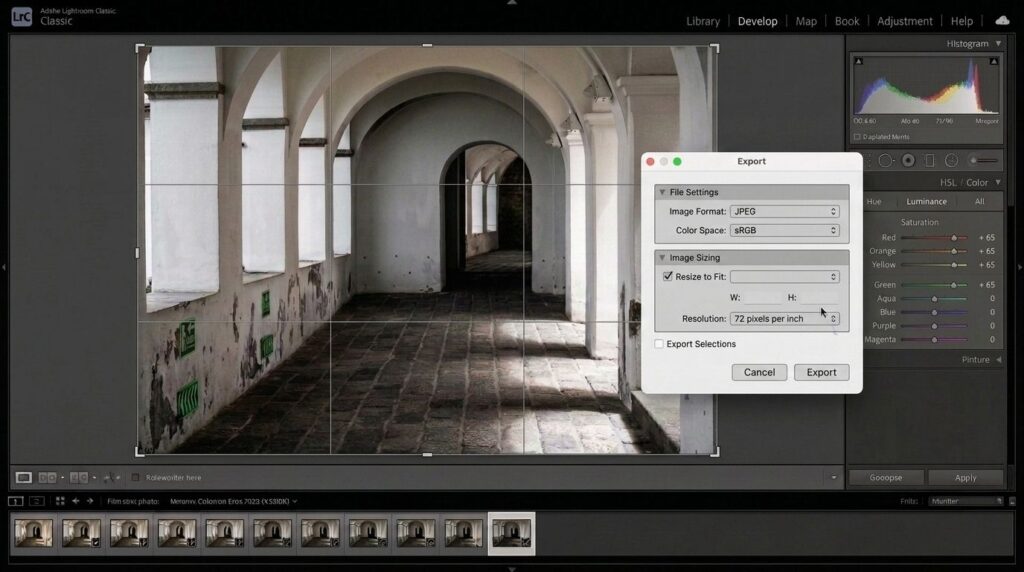
- Hue: This allows you to shift a specific color toward a neighboring color on the spectrum. For example, you can shift the green hue of the directional signs on the wall slightly towards teal or yellow to ensure they perfectly match a specific brand identity.
- Saturation: This controls the intensity or purity of a color. By increasing the saturation of the Green channel, you can make the small signs on the left wall pop out vibrantly against the neutral white and grey stone background, instantly drawing the viewer’s eye.
- Luminance: This controls the brightness of a specific color. If the green signs appear too dark or get lost in the shadows of the arches, increasing the luminance of the Green channel will make them look brighter and more legible without altering the exposure of the entire hallway.
Step 4: Apply Local Adjustments With AI Masking
The latest advancements in AI image processing and masking technology have completely revolutionized the workflow, especially for complex portrait photo editing. Instead of using a manual brush to paint over specific areas, the AI engine can automatically detect objects and subjects within seconds.
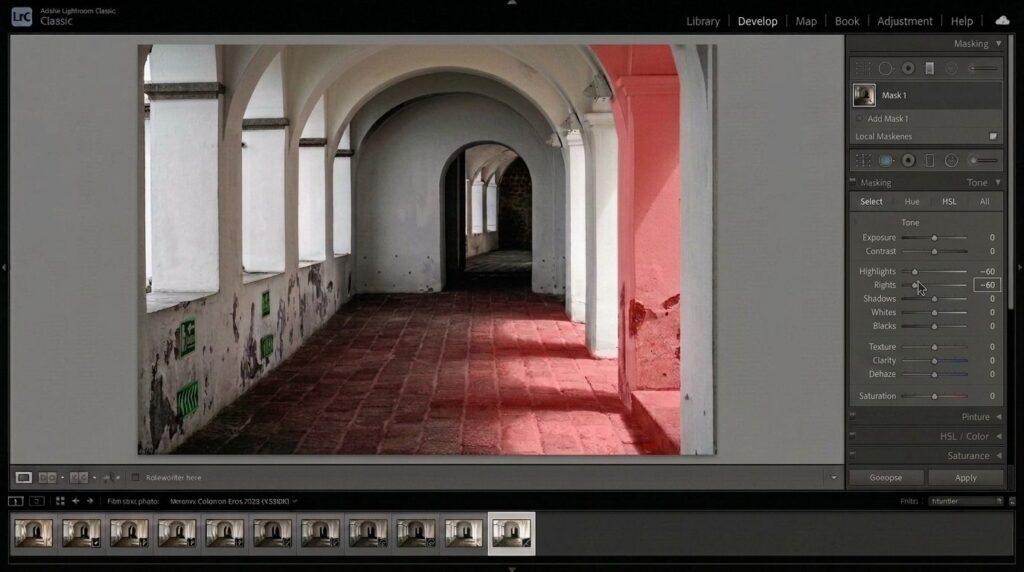
Instead of altering the entire frame, you simply click on the Masking icon. For architectural shots with extreme lighting, you can use AI to instantly select bright highlight areas or deep background shadows. Once the software generates the precise selection mask, indicated by a red overlay, you can adjust the brightness, color, or sharpness exclusively for that area.
For instance, if you want to recover the stone textures in the brightly lit floor patches without darkening the rest of the neutral corridor, AI masking is the exact tool to solve this problem.
Step 5: Detail Panel For Sharpening And AI Noise Reduction
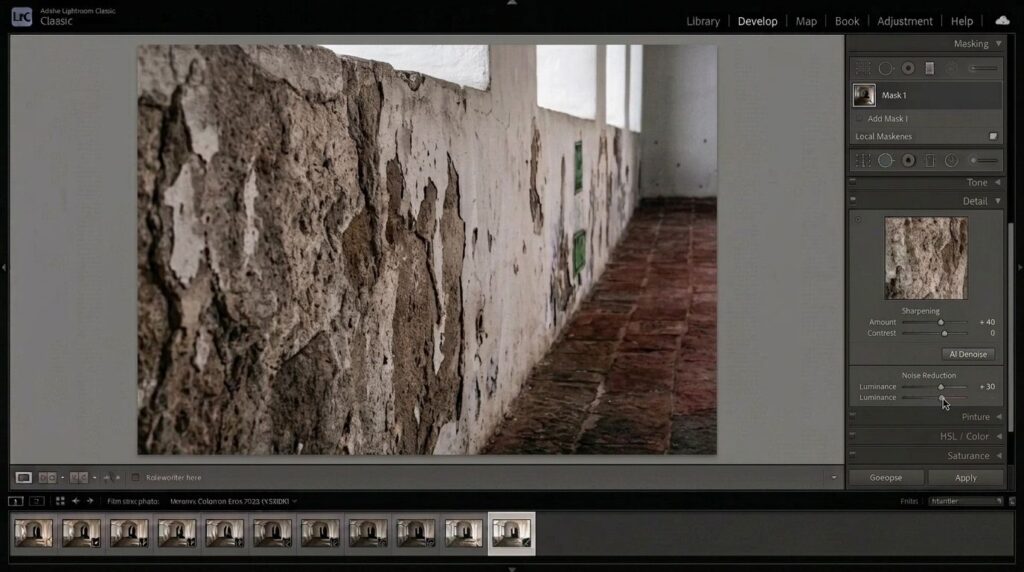
After perfecting your lighting and colors, the Detail Panel helps you refine the technical quality of the photograph. When you shoot in low light conditions (like the deep shadows of an arched corridor) with a high ISO setting, your image will display digital noise or grain.
The AI Denoise feature scans the image and removes these digital artifacts while attempting to preserve edge details. However, applying too much noise reduction will destroy the actual texture of the image. Your stone walls and cobbled floors will end up looking unnaturally smooth, almost like plastic. You must balance the Noise Reduction slider with the Sharpening slider to maintain a natural, realistic architectural appearance.
Pro Tip: Hold down the Alt key on Windows or the “Option” key on Mac while moving the Masking slider under the Sharpening section. The screen will turn black and white. The white areas indicate where the sharpening is being applied. This ensures you only sharpen the edges of your subject and not the empty background.
>>> See more:
- Birthday Editing Online Free: Tools, Frames & Creative Ideas
- 15 Best Document Scanning Software: Features, Pricing & Reviews 2026
- What Is Multiple Clipping Path Service? A Complete Guide
Step 6: Remove Blemishes With The Healing Tool
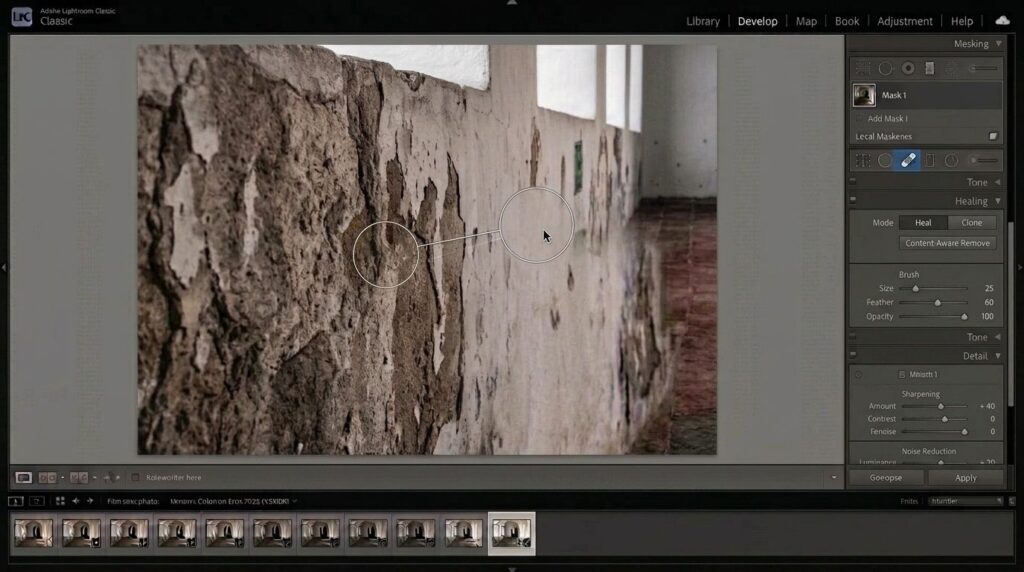
Dust spots on your camera sensor or a small piece of trash on the grass can ruin an otherwise perfect composition. While it cannot completely restore damaged photographs with severe tears (which requires intensive Photoshop work), the Healing Tool allows you to remove minor distracting elements like dust spots easily.
You simply adjust the brush size and paint over the unwanted object. The software analyzes the surrounding pixels and automatically blends clean texture and color over the blemish. Use the Heal mode for flat surfaces like the plastered wall to ensure a smooth texture blend and use the Clone mode for hard edges like the boundary between the peeling paint and the bare stone.
Step 7: Crop, Straighten, And Export Settings
The final step is to refine your composition and generate the final file. Use the Crop tool to straighten tilted architectural lines, ensuring your stone columns are perfectly vertical. You can also apply the Rule of Thirds overlay to position your main subject or leading lines at the most visually engaging intersection points.
When you are ready to export, you need to choose the correct settings for your specific platform. Select the JPEG format and the sRGB color space if you plan to post the image on social media or a website. Set the resolution to 72 to 150 PPI. If you are exporting the image for professional print, you should select the AdobeRGB color space and maintain a high resolution of exactly 300 PPI.
How To Edit Pictures Quicker In Lightroom?
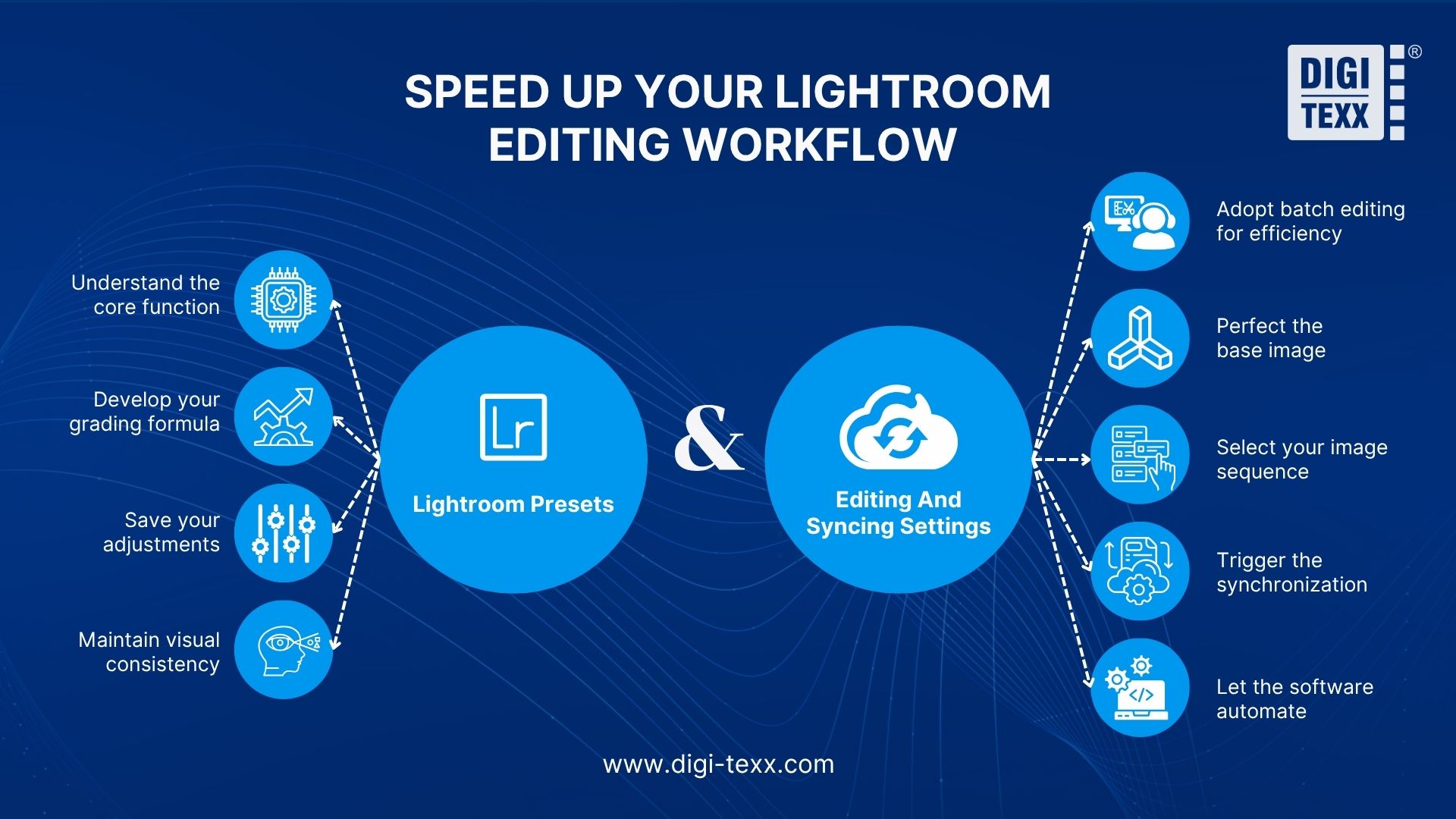
Processing hundreds of photos after an event can take days if you adjust every single image manually. To speed up your Lightroom editing workflow, you should utilize custom presets for instant styling and apply batch editing to synchronize adjustments across large sets of photos.
Using And Creating Lightroom Presets
Presets are essentially saved configuration files that contain all the lighting and color adjustments you just made. Whether you are learning how to make photos look like film or creating a gritty vibe for street style photo editing, once you find a perfect color grading formula, you can save it as a new Preset.
During future photo sessions with similar lighting conditions, you only need one click to apply this complex formula. This guarantees a highly consistent look for your personal brand or professional portfolio.
Batch Editing And Syncing Settings
Batch editing is an absolute necessity for commercial photographers or any professional wedding photo editing service handling thousands of event images. The process is extremely straightforward and saves hours of tedious work.
- Edit the first photo completely to achieve your desired look in a specific lighting environment.
- Select that edited photo, then hold the Shift key to select dozens of other photos taken in the same exact lighting condition.
- Click the Sync button at the bottom of the right-hand panel.
The software will instantly apply your precise exposure corrections and HSL color grading from the first photo to every other selected photo in a matter of seconds.
Furthermore, maintaining this strict level of lighting and color consistency across massive image batches is the foundational step before feeding data into advanced machine learning systems, as demonstrated in our recent case study on image processing for virtual try-on AI model.
>>> See more:
- Top 10 Free Photo Retouch Tools Online In 2026
- What Is A Clipping Path? Learn To Use Professional Image Isolation
- How To Restore Damaged Photographs: Best AI Tools, Software & Professional Services
Lightroom Classic vs Lightroom CC vs Lightroom Mobile
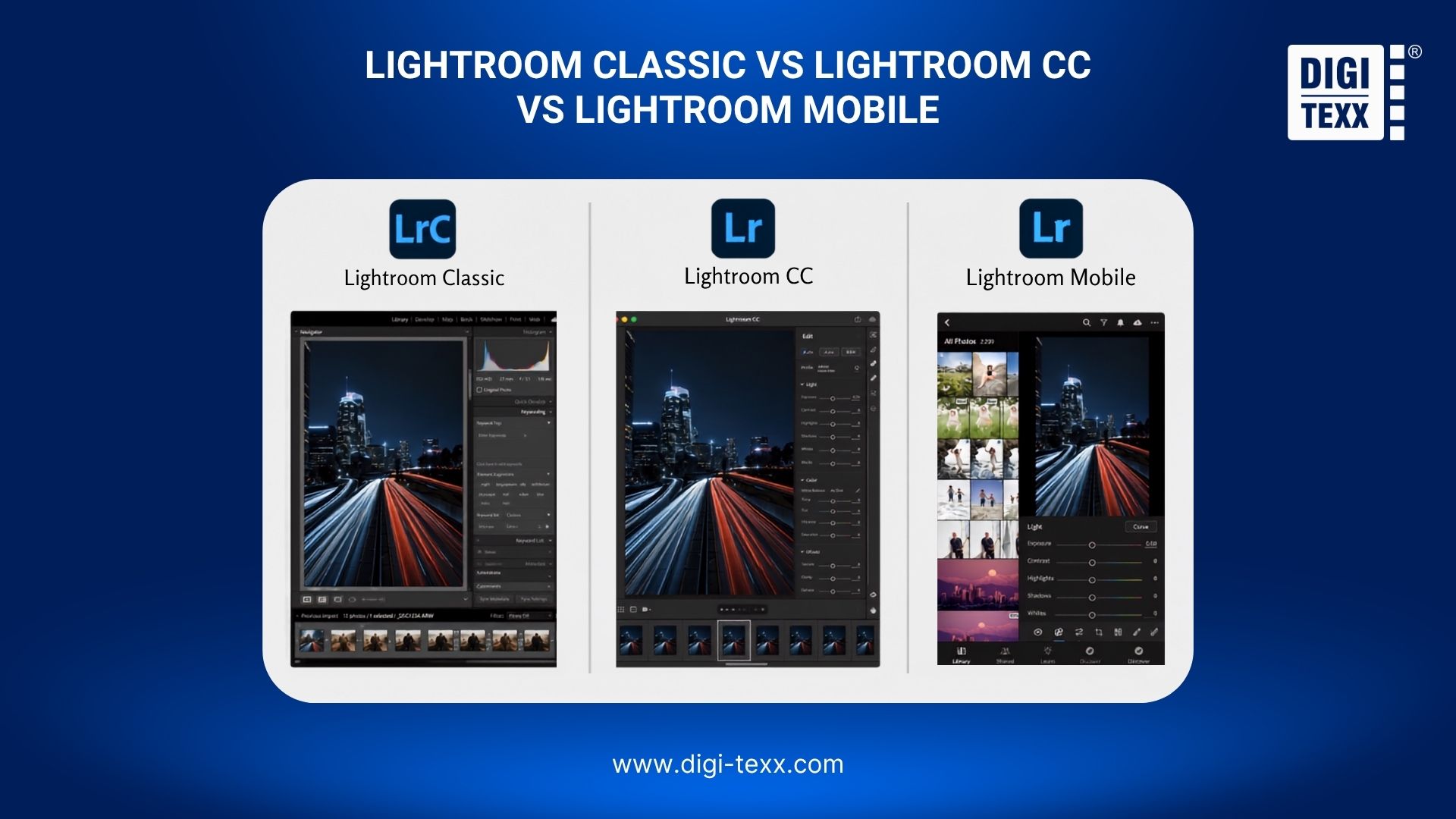
Lightroom Classic is designed for professional desktop use with local storage, Lightroom CC offers cloud-based editing across multiple devices, and Lightroom Mobile provides on-the-go editing directly from your smartphone. Understanding the differences helps you choose the right tool for your specific needs.
| Feature | Lightroom Classic | Lightroom CC (Cloud) | Lightroom Mobile |
| Best Target User | Professional Photographers, Large catalogs | Content Creators, Multi-device users | Mobile creators, Social media users |
| Data Storage | Local Hard Drives | Adobe Cloud Storage | Phone Storage / Cloud |
| Tool Depth & Power | Maximum (Advanced Printing, File management) | High (Core editing tools available) | Medium to High (Depending on Pro version) |
| Pricing Model | Paid Subscription | Paid Subscription | Lightroom free (Paid upgrade to Lightroom Pro) |
Widely considered the best photo editing app for professionals, Lightroom Mobile’s core engine is identical to the desktop version, making it the ultimate solution for those learning how to retouch photos on iPhone on the go. The 7-step workflow detailed above applies completely to your smartphone app. You only need to upgrade to Lightroom Pro if you want to unlock advanced features like AI Masking and the Healing Brush.
3 Common Lightroom Editing Mistakes To Avoid
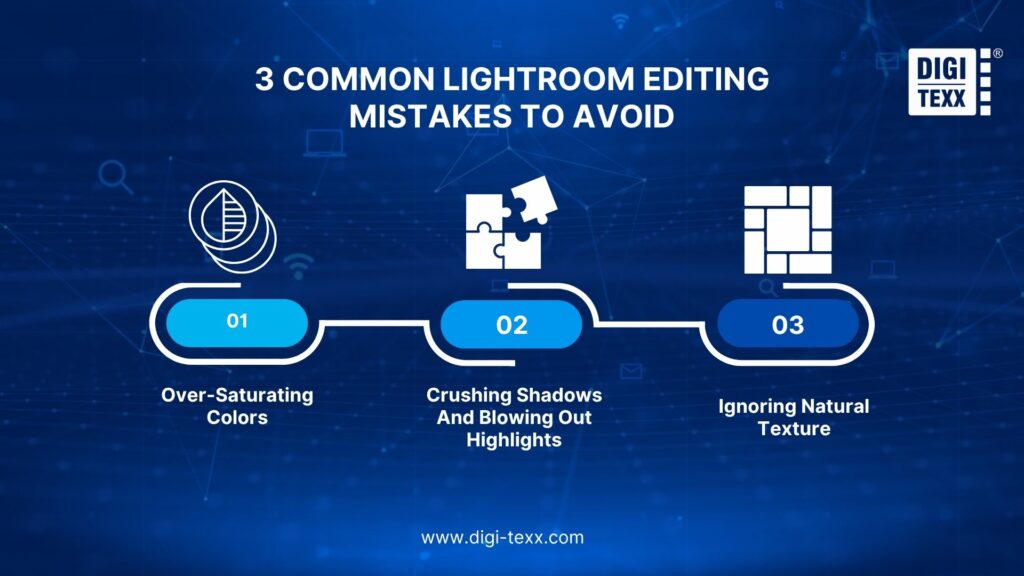
The most common Lightroom editing mistakes include over-saturating colors, crushing shadows or blowing out highlights by ignoring the histogram, and applying too much noise reduction which destroys natural texture.
“90% of online shoppers state that image quality is the most important factor in their purchase decision, outweighing even shipping costs and customer reviews.” – Etsy
1. Over-Saturating Colors
Many beginners push the Saturation slider far to the right to make the image pop. This results in neon green grass and bright orange human skin. Instead of using Saturation, which affects every color equally, you should use the Vibrance slider. Vibrance intelligently boosts muted colors while protecting skin tones from becoming unnatural.
2. Crushing Shadows And Blowing Out Highlights
Pushing the Contrast slider too far creates a harsh image. Crushing the blacks means your dark areas become solid black blocks with zero detail. Blowing out the highlights means your bright areas become pure white voids. Always monitor your Histogram. If the graph touches the extreme left or extreme right walls, you are permanently destroying image data.
3. Ignoring Natural Texture
Moving the Clarity slider or the Noise Reduction slider too aggressively will ruin the structural integrity of your photograph. Extreme negative Clarity or high Noise Reduction removes the pores on human skin. This transforms your human subject into an artificial plastic figure. Always zoom in to 100% when adjusting these detail panels to ensure you are retaining realistic textures.
>>> See more:
- Car Photo Editing Guide: Professional Results With Free Online Apps
- Best Jewelry Photo Editing Service Provider For E-Commerce Businesses
FAQs About Edit Photos In Lightroom
How Do I Edit Photos In Lightroom?
To edit photos in Lightroom, import your RAW files into your catalog and navigate to the Develop module. Start by fixing the white balance and exposure in the Basic panel. Next, enhance specific colors using the HSL tools, apply local adjustments with masking, reduce digital noise, and finally export.
How Do I Edit A Bunch Of Photos In Lightroom?
To edit a bunch of photos simultaneously, you should use the Batch Editing feature. First, fully edit one photo to achieve your desired look. Next, select that edited image, hold the Shift key, and highlight the remaining unedited photos. Finally, click the Sync button to instantly apply your settings.
Can You Edit Photos In Lightroom For Free?
Yes, you can edit photos in Lightroom for free by downloading the mobile application on iOS or Android. The free version provides essential tools including cropping, basic exposure sliders, and color grading. However, advanced features such as AI Masking, the Healing Brush, and cloud synchronization require a Lightroom Pro subscription.
Is Editing Pictures In Lightroom Mobile Different From The Desktop Version?
The mathematical processing and core functionality are exactly the same. The workflow from white balance to exposure and color grading remains identical. The only differences are the touch-based user interface and the fact that Classic relies on local hard drives while the mobile version relies heavily on cloud storage.
What Is The Difference Between Photoshop And Adobe Lightroom?
Lightroom is an image management and non-destructive editing tool built to handle exposure and color grading for hundreds of photos simultaneously. In contrast, Photoshop is an intensive pixel-manipulation software designed for complex compositing, graphic design, and altering the physical structure of a single image.
How Do I Prevent My Photo From Losing Quality After Exporting?
To maintain the highest quality upon export, ensure your Image Format is set to JPEG and the Quality slider is at 100. Do not check the Resize to Fit box to keep the original sensor resolution. Finally, select the sRGB Color Space to guarantee accurate colors across all screens.
Mastering how to edit photos in Lightroom doesn’t have to be overwhelming. By consistently following this 7-step workflow, from basic RAW exposure adjustments to advanced AI masking and batch editing, you can effortlessly achieve professional-grade results. Remember to monitor your histogram and avoid over-saturation to keep your images looking natural.
If you’re looking for professional photo editing services beyond your workflow, DIGI-TEXX can be your trusted partner. With advanced technology and a team of skilled editors, DIGI-TEXX delivers high-quality, consistent results tailored to your needs. Whether it’s large-scale image processing or customized editing solutions, DIGI-TEXX ensures efficiency and reliability at every step.
DIGI-TEXX Contact Information:
🌐 Website: https://digi-texx.com/
📞 Hotline: +84 28 3715 5325
✉️ Email: [email protected]
🏢 Address:
- Headquarters: Anna Building, QTSC, Trung My Tay Ward
- Office 1: German House, 33 Le Duan, Saigon Ward
- Office 2: DIGI-TEXX Building, 477-479 An Duong Vuong, Binh Phu Ward
- Office 3: Innovation Solution Center, ISC Hau Giang, 198 19 Thang 8 street, Vi Tan Ward
References
- Etsy. (n.d.). Why Product Photography Is Important. Etsy Seller Handbook. https://www.etsy.com/seller-handbook/article/22880566373
- Adobe. (2026). Understand image formats: RAW vs. JPEG. Adobe Creative Cloud Tutorials. https://www.adobe.com/creativecloud/photography/discover/raw-vs-jpeg.html