

Professional portraits photo editing is the art of honoring authentic beauty, where the retoucher acts as an artist, not a plastic surgeon. No matter which styles of photo editing are applied, even candid trends like street style photo editing, the standard workflow strictly adheres to a core principle: only removing temporary imperfections like minor blemishes or surface acne, while never altering body proportions or permanent traits such as unique moles, birthmarks, and scars unless explicitly requested by the client. This commitment defines the core value of the photo editing services online delivered by DIGI-TEXX.
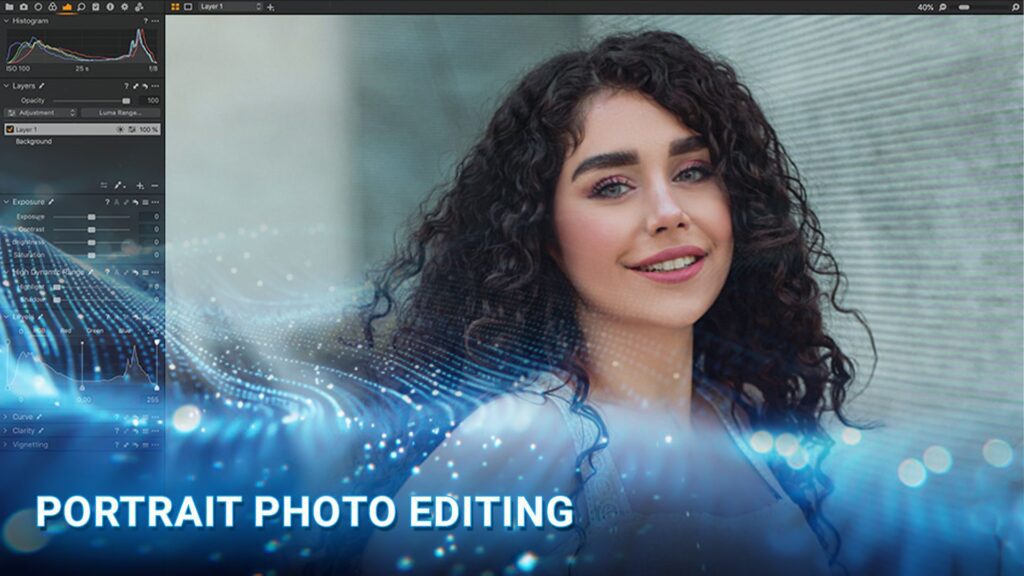
Common Portraits Photo Editing Techniques
To realize the philosophy of preserving natural beauty, retouchers flexibly combine various editing solutions based on the unique characteristics of each individual photograph. Below are the core techniques commonly utilized in portraits photo editing, each focusing on resolving and optimizing a distinct aspect within the frame:
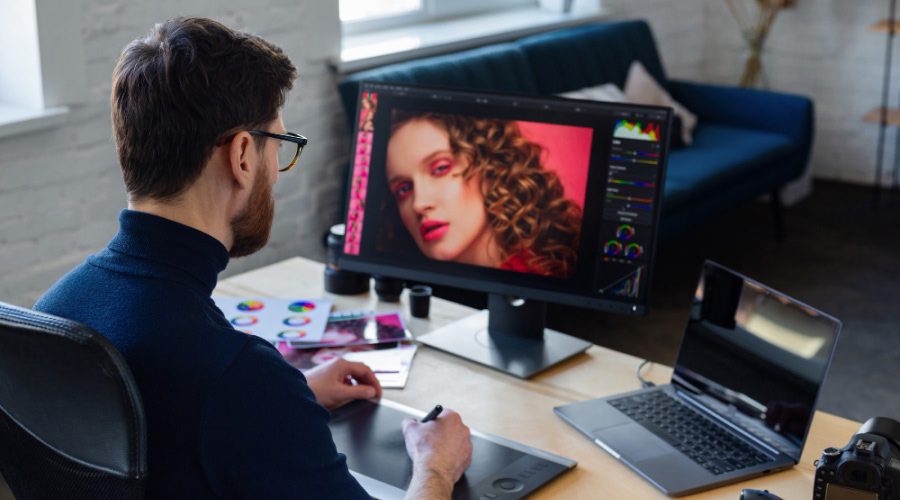
Color Correction
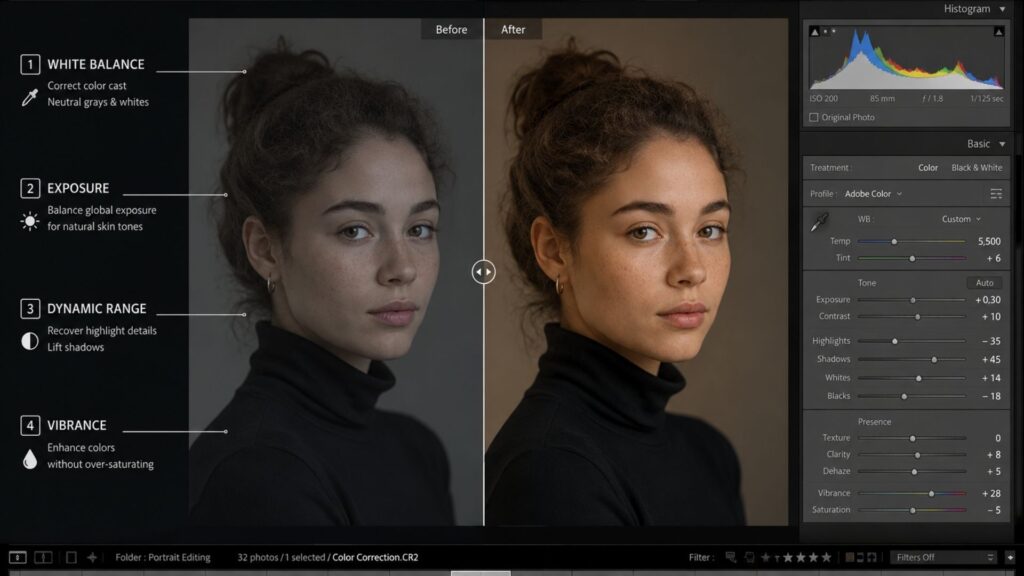
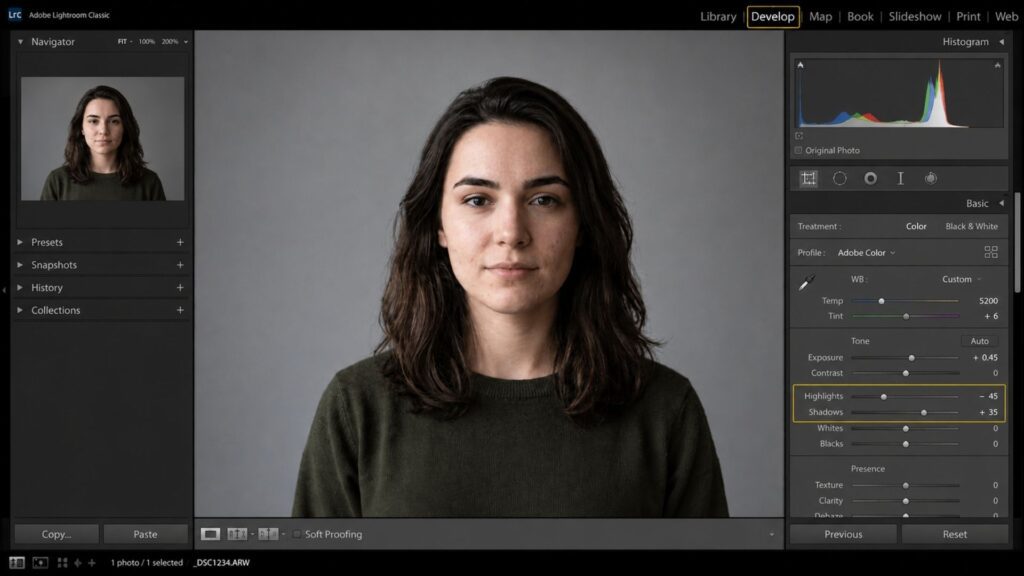
Before diving into advanced facial retouching, mastering color correction and global exposure is the mandatory foundation of any successful portraits photo editing workflow. This phase resolves ambient white balance issues to ensure neutral grays and whites look pure, establishing the vital root attribute required for healthy, natural human skin tones. To optimize dynamic range, highlights should be subtly pulled back to soften harsh light on the face, while shadows are lifted moderately to recover crucial details hidden within the hair and dark clothing.
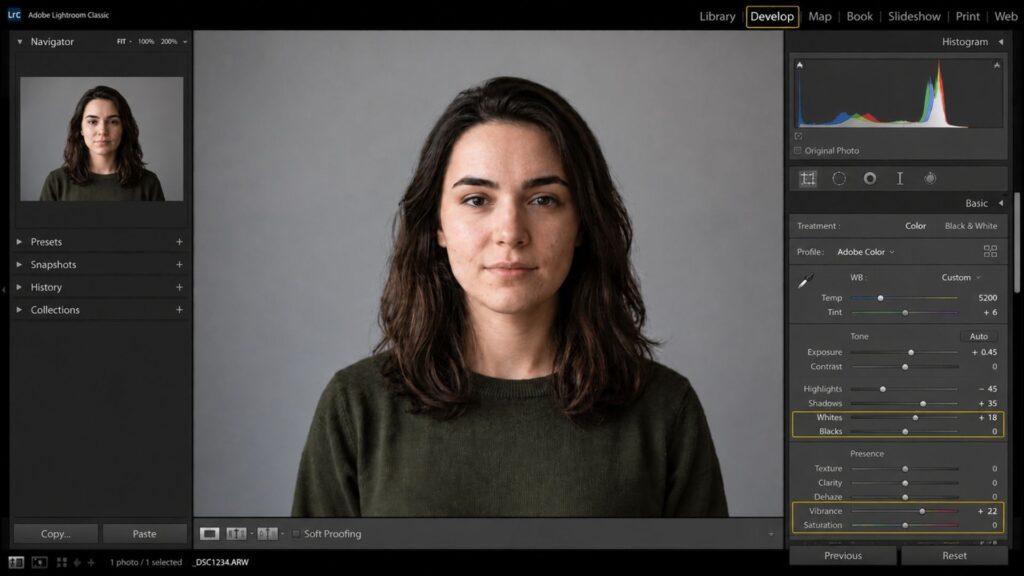
Finally, to prevent skin tones from becoming artificially discolored, the Vibrance slider is always prioritized over global Saturation, intelligently boosting under-saturated areas without turning the skin tone into a garish, unnatural orange.
Skin Smoothing And Blemish Removal
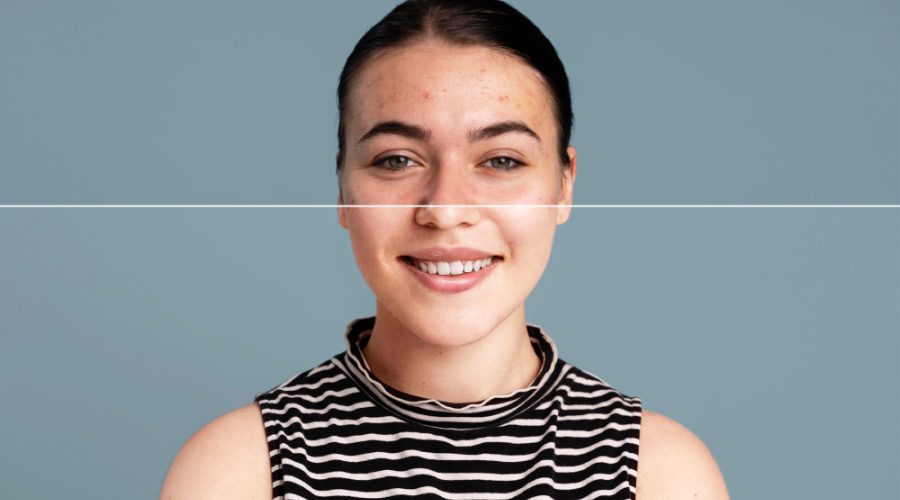
This step focuses on creating flawless yet natural-looking skin for the subject. The process begins by removing temporary imperfections such as blemishes, minor scars, and stray baby hairs. For the most professional results, the frequency separation technique is highly recommended. This advanced method divides the portrait into two independent layers: low frequency, which contains the skin tones and colors for smooth blending, and high frequency, which locks in the surface details like natural pore textures.
By retouching surface details on the high-frequency layer first before smoothing out skin tones below, we achieve a beautifully refined look while avoiding an overly bết or artificial “plastic” appearance. The ultimate key is to enhance and celebrate the subject’s existing features, rather than completely erasing or altering their true identity.
Sharpening And Blurring
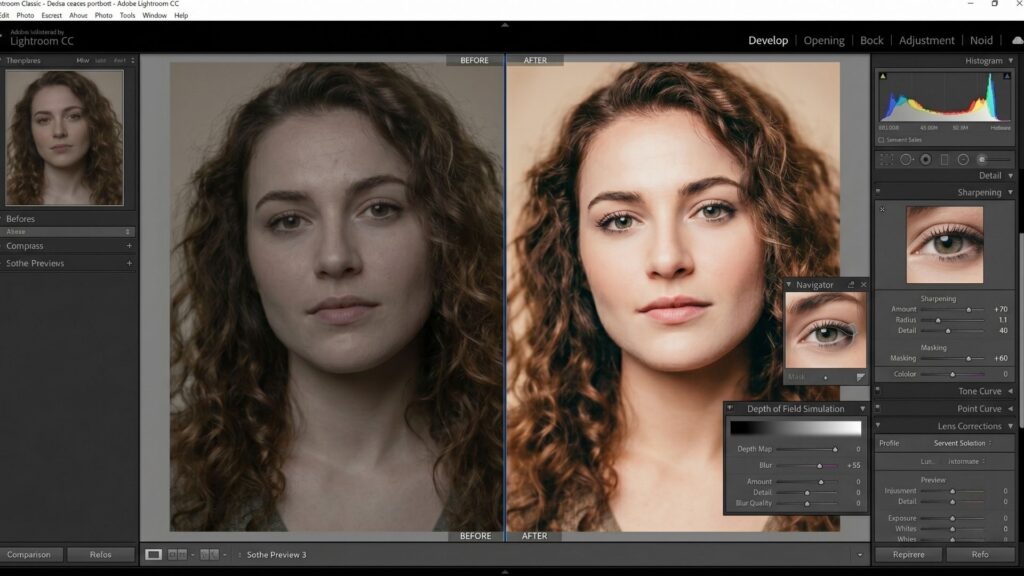
Intentional sharpening and blurring will direct the viewer’s eye as they move through the photo. Sharpening will be used on key features, most importantly the eyes, to make them stand out and create a sense of connection with the viewer. Conversely, blurring, or creating a depth of field (bokeh), can be used in the background. This technique helps separate the subject from its surroundings, making it the unmistakable focal point of the photo and thus adding a very professional & artistic effect.
Eye Enhancement
The eyes are the windows to the soul, making eye enhancement a crucial part of any professional portraits photo editing workflow. This step goes far beyond basic sharpening; it involves using a local adjustment brush to subtly boost clarity and whites to enhance the color and complex texture of the iris, adding a lively, magnetic reflectivity. However, a vital technical rule is to never brush or brighten the white of the eyeball itself. Keeping the eyeball’s natural shadow preserves authentic depth and ensures a realistic look, completely avoiding an artificial, “alien-like” appearance caused by over-whitening.
Finally, apply a High Pass or Unsharp Filter set to the Overlay blend mode to sharply define the eyelashes, adding dramatic depth and intense focus to the subject’s gaze.
>>> See more:
- Professional Image Retouch and Restoration Services
- How to Retouch Blurry Photos After They’re Taken
- Top 7 Ecommerce Product Photo Retouching Services Compared
Makeup & Smile Retouching
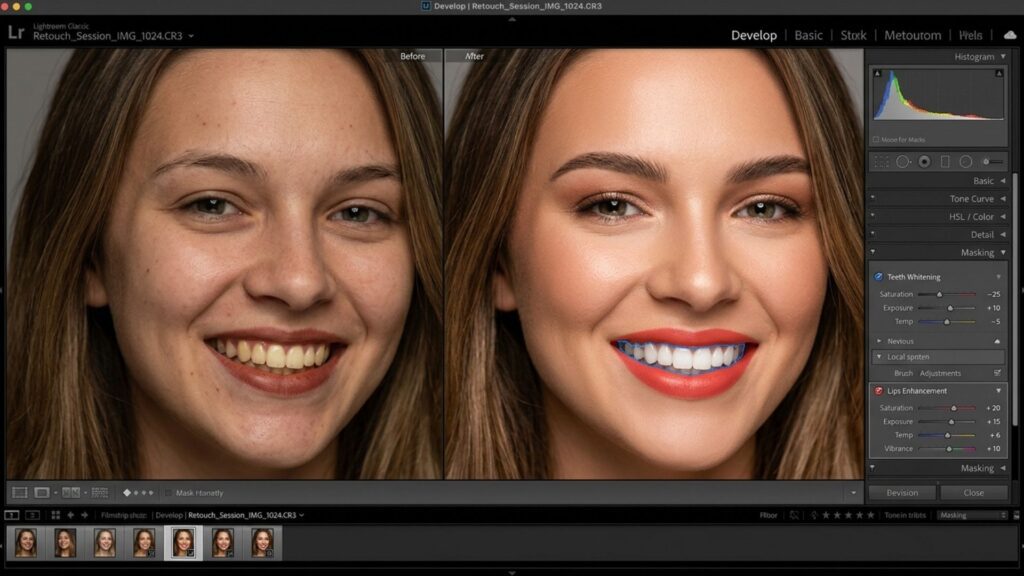
Refining digital cosmetics is an essential step in professional portraits photo editing to enhance the subject’s existing features rather than applying makeup from scratch. This process involves evening out lipstick, fixing minor makeup smudges, darkening eyebrows, or subtly intensifying eyeshadow and blush.
To flawlessly optimize the lips and teeth, a local adjustment brush should be used to carefully increase warmth (Temp/Tint) and Saturation to make the lips pop with vibrant, healthy color. Simultaneously, when retouching the teeth, the master technique is to decrease Saturation while slightly lifting Exposure. This combination effectively removes yellowish casts and whitens the teeth naturally, ensuring a brilliant, camera-ready smile without looking artificial.
Hair Retouching
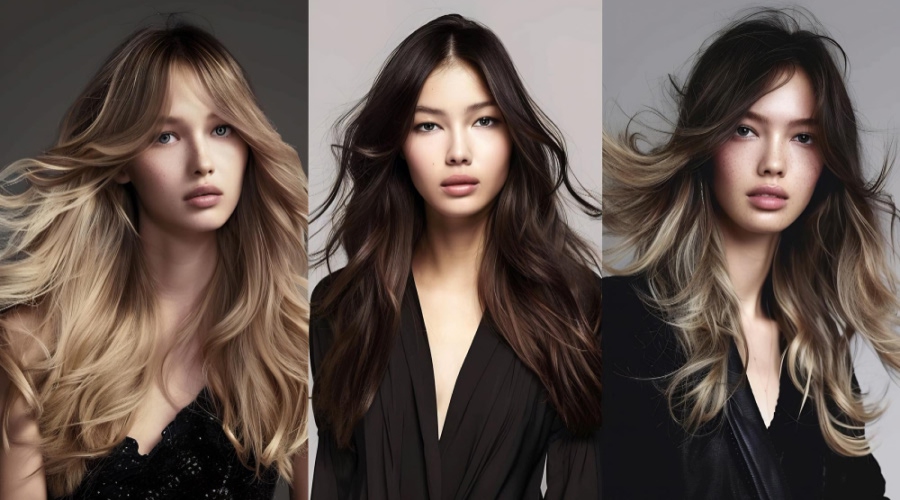
Within a professional portraits photo editing workflow, hair retouching goes far beyond simply taming stray flyaways, filling in gaps, or adding digital volume and shine. While adjusting colors and highlights is essential to create a healthy, eye-catching texture, a master technique involves subtly brightening specific sections of the hair alongside the background directly behind it. This subtle contrast adjustment creates a powerful visual separation, ensuring the hair does not blend into dark backgrounds.
Ultimately, this boundary manipulation allows the subject to effortlessly “pop” out from the background, adding dramatic 3D depth and a highly polished, editorial look to the final portrait.
Lighting Adjustments
Lighting adjustments are extremely important to create mood and add depth to a photo. Techniques such as ‘dodge and burn’ are used to lighten (dodge) and darken (burn) selected points in the image. For example, a professional can lighten cheekbones to highlight them and darken the jawline to add definition. This skillful combination of light and shadow can define the natural contours of the subject.
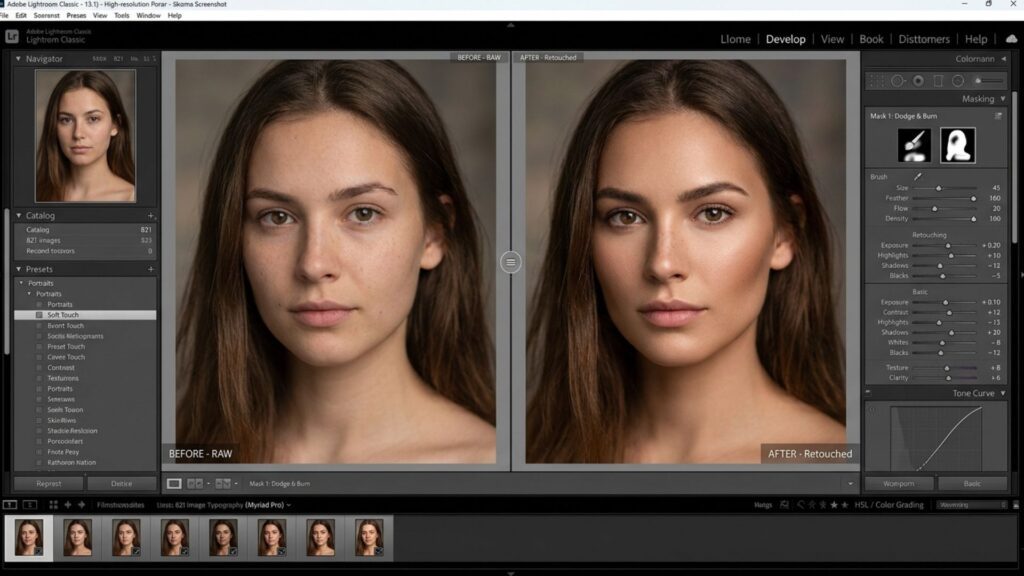
“Light makes photography. Embrace light. Admire it. Love it. But above all, know light. Know it for all it is worth, and you will know the key to photography.” — George Eastman (Founder of Kodak)
>>> See more:
- Fashion Photo Retouching: Key Techniques, Benefits, and Tips
- AI Image Processing Tools: Top 10 for Automation In 2026
- Photo Editing and Retouching: Benefits, Techniques, and Best Services
Step-by-Step Guide: How To Edit Portrait Photos?
Successful portrait editing is a harmonious blend of technical skill and artistic vision. The ultimate goal of a professional portraits photo editing workflow is to enhance and celebrate the subject’s best features rather than altering them into a completely different person. To help you master this process on your own without external assistance, here is a comprehensive, step-by-step guide featuring the best lightroom edits for portraits.
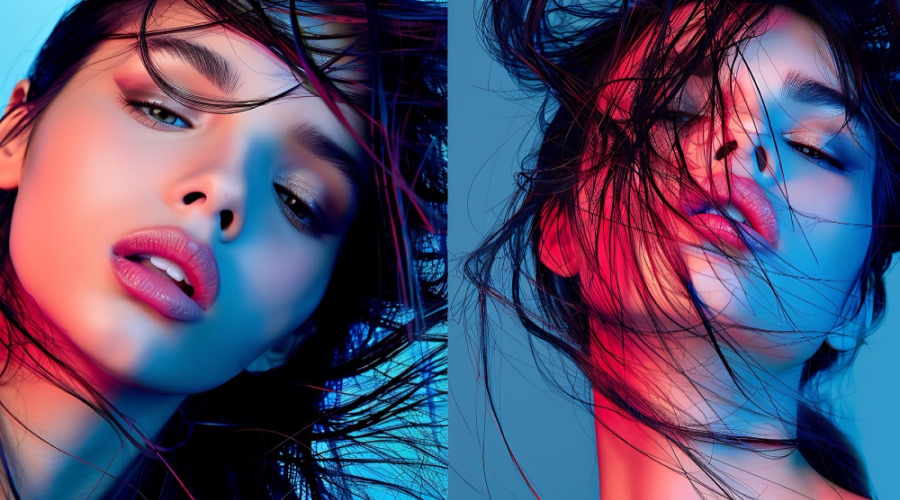
Step 1: Import And Accelerate Workflow
The workflow begins by importing your portrait images into the software. A valuable tip to drastically cut down your post-processing time when handling a large volume of photos simultaneously is to apply a sharpening preset upon import. This immediately provides your RAW files with an extra pop of structural depth.
- How to execute: In the Apply During Import section located on the right-hand panel during the import process, navigate to Develop Settings > User Presets, and click on the preset you wish to use. Once completed, switch over to the Develop module to begin editing.
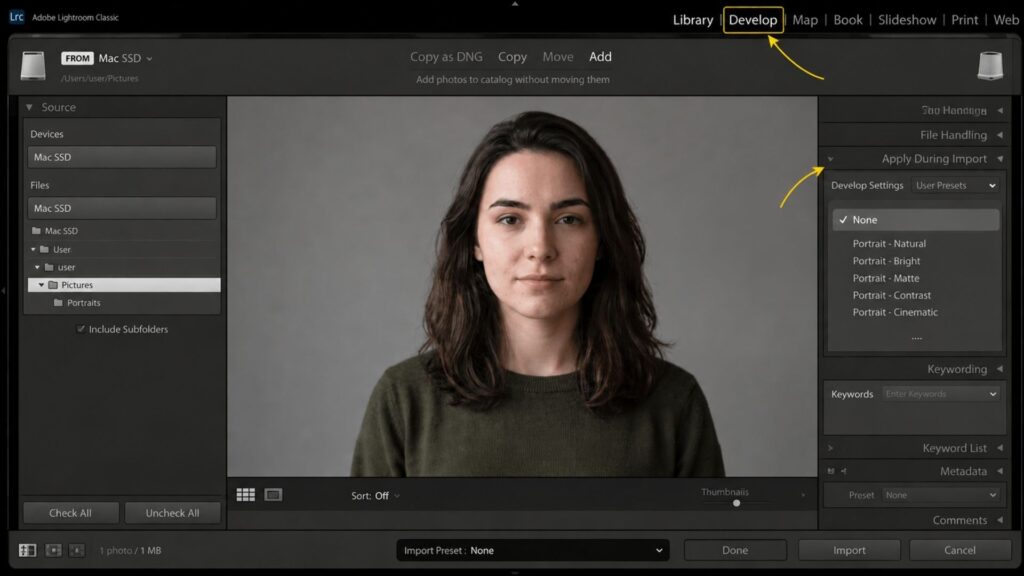
Step 2: Adjust The White Balance
Every photograph carries a slightly different color tint and temperature depending on the ambient light source of the shooting environment. Unless you manually calibrated your white balance using a gray card prior to shooting, your raw image will always require this foundational color correction step to ensure human skin tones are reproduced accurately.
- How to execute: You can use the White Balance Eyedropper tool to click on a neutral surface within the frame (an area that should theoretically be pure white or neutral gray). Alternatively, you can manually adjust the Temperature and Tint sliders until any unwanted yellow or blue color casts are completely eliminated, bringing the colors as close to reality as possible.
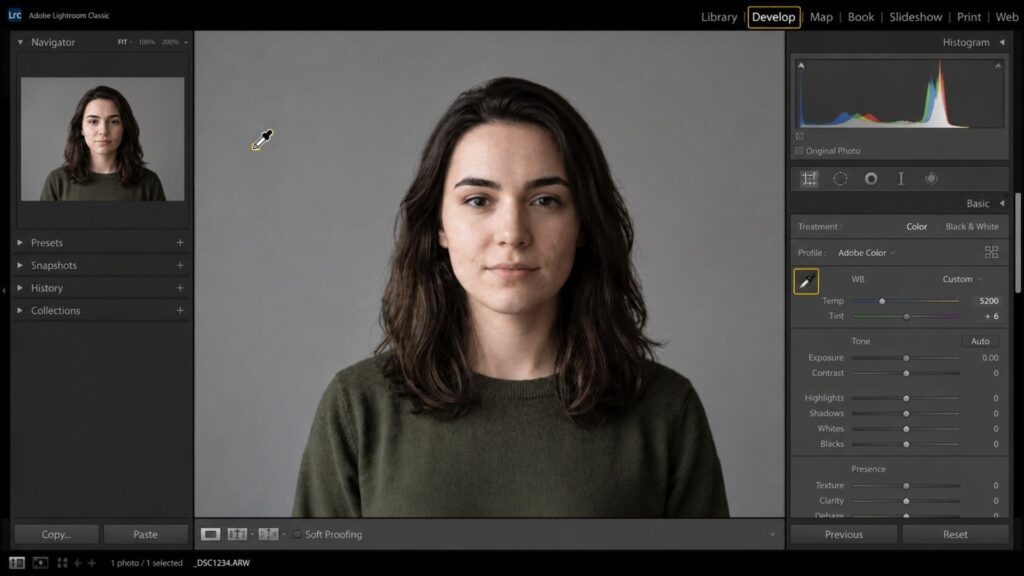
Step 3: Optimize Exposure And Tone Ranges
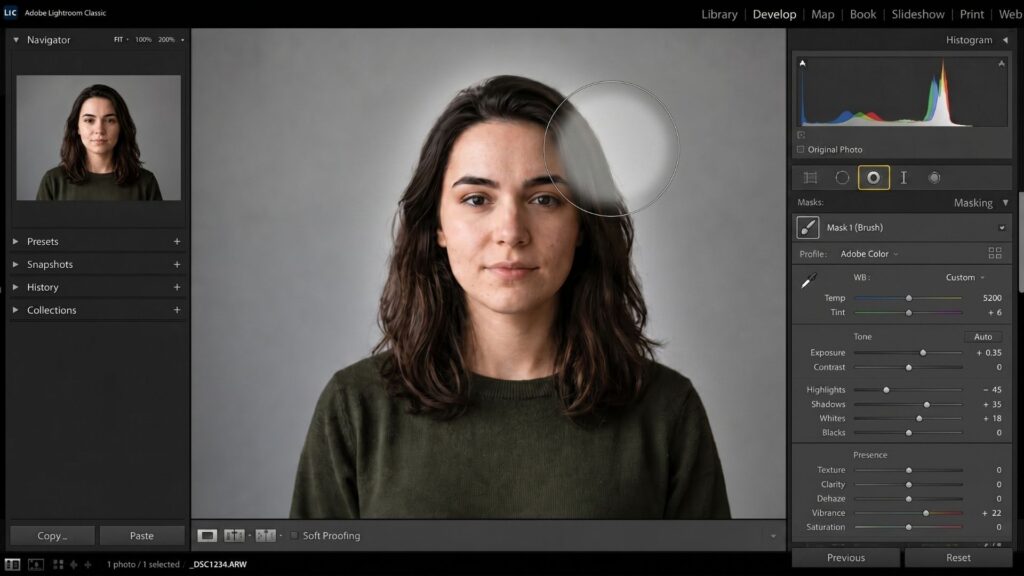
This step establishes the overall brightness and contrast to help the main subject stand out. Get into the habit of checking the histogram to ensure that no tonal peaks are clipped against the extreme left or right walls of the graph (which causes lost highlight details or crushed shadows).
- How to execute: If the image is overexposed or undexposed, correct it using the Exposure slider. Next, pull the Highlights slider down to recover details in overblown areas (such as the sky or harsh hot spots on the face) and lift the Shadows slider up to reveal textures hidden within dark zones, such as hair strands or dark clothing.
Step 4: Intelligent Vibrance Enhancements
To breathe life into the portrait, you need to refine the color vividness. However, overusing the global Saturation slider can easily cause skin tones to look unnaturally orange or flatly oversaturated.
- How to execute: Prioritize the Vibrance slider instead, as this tool operates more intelligently, it automatically boosts colors only in under-saturated areas while avoiding harsh, artificial shifts in human skin tones. Simultaneously, subtly lift the Whites slider to push the brightest highlights toward the right edge of the histogram to introduce clarity and crispness. Press the “\” shortcut key to toggle the Before/After view, ensuring the skin tone remains natural and healthy.
>>> See more:
- What is High-End Beauty Retouching? An Overview
- Image Processing Services for E-commerce Websites: Optimizing Product Images for Better Sales
- How To Make A Clipping Path In Illustrator (Step-By-Step)?
Step 5: Crop And Balance Composition
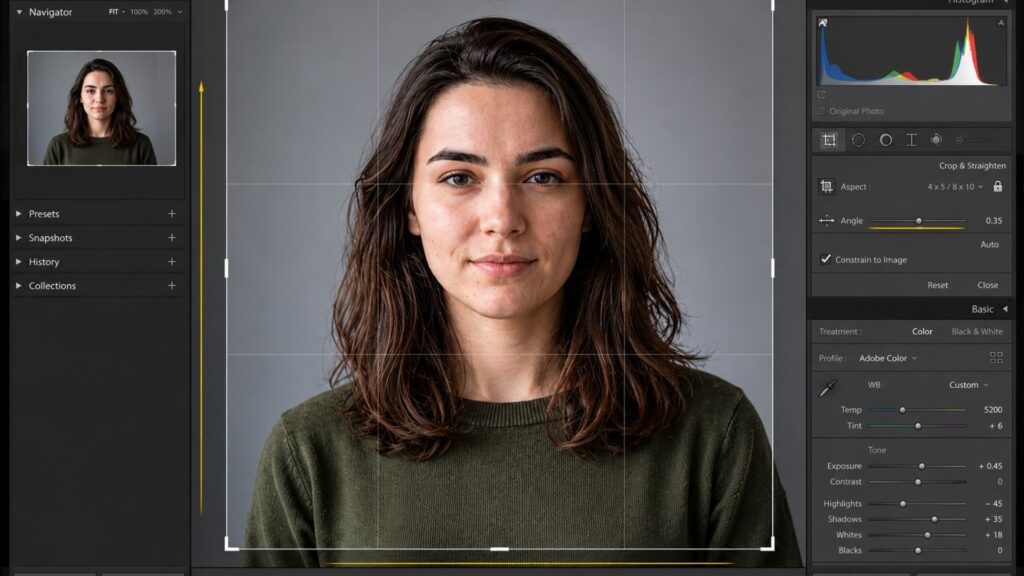
This step eliminates distracting elements around the edges and directs the viewer’s focal path. The ideal timing for cropping is right after completing global exposure adjustments and before executing intricate localized retouching on facial features.
- How to execute: Adjust the framing to emphasize the main subject. Rotate the image slightly to ensure the horizon or architectural lines are perfectly leveled and straightened. Evaluate if you have avoided cropping across natural body joints to deliver a balanced, highly professional look to the portrait.
Step 6: Skin Softening
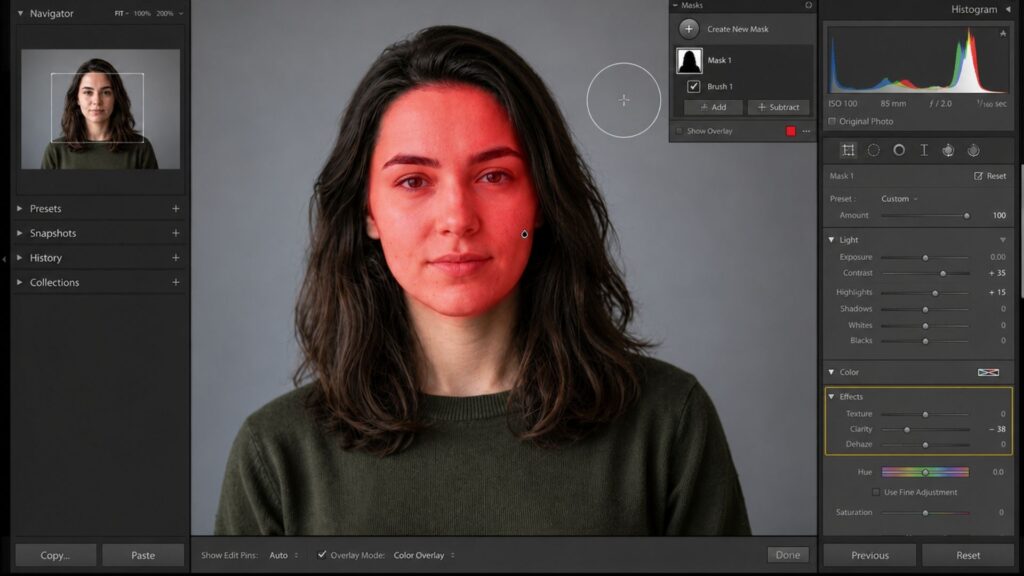
When starting localized facial editing, strictly avoid automated, aggressive filters that make the skin look entirely flat, artificial, or “plastic.” The true objective is to diminish color irregularities while locking in natural skin pore textures.
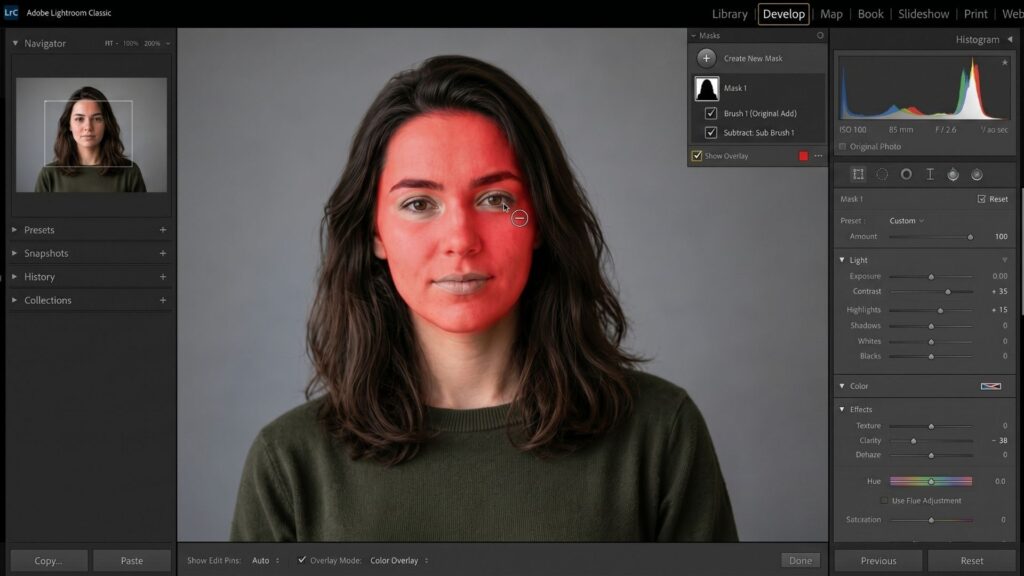
- How to execute: Create a local Brush Mask. An ideal configuration to start skin softening involves lowering Clarity to between -35 and -40 to smooth out skin surface variations. Concurrently, increase Contrast to +35 and Highlights to +15 (since reducing Clarity tends to flatten and desaturate structural depth, boosting contrast and highlights counteracts this effect, restoring dimensional form and leaving a healthy, radiant glow). Maximize the brush size and paint evenly over the subject’s face.
Step 7: Fine-Tune Skin Mask
To guarantee that the skin-smoothing effect does not inadvertently blur critical structural details on the face, you must check for color bleeding errors.
- How to execute: Check the Show Overlay box in the Masking panel to clearly inspect the red overlay representing your painted area. If the brush has bled into areas that require absolute sharpness, such as the eyes, eyebrows, lips, nostrils, or hair, click the Subtract button, select a secondary Brush, and carefully erase the smoothing effect from those specific regions.
Step 8: Blemish Removal
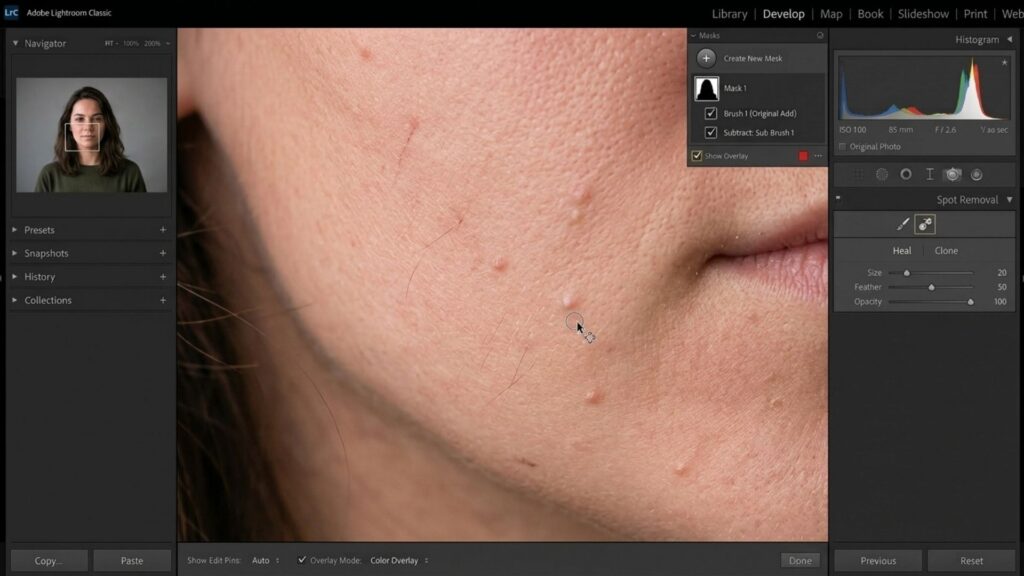
Approach this stage with the mindset of applying a digital “concealer” to thoroughly clean the baseline plate.
- How to execute: Zoom in close on the skin and utilize the Spot Healing Brush tool. Meticulously stamp away temporary blemishes such as minor acne breakouts, temporary scratches, or a few stray flyaway hairs blowing across the face.
- Core Principle: Only remove temporary elements. Permanent features like moles, birthmarks, or characteristic structural scars are essential components of an individual’s personal identity; preserving them ensures the portrait maintains its true authenticity and soul.
Step 9: Eye Enhancement
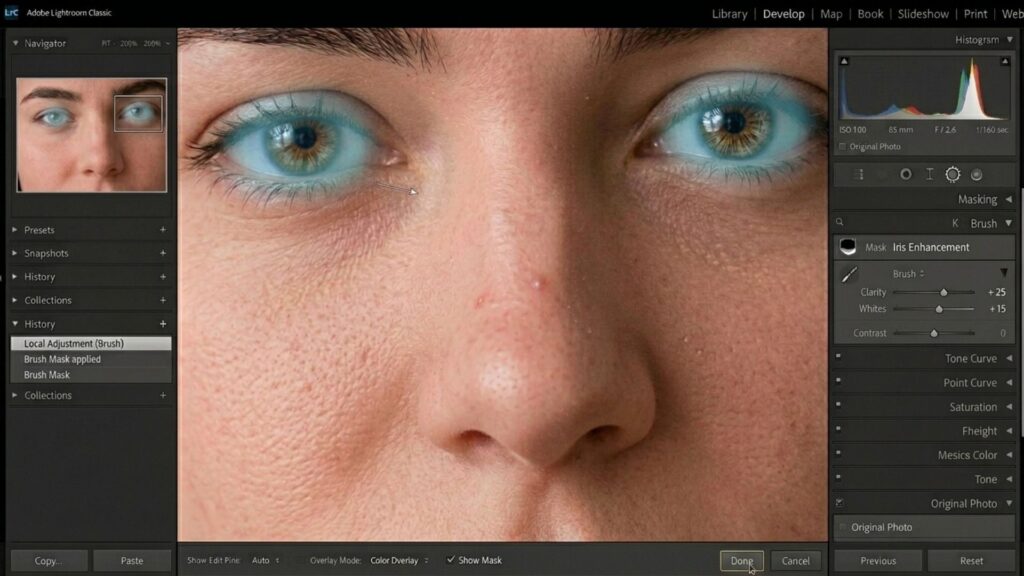
The eyes are the windows to the soul and serve as the primary focal anchor of any portrait. Retouching the eyes demands extreme subtlety to build a magnetic connection with the viewer.
- How to execute: Create a new local Brush and paint directly over the Iris. Subtly increase the Clarity slider to sharply define the intricate patterns within the iris, and lift the Whites or Exposure slider slightly to bring out the catchlight (the specular light reflection in the eye).
- Vital Warning: Never paint or brighten the white sclera of the eyeball itself. Retaining the natural ambient shadow of the eyeball preserves realistic three-dimensional depth, completely avoiding an artificial, creepy “alien-like” appearance caused by over-whitening.
>>> See more:
- Professional Photo Editing Services
- Best Real Estate Image Processing Services 2026: Top 15 Providers
- Best Product Photo Editing Services For eCommerce: Top Providers Compared
Step 10: Lips & Teeth Retouching
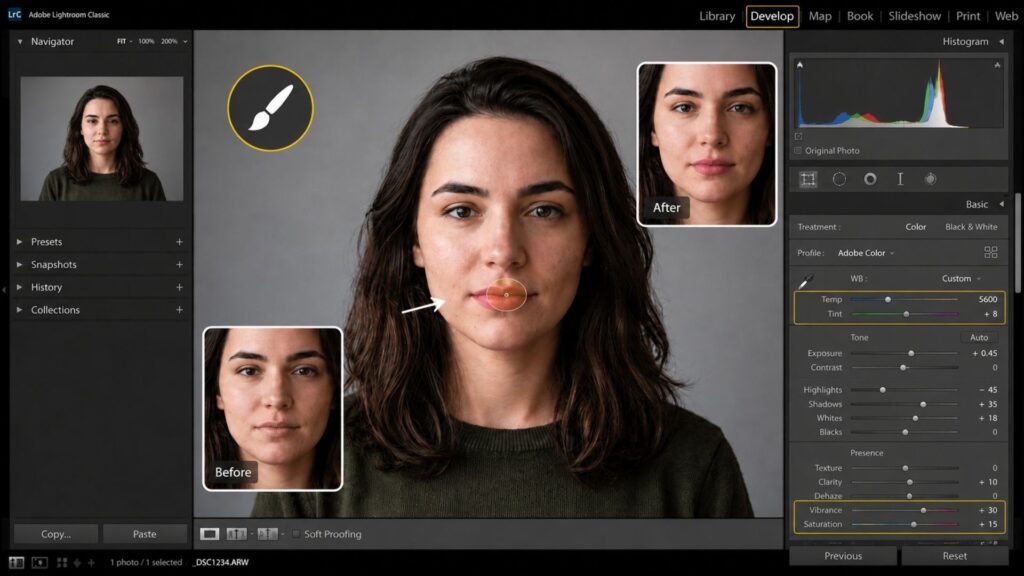
The lips and teeth dictate the overall radiance of facial expressions and must be retouched independently using dedicated local adjustments.
- For the Lips: Select a new Brush and paint over the lips. Shift the Temperature/Tint sliders slightly toward warmth and increase Saturation to give the lips a vibrant, healthy color. You can subtly increase Clarity to provide a plumper texture and sharpen the lip contours.
- For the Teeth: Brush over the teeth and apply this master formula: decrease Saturation to strip away yellowish or warm color casts, while subtly lifting Exposure to brighten. This combination guarantees flawlessly whitened teeth that look natural, avoiding an obvious, chalky white look.
Step 11: Hair & Subject Separation
This final step builds 3D spatial depth across the composition, preventing the subject from blending flatly into a dark background ecosystem.
- How to execute: Assess the global presentation of your image. If the character requires additional presence, use a large, soft-feathered Brush to subtly increase the Exposure over parts of the hair or the background directly behind the subject. Manipulating this boundary contrast creates a beautiful Separation effect, causing the subject to effortlessly “pop” forward with a high-end, editorial finish. Furthermore, this precise subject isolation is the fundamental requirement in image processing for virtual try-on AI models, ensuring digital garments fit perfectly on human figures.
Final Touches: Color Grading & Exporting
With the localized technical modifications on the subject completed, you can move on to the final two actions to package your workflow:
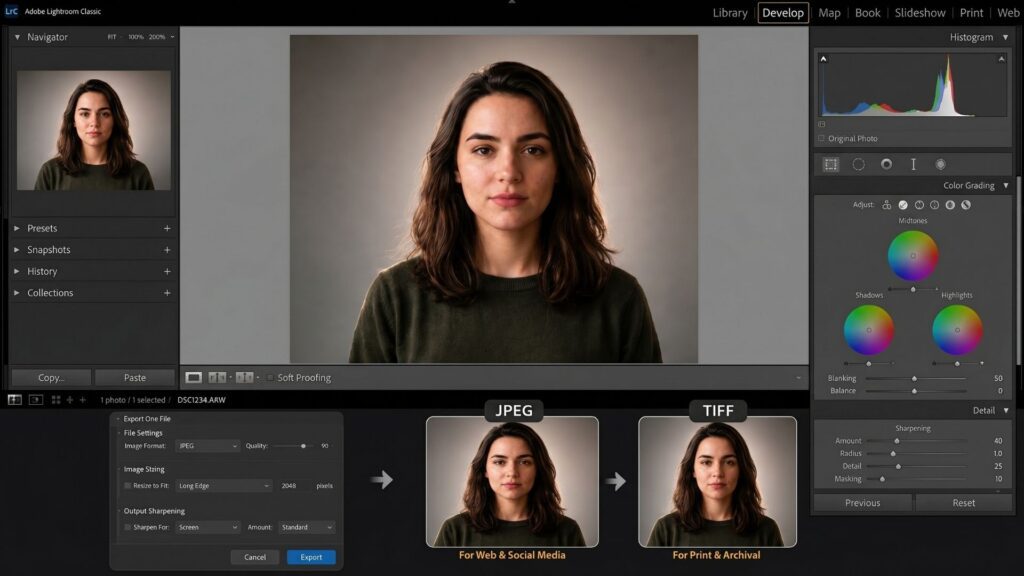
- Artistic Color Grading: Unlike the restorative color correction handled in Step 2, color grading is where you manifest your creative identity. By mapping specific color tones into the highlights and shadows across the entire frame, you establish a targeted mood, such as warm, nostalgic vintage tones or cool, cinematic profiles. You can also apply a subtle global Sharpening filter at this stage to lock in crisp definition across hair fibers and the eyes.
- Export with Accurate Specifications: Select an output format tailored to your target distribution platform to preserve your hard work:
- High-Quality JPEG: The absolute best choice for digital deployments, such as publishing to social media networks, updating online portfolios, or quick sharing via email.
- TIFF Format: The mandatory selection if you intend to send the image for large-scale physical printing or commercial archiving. This format retains maximum data across color profiles and image quality without destructive compression.
Top 10 Essential Portraits Photo Editing Services & Tools
While mastering the step-by-step editing process empowers you with creative control, executing high-quality portrait retouching on your own can be incredibly time-consuming, especially when dealing with high-volume projects like weddings, corporate events, or commercial campaigns.
To bridge this gap, choosing the right tools or outsourcing your workflow to professional services is essential. Fortunately, the landscape of portraits photo editing has evolved dramatically. Today, you can choose from traditional industry-standard software, cutting-edge AI desktop applications that automate complex masks, or dedicated B2B post-processing services that handle bulk editing seamlessly.
Whether you want to refine each image manually on your PC, touch up a selfie on your mobile device, or delegate the entire workload to save time, here are the most reliable portraits photo editing services, applications, and tools available today.
>>> See more:
- Boost Your Website Performance With Optimized Images: A Quick Tip For Image Processing Services
- Professional Image Retouching Services | High-Quality & Fast Turnaround
- Professional Background Removal Services: Clean Images That Convert and Sell
1. DIGI-TEXX
- Key Characteristic: A professional image post-processing and data processing service provider specializing in the business-to-business (B2B) segment with large-scale batch processing capabilities.
- Core Strength: Harmoniously combining a team of highly experienced retouchers with advanced automation technologies. DIGI-TEXX is capable of processing massive volumes of commercial, event, and wedding portraits within short turnaround times, while guaranteeing strict, consistent quality control and meeting the highest international data security standards.

2. Adobe Photoshop
- Key Characteristic: The irreplaceable industry standard for graphic design and high-end image post-processing worldwide.
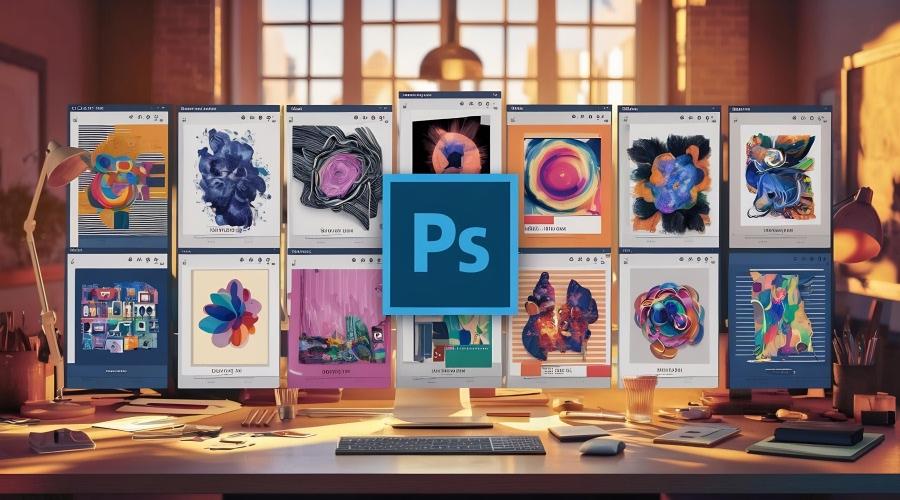
- Core Strength: Features an ultimate system of layers, masks, and digital brush tools. If you are wondering how to edit portraits in Photoshop, this software provides the absolute best environment for executing advanced portrait retouching techniques such as frequency separation and localized dodge and burn with pixel-perfect precision.
3. Adobe Lightroom
- Key Characteristic: The most popular image development, classification, and management software globally for photographers of all skill levels.
- Core Strength: Built with a highly intelligent ecosystem to organize and manage massive photo libraries. It allows users to seamlessly apply the best lightroom edits for portraits across thousands of other photos in just one click.

4. Picsart
- Key Characteristic: A cross-platform (Mobile/Web) photo editing and content creation app with the largest mass-market user base globally.
- Core Strength: Offers an intuitive, highly user-friendly interface alongside a massive library of instant color filters. Picsart integrates various smart, automated tools that allow users to quickly cut out backgrounds, add artistic overlays, and apply basic portrait touch-ups directly on mobile devices.
5. Capture One Pro
- Key Characteristic: A leading professional software for RAW image file development and tethered shooting workflows in studio environments.
- Core Strength: Utilizes a superior raw file decoding algorithm to reproduce exceptionally true-to-life colors while maintaining a wide dynamic range. In particular, Capture One’s dedicated Skin Tone Tool is widely recognized as the smoothest and most accurate in the commercial studio industry.
>>> See more:
- What Is Multiple Clipping Path Service? A Complete Guide
- Professional Fashion Photo Editing Services for Stunning Visuals
- Architectural Photo Editing Service in the US | Top 5 Providers
6. Fotor
- Key Characteristic: An online cloud-based image editor and graphic design platform tailored for effortless accessibility.
- Core Strength: Optimizes the user experience for non-professionals through automated Generative AI features. Fotor enables one-tap portrait enhancement, automatic background blurring, and quick red-eye correction directly inside any web browser.

7. Pixlr
- Key Characteristic: A time-tested, free online photo editing platform that runs smoothly across almost any computer hardware configuration.
- Core Strength: Designed with a user interface and operational logic similar to a compact, web-based version of Adobe Photoshop. Users can seamlessly work with essential layer systems, brushes, and basic adjustment filters without requiring any software installation.

8. Evoto
- Key Characteristic: A next-generation professional portrait retouching software powered entirely by artificial intelligence (AI).
- Core Strength: Employs advanced AI technology to accurately recognize age and gender to isolate skin imperfections. The software can automatically smooth skin, reshape body proportions, apply facial contouring, and replace backdrops in large batches at ultra-fast speeds, making it ideal for wedding and commercial event photographers.

9. Luminar Neo (Skylum)
- Key Characteristic: An innovative image editing software driven by breakthrough AI modules that can completely transform a photo’s atmosphere and lighting.
- Core Strength: Features highly intuitive, specialized AI tools such as FaceAI, BodyAI, and RelightAI (which maps and changes the direction of the core light source), making the process of turning an ordinary portrait into a work of art easier than ever before.
10. Imagen (ImagenAI)
- Key Characteristic: An automated RAW photo post-processing service built on deep learning technology for high-volume photography businesses.
- Core Strength: Features the ability to analyze and learn a photographer’s unique color grading style from past catalogs to build a tailored Personal AI Profile. Imagen can automatically apply this editing mindset to process thousands of RAW files simultaneously with high precision in just a few minutes.

>>> See more:
- Top Furniture Photo Editing Tools to Boost Sales
- Product Photo Retouching: Key Techniques & 2025 Trends
- What Is A Clipping Path? Learn To Use Professional Image Isolation
5 Tips To Cut Your Portraits Photo Editing Time In Half
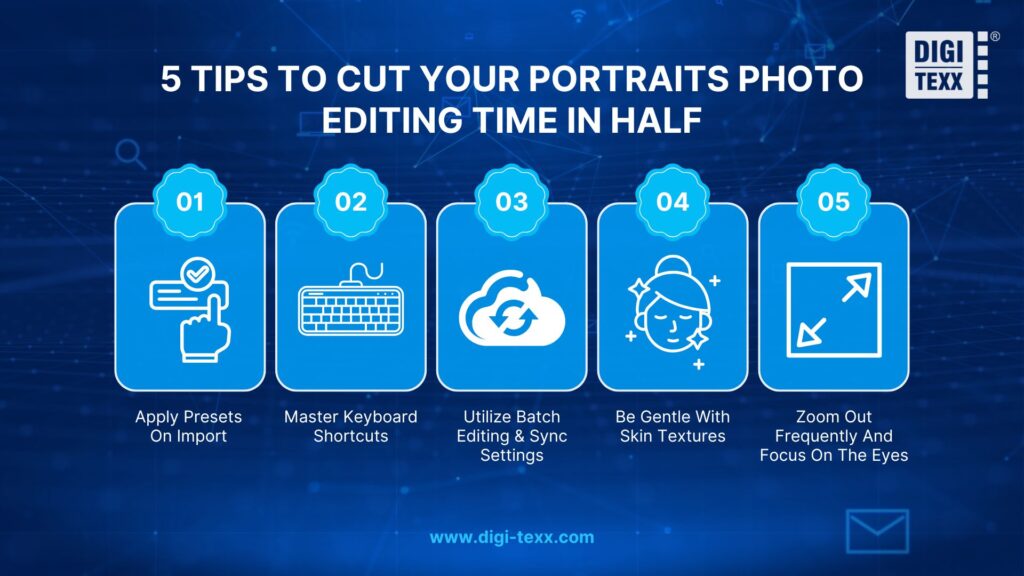
Before you begin, always ensure you calibrate your monitor accurately to prevent color discrepancies across different devices. Here are 5 core tips to streamline your portraits photo editing efficiency:
1. Apply Presets On Import
Save time on repetitive baseline tweaks, such as initial sharpening, RAW noise reduction profiles, or basic contrast, by packaging them into a default preset. Configuring your software to automatically apply this preset during the Import stage delivers a clean, crisp starting canvas and removes the need for manual slider adjustments from scratch.
2. Master Keyboard Shortcuts
Shortcuts are the ultimate speed multiplier for professional retouchers. Memorize critical hotkeys (such as O to toggle mask overlays, \ for a quick Before/After preview, or keys to instantly switch between Brush and Healing tools). Eliminating tedious manual mouse clicks maintains your creative momentum and significantly cuts down processing time.
3. Utilize Batch Editing & Sync Settings
Never edit individual images independently when they share identical lighting, wardrobe, and backdrops within the same scene. Fully resolve the global exposure and color balance on one benchmark photo, then use the Sync Settings feature to instantly replicate those exact parameters across dozens or hundreds of remaining frames in a single click.
4. Be Gentle With Skin Textures
Over-relying on aggressive automated smoothing or wasting time manually erasing every microscopic skin variation is a classic workflow bottleneck. This common mistake completely flattens natural skin pores into a fake, “plastic” look, forcing you to spend extra time fixing it later. Retouch minimally, focus only on temporary blemishes to keep the portrait authentic and fast.
5. Zoom Out Frequently And Focus On The Eyes
Avoid staying trapped at 100% or 200% magnification to fix micro-details that are invisible at a normal viewing distance. Remember that the eyes are key to defining the soul of a portrait; focus your time on making the iris sharp and bright. Regularly zoom out to a full-screen view to ensure localized adjustments harmonize with the global image, preventing wasted effort.
>>> See more:
- How Online Photo Restoration Services Revive Your Precious Memories
- Professional Photo Editing Services for Photographers
- The Importance of Real Estate Photo Editing Services | Why Choose DIGI-TEXX?
Overall, mastering and understanding the fundamentals of portraits photo editing is essential to creating professional photos. This article covers basic techniques like color correction and skin editing to choosing the right software, each step plays an important role in the final result. Whether you choose to learn how to edit portrait photos yourself or work with professionals, the goal is always to enhance natural beauty. And from the photos, you can tell a compelling and engaging story. For businesses and photographers who demand perfection and efficiency, DIGI-TEXX is the unit that provides a complete solution. Contact DIGI-TEXX today to enhance your image with our professional photo editing for portraits service.
FAQs About Portraits Photo Editing
1. What Is The Best Photo Editor For Portraits?
Adobe Photoshop and Adobe Lightroom remain the industry-standard duo and the best overall choices. Lightroom is optimal for photo management and bulk color grading, while Photoshop excels at advanced, pixel-level retouching such as Frequency Separation and detailed blemish removal. Additionally, AI-powered software like Capture One and Luminar Neo are also top-tier alternatives.
2. How Do I Edit A Photo To Look Like A Portrait?
You can achieve a professional portrait look by applying three core steps:
- Background Blur (Bokeh): Soften or blur the background using blur tools to separate and isolate the subject from distractions.
- Cropping: Crop the image closer to the subject (typically from the chest or shoulders up) to draw immediate focus to the face.
- Lighting Focus: Add a subtle vignette (darkening the four corners) or gently brighten the face to naturally guide the viewer’s eye to the subject.
3. What Is The Rule Of 3 In Portrait?
The rule of 3 (commonly known as the Rule of Thirds) is a compositional guideline that divides an image into a 3×3 grid using two horizontal and two vertical lines. In portrait photography, you should position key focal points, most importantly the subject’s eyes, along these lines or at their intersections to create a more balanced, engaging, and natural-looking shot.
4. How Do Photographers Edit Portraits?
A professional post-processing workflow typically follows these key steps:
- Color Correction: Adjusting exposure, contrast, and white balance to set the baseline mood, usually in Lightroom.
- Skin Retouching & Blemish Removal: Using Photoshop to clean up stray hairs, remove temporary blemishes, and smooth skin tones seamlessly using Frequency Separation.
- Contouring (Dodge & Burn): Selectively brightening and darkening areas to enhance the face’s natural highlights and shadows.
- Sharpening & Exporting: Enhancing crisp details (especially the eyes) and cropping/resizing the final image according to the platform’s specific dimension standards.
5. How To Edit Portraits In Photoshop?
To edit portraits professionally in Photoshop, it is highly recommended to use a non-destructive workflow:
- Blemish Removal: Use the Spot Healing Brush Tool to clean up temporary spots and stray hairs.
- Skin Smoothing: Apply Frequency Separation to even out skin tones seamlessly while preserving natural pore textures.
- Face Contouring: Use Dodge and Burn techniques to sculpt the face by enhancing natural highlights and shadows.
- Targeted Enhancements: Utilize Layer Masks and Adjustment Layers to brighten eyes, whiten teeth, and apply final color grading with pixel-perfect precision.
DIGI-TEXX Contact Information:
🌐 Website: https://digi-texx.com/
📞 Hotline: +84 28 3715 5325
✉️ Email: [email protected]
🏢 Address:
- Headquarters: Anna Building, QTSC, Trung My Tay Ward
- Office 1: German House, 33 Le Duan, Saigon Ward
- Office 2: DIGI-TEXX Building, 477-479 An Duong Vuong, Binh Phu Ward
- Office 3: Innovation Solution Center, ISC Hau Giang, 198 19 Thang 8 street, Vi Tan Ward
Reference:
- Adobe Help Center. Photoshop User Guide: Retouch and repair photos (Retouching Tools and Frequency Separation Workflow). https://helpx.adobe.com/photoshop/user-guide.html
- Cambridge in Colour. Photography Tutorials: Understanding the Rule of Thirds and Composition in Portraiture. https://www.cambridgeincolour.com/tutorials/rule-of-thirds.htm