iPhone photo retouch app can make it easier to remove unwanted objects, smooth skin, correct lighting, and enhance photos directly on a phone. In this article, DIGI-TEXX will help you compare 10 of the best iPhone photo retouch apps in 2026, including free options, AI-powered editors, and specialized tools for object removal, portrait retouching, and professional photo editing.
Whether you need an iPhone photo retouch app free download or a more advanced editing solution, this guide highlights the key features, pros, cons, and pricing to help you choose the right app.
>>> See more:
- Birthday Editing Online Free: Tools, Frames & Creative Ideas
- 7+ Best Photo Editing Apps For Android And iPhone (2026 Guide)
- Free Photo Retouch Online: 10 Tools For Easy Image Editing
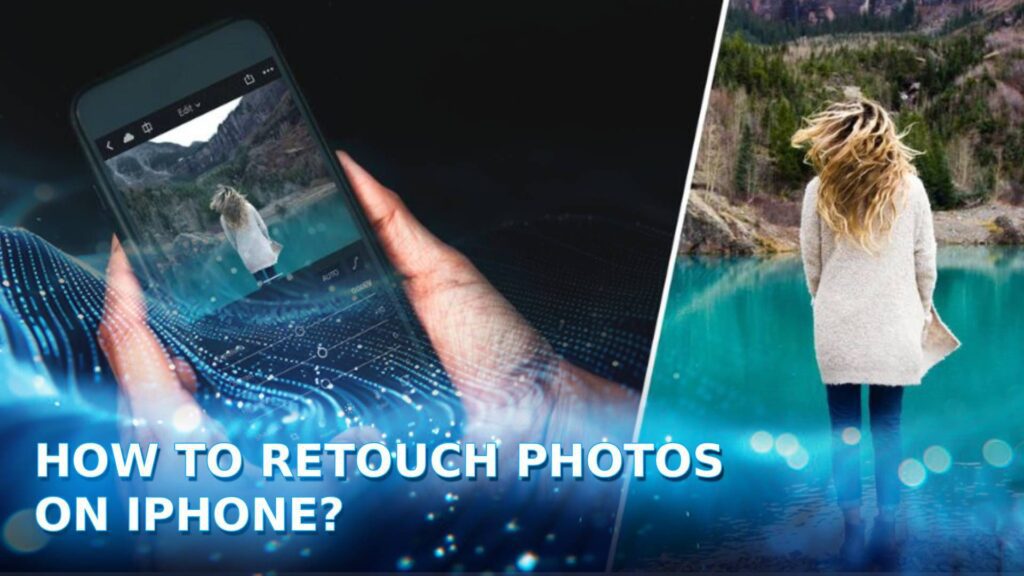
The Best iPhone Photo Retouch Apps I Recommend In 2026
The best iPhone photo retouch app depends on what you want to improve, from removing unwanted objects and smoothing skin to correcting perspective and enhancing colors. Here are 10 apps worth considering, each suited to a different retouching need.
Photomator: AI Powered Photo Retouching
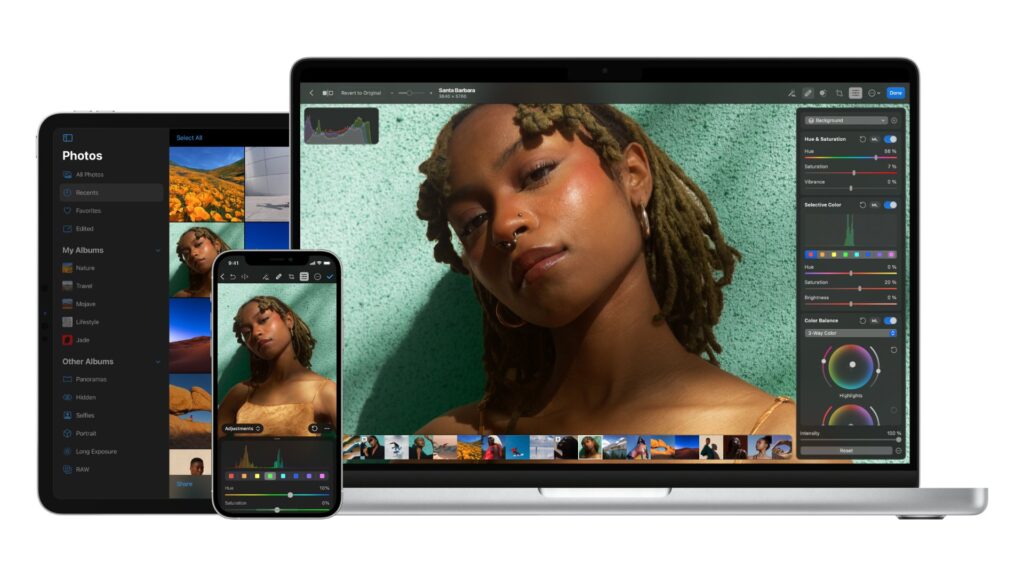
Photomator is a powerful iPhone photo retouch app designed for users who want professional-looking results without complicated editing workflows. It combines manual adjustment tools with AI-powered features for faster retouching. Users can remove distractions, smooth skin, enhance details, adjust colors, and work with RAW images directly on iPhone. AI tools handle many corrections automatically, while manual controls allow more precise adjustments.
Key features
- Blemish and object removal
- Skin smoothing
- AI-powered enhancement
- RAW photo editing
- Color and light adjustments
Pros
- Powerful AI and manual editing tools
- Supports RAW and high-quality image formats
Cons
- Some advanced tools require payment
- More features may feel complex for beginners
Pricing: Free to download with limited features. Full access requires a subscription or lifetime purchase, depending on the plan.
Best for: AI-powered retouching and professional-quality photo editing on iPhone.
TouchRetouch: Unwanted Object Removal
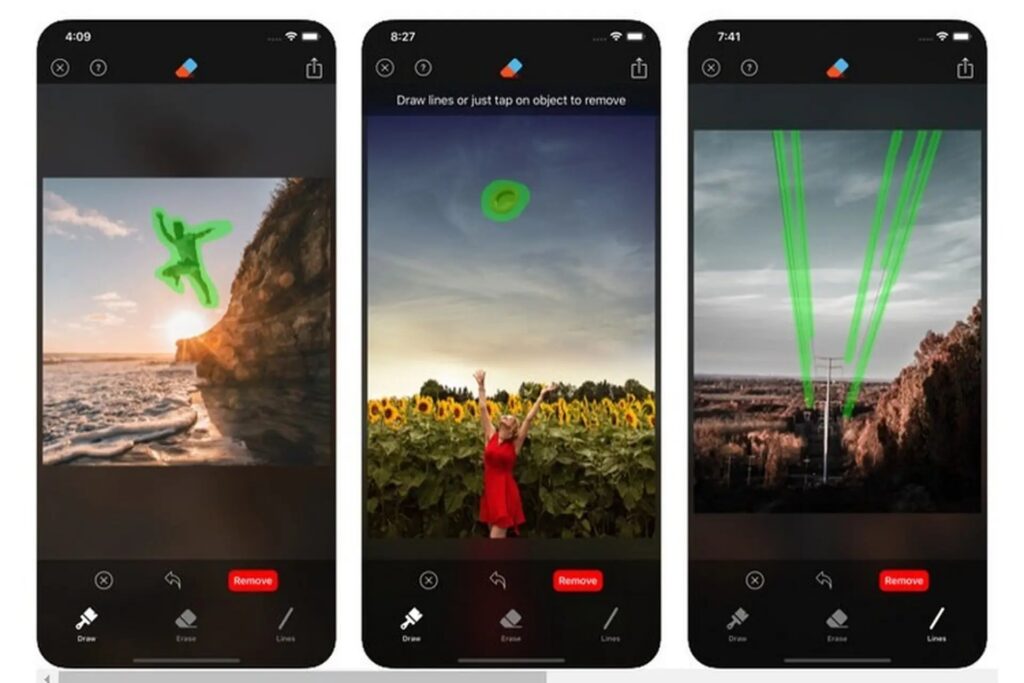
TouchRetouch specializes in removing unwanted elements from photos, making it a strong choice for anyone looking for the best photo editing app for iPhone to remove objects. Its retouching tools can erase people, wires, signs, blemishes, and other distractions with minimal manual work. Unlike all-purpose editors, the app focuses primarily on clean and precise object removal rather than extensive color grading or creative effects.
Key features
- Object removal
- Blemish removal
- Line and wire removal
- Clone and repair tools
- Quick retouching
Pros
- Excellent for removing unwanted objects
- Simple interface and easy workflow
Cons
- Limited tools for advanced photo editing
- Not primarily designed for color correction
Pricing: Paid app with a one-time purchase. There is no recurring subscription for the core app.
Best for: Removing unwanted people, objects, wires, and distractions from iPhone photos.
SKRWT: Perspective And Lens Correction
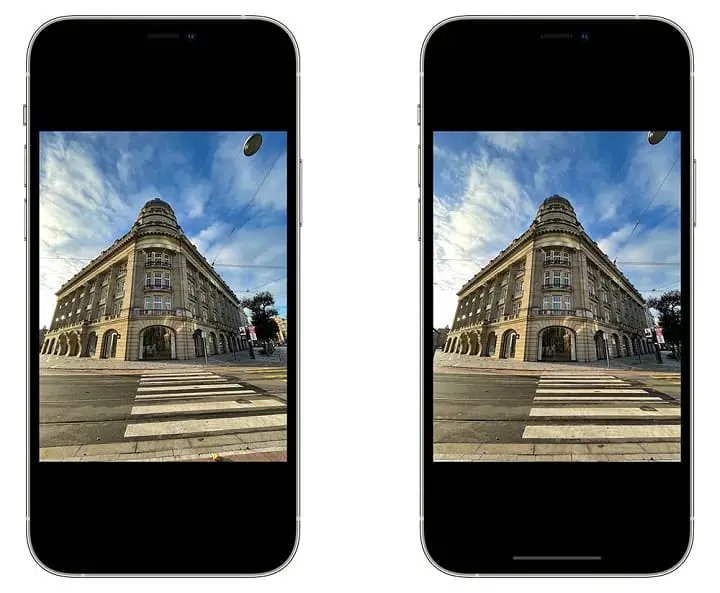
SKRWT is a specialized photo editing app for correcting perspective and lens distortion. It is particularly useful for architecture, interiors, buildings, and travel photography where straight lines can appear warped. Instead of focusing on skin retouching or AI enhancement, SKRWT gives users precise manual controls to straighten images and correct wide-angle distortion.
Key features
- Perspective correction
- Lens distortion correction
- Horizontal and vertical adjustment
- Image straightening
- Crop and transform tools
Pros
- Precise perspective correction
- Useful for architectural and wide-angle photos
Cons
- Not designed for portrait retouching
- Fewer AI-powered tools than modern editors
Pricing: Paid app with a one-time purchase, making it suitable for users who prefer to avoid recurring subscriptions.
Best for: Fixing perspective and lens distortion in architectural, interior, and travel photos.
>>> See more:
- How To Make A Clipping Path In Illustrator (Step-By-Step)?
- Free Photo Retouch Online: 10 Tools For Easy Image Editing
- 25 Popular Photo Editing Styles In Photography For Stunning Images
iOS Photos: Free Basic Photo Retouching
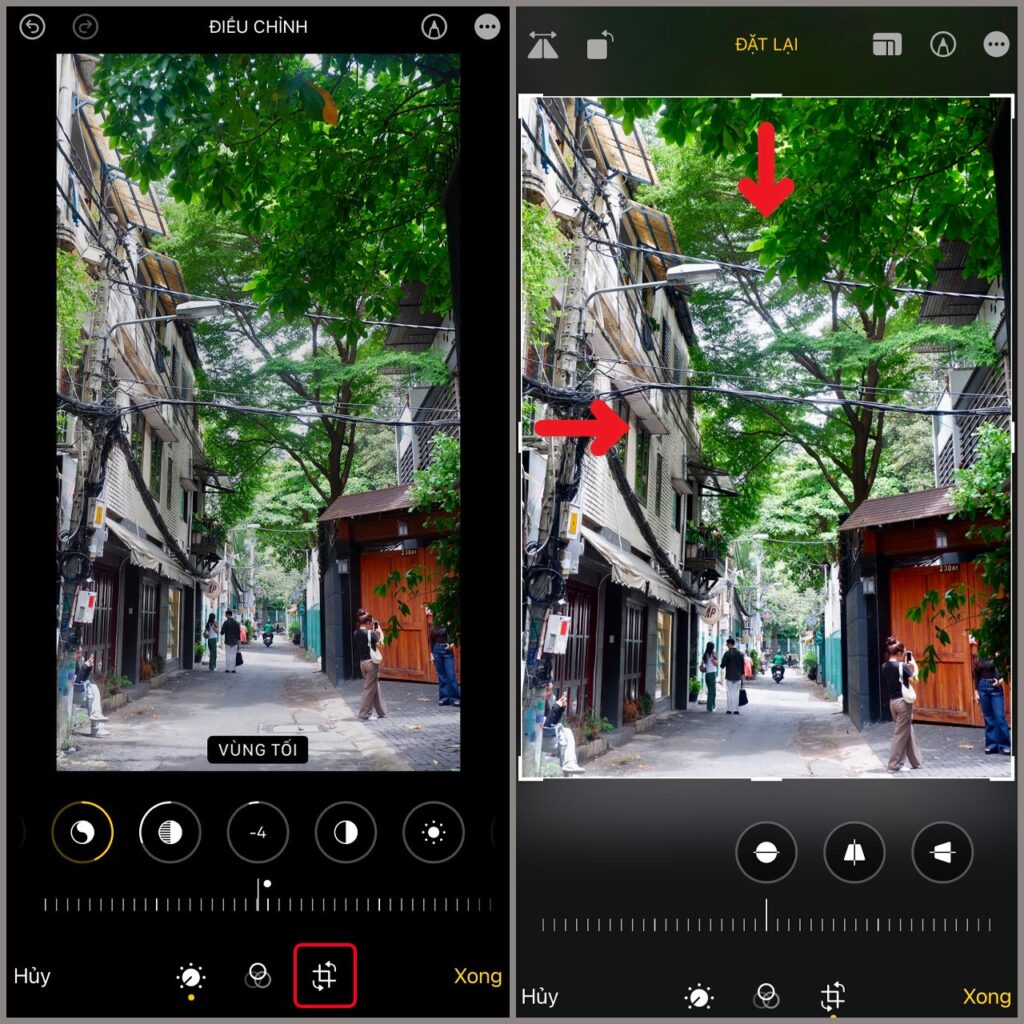
The built-in iOS Photos app is the easiest option for users who want a free iPhone photo retouch app without downloading anything. It provides essential editing controls for exposure, brightness, contrast, highlights, shadows, saturation, sharpness, and other adjustments. On compatible iPhones, Apple Intelligence also adds the Clean Up tool for removing unwanted objects from photos.
Key features:
- Light and color adjustments
- Cropping and straightening
- Filters
- Object removal with Clean Up on supported devices
- Automatic enhancement
Pros
- Completely free
- Already installed on iPhone
- Simple for beginners
Cons
- Limited advanced retouching controls
- AI features depend on device compatibility
Pricing: Completely free and included with compatible iPhones. No separate download or subscription is required.
Best for: Free basic photo retouching and quick everyday edits.
Snapseed: Free Everyday Photo Retouching
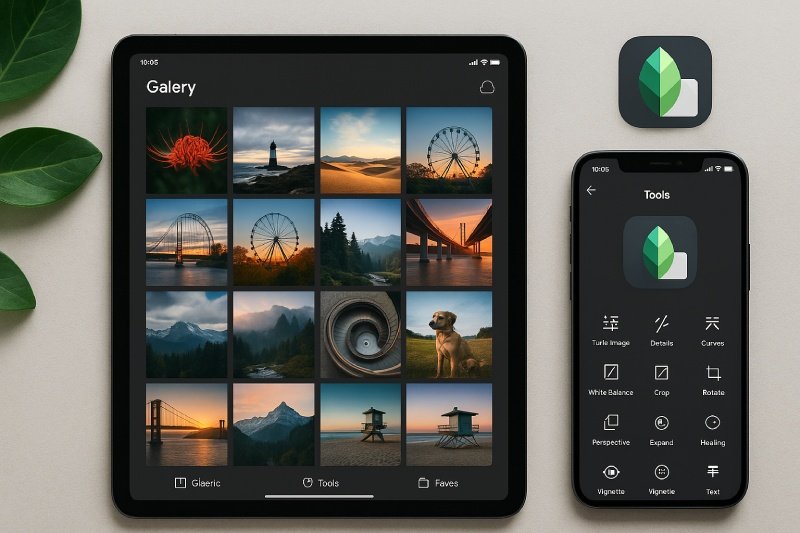
Snapseed is a popular iPhone photo retouch app free users can use for everyday editing without paying for premium features. Developed by Google, it combines simple editing controls with more advanced tools such as Healing, Selective adjustments, Curves, and Portrait enhancements. Most edits are manual, giving users greater control over the final result than fully automated AI editors.
Key features:
- Blemish removal
- Healing tool
- Portrait enhancement
- Selective adjustments
- Curves and color correction
Pros
- Completely free
- No subscription or premium upgrade
- Powerful tools for beginners and experienced users
Cons
- Interface may take time to learn
- Fewer modern AI features
Pricing: Completely free with no subscription, paid upgrade, or in-app purchase required.
Best for: Free everyday photo retouching and manual editing on iPhone.
VSCO: Filters And Creative Retouching
VSCO is best known for its film-inspired filters and creative editing tools rather than detailed portrait retouching. It lets users adjust exposure, contrast, saturation, grain, tone, and other elements to create a consistent visual style. The free version provides basic editing capabilities, while the membership unlocks a much larger collection of presets and advanced tools.
Key features
- Creative filters
- Color and exposure adjustments
- Film-inspired presets
- Grain and texture effects
- Basic photo retouching
Pros
- High-quality presets
- Excellent for social media photography
- Easy-to-use interface
Cons
- Many premium presets require membership
- Limited object and blemish removal
Pricing: Free version available with basic tools and presets. A paid membership is required for the full preset library and advanced features.
Best for: Creative photo retouching, filters, and social media content.

Google Photos: Quick AI Photo Retouching
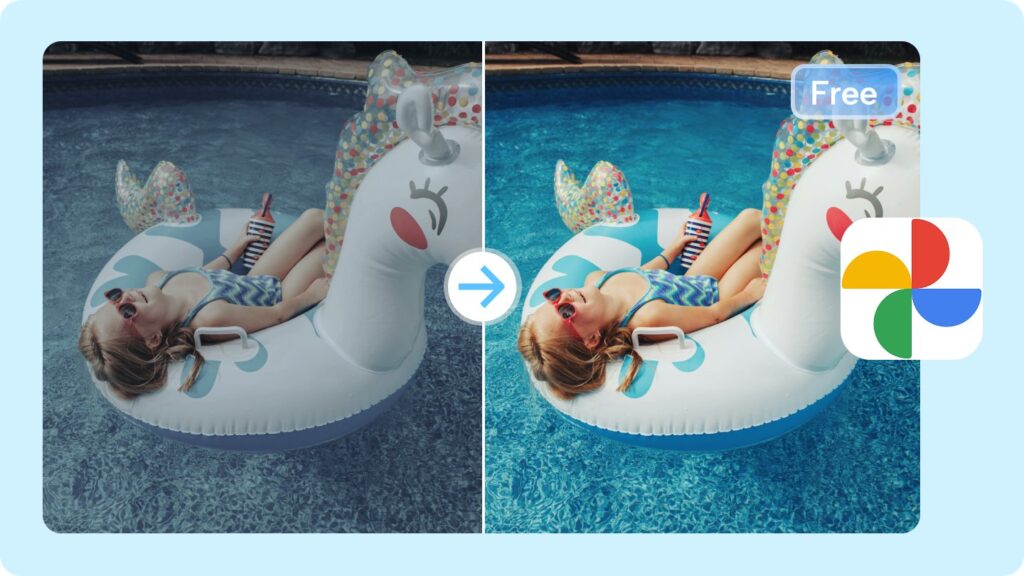
Google Photos is more than a photo storage app. On supported devices, it offers AI-powered editing features that can automatically improve images and remove unwanted elements. Users can also make standard adjustments to brightness, contrast, color, and cropping. It is a convenient option for people who want quick results without learning complex editing controls.
Key features
- AI photo enhancement
- Object removal
- Portrait adjustments
- Lighting correction
- Automatic editing suggestions
Pros
- Simple AI-powered workflow
- Works across devices
- Useful for quick edits
Cons
- Some AI features vary by device and region
- Advanced storage requires a paid plan
Pricing: Free to download with basic editing and limited Google storage. Additional cloud storage requires a Google One subscription.
Best for: Quick AI photo retouching and automatic image enhancement.
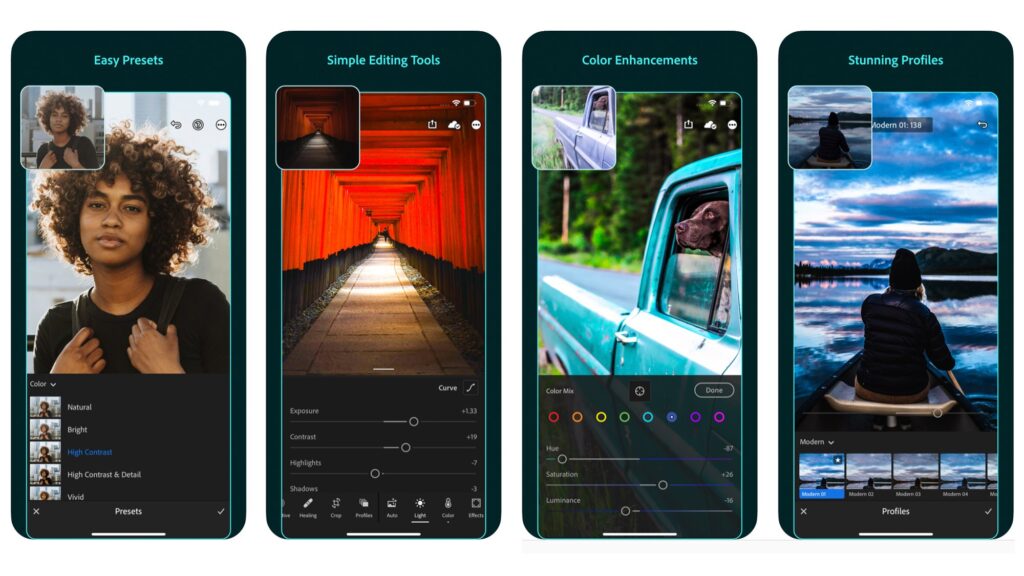
Adobe Lightroom: Professional Photo Retouching
Adobe Lightroom is a professional-grade photo editing app for iPhone that combines detailed manual controls with AI-powered editing. It is particularly strong for photographers who need precise color grading, RAW editing, masking, and exposure adjustments. Users can also apply presets and synchronize edits across devices through an Adobe account.
Key features
- RAW photo editing
- AI masking
- Color grading
- Healing and blemish removal
- Presets and advanced adjustments
Pros
- Professional editing capabilities
- Excellent RAW and color tools
- Powerful AI-assisted masking
Cons
- Advanced features require payment
- More complex than basic editing apps
Pricing: Free version available for basic editing. Premium features require an Adobe Lightroom subscription, with plans typically billed monthly or annually.
Best for: Professional photo retouching, RAW editing, and advanced color correction.
>>> See more:
- AI Photo Retouching: 10 Best Tools & How To Use Them In 2026
- Photo Editing and Retouching: Benefits, Techniques, and Best Services
- Best AI for Image Processing Tools: Top 10 for Automation In 2026
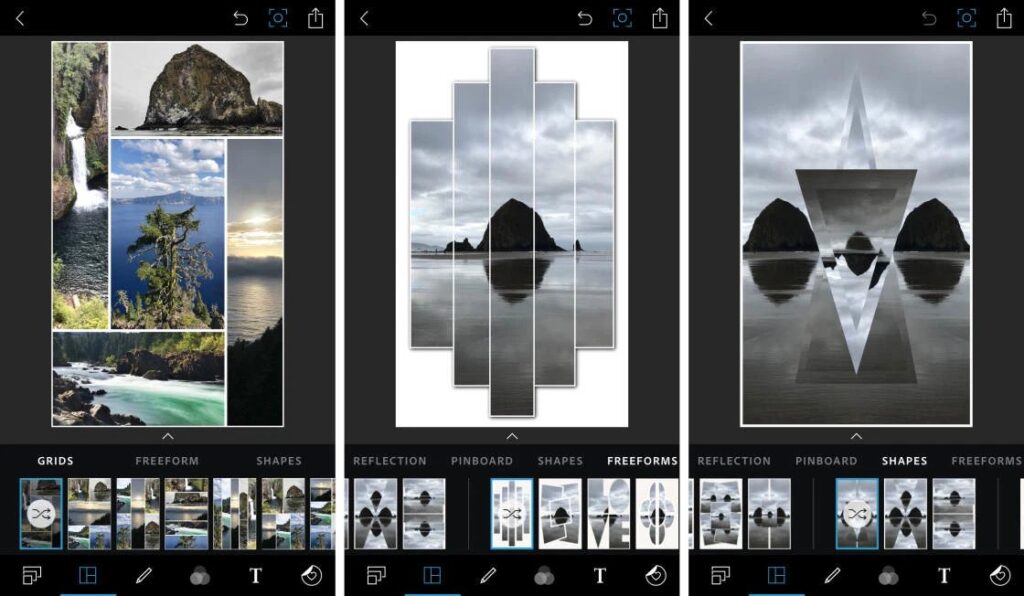
Photoshop Express: Portrait And Blemish Retouching
Photoshop Express provides a simpler mobile alternative to desktop Photoshop, focusing on fast photo enhancement and portrait retouching. Users can remove blemishes, smooth skin, adjust facial details, apply filters, and improve overall image quality without needing advanced editing knowledge. It is particularly useful when speed matters more than detailed manual control.
Key features
- Blemish removal
- Skin smoothing
- Portrait retouching
- Object removal
- Quick image enhancement
Pros
- Beginner-friendly interface
- Strong portrait editing tools
- Fast one-tap enhancements
Cons
- Some advanced tools are locked behind premium access
- Less powerful than full Photoshop
Pricing: Free to download with basic editing tools. Premium features and advanced retouching tools require a paid subscription.
Best for: Quick portrait, skin, and blemish retouching on iPhone.
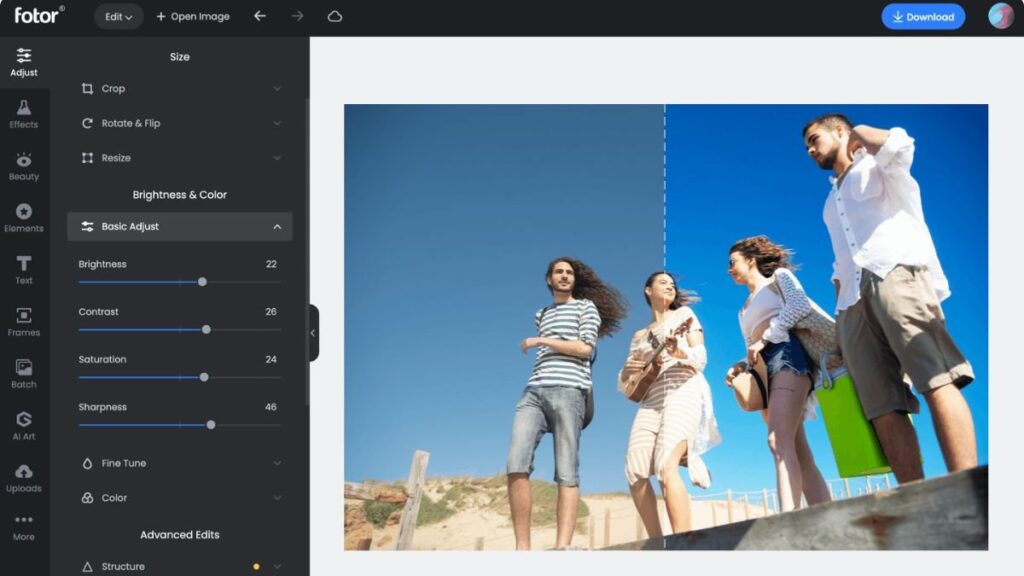
Fotor: AI Portrait Retouching And Enhancement
Fotor is an AI-focused photo editor that makes portrait retouching and image enhancement accessible to beginners. Its automated tools can smooth skin, remove blemishes, enhance facial details, and improve image quality with minimal manual adjustment. It also includes standard editing features for users who want more control over brightness, color, and composition.
Key features
- AI portrait retouching
- Skin smoothing
- Blemish removal
- AI photo enhancement
- Background and object editing
Pros
- Fast AI-powered retouching
- Easy for beginners
- Combines retouching with general editing tools
Cons
- Advanced AI features require payment
- Free version has feature limitations
Pricing: Free to download and use with basic editing tools. Advanced AI retouching and enhancement features require a paid Pro plan, usually available through monthly or annual billing.
Best for: AI portrait retouching, skin enhancement, and quick photo improvements.
| App | Best For | Free Version | AI Editing | Retouching Tools | Object Removal | Portrait Editing | Color & Light |
| Photomator | AI-powered retouching | Yes | Yes | Yes | Yes | Yes | Yes |
| TouchRetouch | Object removal | No | Yes | Yes | Yes | No | No |
| SKRWT | Perspective correction | No | No | Yes | No | No | Yes |
| iOS Photos | Basic photo retouching | Yes | Limited | Yes | Limited | Yes | Yes |
| Snapseed | Everyday retouching | Yes | No | Yes | Yes | Yes | Yes |
| VSCO | Creative filters | Yes | Yes | Yes | No | Yes | Yes |
| Google Photos | Quick AI enhancement | Yes | Yes | Yes | Yes | Yes | Yes |
| Adobe Lightroom | Professional editing | Yes | Yes | Yes | Yes | Yes | Yes |
| Photoshop Express | Portrait retouching | Yes | Yes | Yes | Yes | Yes | Yes |
| Fotor | AI portrait enhancement | Yes | Yes | Yes | Yes | Yes | Yes |
How To Choose The Best iPhone Photo Retouch App?
Choosing the right iPhone photo retouch app depends on the type of edits needed, the level of control required, and whether free or premium features are acceptable. Consider the following factors before downloading an app.
Choose An App Based On Your Retouching Needs
Start by identifying what you want to retouch. Some apps specialize in object removal, while others are better for skin smoothing, portrait enhancement, perspective correction, or professional color editing. For simple edits, a free iPhone photo retouch app may be enough. More specialized needs may require a dedicated editor.
Check AI And Manual Editing Features
AI-powered tools can automatically remove unwanted objects, enhance portraits, smooth skin, or improve image quality with minimal effort. Manual controls are more suitable when precise adjustments are important. The best iPhone photo retouch app should offer the right balance between automated AI features and hands-on editing tools.
Consider Free vs. Paid Features
Many iPhone photo retouch apps are free to download but limit advanced tools, filters, or AI features to premium users. Check whether essential functions such as blemish removal, skin retouching, and object removal are included in the free version before subscribing or making a one-time purchase.
Check iPhone And iOS Compatibility
Before downloading an iPhone editing app, check its supported iOS version and device requirements. Some AI-powered features, such as advanced object removal or on-device processing, may only work on newer iPhone models or specific versions of iOS.
>>> See more:
- Best Fashion Photo Editing Services 2026: Professional Editing
- Car Photo Editing: Complete Guide To Professional Vehicle Photos
- E-commerce Photo Editing Services: Top Companies & Solutions For Online Stores
How To Retouch Photos On iPhone?
Retouching photos on iPhone can be as simple as making a few adjustments in the built-in Photos app or using a dedicated iPhone photo retouch app for more advanced edits. The right workflow depends on whether the goal is to remove distractions, improve portraits, or enhance the overall image.
Retouch Photos With The iOS Photos App
The iOS Photos app is a convenient option for free photo editing on iPhone because it requires no additional download. Use its built-in tools to crop, straighten, adjust exposure, brightness, contrast, highlights, shadows, saturation, and sharpness. On supported devices, Apple’s Clean Up feature can also help remove unwanted elements from photos.
Remove Unwanted Objects And Blemishes
For more precise retouching, use an iPhone photo retouch app with healing or object-removal tools. These features can remove small blemishes, people in the background, wires, signs, and other distractions. Apps such as TouchRetouch are particularly useful when removing objects from photos on iPhone is the main goal.
Smooth Skin And Enhance Portraits
Portrait-focused retouching tools can reduce blemishes, smooth skin, brighten facial details, and improve the overall appearance of a portrait. AI-powered apps can automate many of these adjustments, while manual controls help maintain a natural-looking result and avoid excessive smoothing.
Adjust Color, Lighting, And Details
Finish the retouching process by refining exposure, highlights, shadows, contrast, saturation, temperature, and sharpness. For more advanced photo editing on iPhone, apps such as Lightroom or Photomator provide greater control over color, detail, and RAW images.
>>> See more:
- How To Make Photos Look Like Film: A Complete Beginner’s Guide
- Professional Skin Retouching In Photoshop For Natural Results
FAQs About Iphone Photo Retouch App
Is There A Retouch Tool On iPhone?
Yes. Compatible iPhones have a built-in Clean Up tool in the Photos app, powered by Apple Intelligence, that can remove unwanted objects or people from photos. For older iPhone models or more detailed retouching, third-party photo editing apps on the App Store offer additional tools.
How To Retouch An Image On iPhone?
You can easily retouch photos on an iPhone using the built-in Photos app to fine-tune lighting, color, and overall appearance. On iPhones that support Apple Intelligence, the Clean Up tool can also remove unwanted objects or people from an image. For more advanced retouching, apps such as TouchRetouch and Snapseed offer tools for removing blemishes, unwanted details, and other distractions.
What Is The Best Free App For Retouching Photos?
Snapseed is one of the best free apps for photo retouching, especially for everyday edits on mobile. It offers useful tools for removing blemishes, smoothing portraits, correcting details, and enhancing photos without ads. For more advanced editing, Photoshop Express, Photopea, or GIMP are also worth considering.
What Is The Best iPhone Photo Editing App?
The best iPhone photo editing app depends on the type of editing you need. Snapseed is a strong free option for everyday retouching, while Adobe Lightroom Mobile is better suited to advanced color adjustments and RAW editing. For AI-assisted edits and non-destructive workflows, Photomator is another excellent choice.
Finding the best iPhone photo retouch app depends on the type of edits you need, your preferred workflow, and whether you want free or premium features. Whether you are looking for an iPhone photo retouch app free, an iPhone photo retouch app free download, or a photo editing app for iPhone free, consider the app’s retouching tools, AI features, ease of use, and device compatibility before downloading. The right photo app for iPhone free can make everyday photo enhancement faster while helping achieve a natural, polished result.
DIGI-TEXX Contact Information:
🌐 Website: https://digi-texx.com/
📞 Hotline: +84 28 3715 5325
✉️ Email: [email protected]
🏢 Address:
- Headquarters: Anna Building, QTSC, Trung My Tay Ward
- Office 1: German House, 33 Le Duan, Saigon Ward
- Office 2: DIGI-TEXX Building, 477-479 An Duong Vuong, Binh Phu Ward
- Office 3: Innovation Solution Center, ISC Hau Giang, 198 19 Thang 8 street, Vi Tan Ward
References
- University of Wisconsin–Madison. (n.d.). Photoshop 2: Retouching and color correction. DoIT Digital Skills. https://sts.doit.wisc.edu/manuals/photoshop2-retouching/
- Stanford University. (n.d.). Lens distortion correction. Stanford Electrical Engineering. https://stanford.edu/class/ee267/lectures/lecture7.pdf