
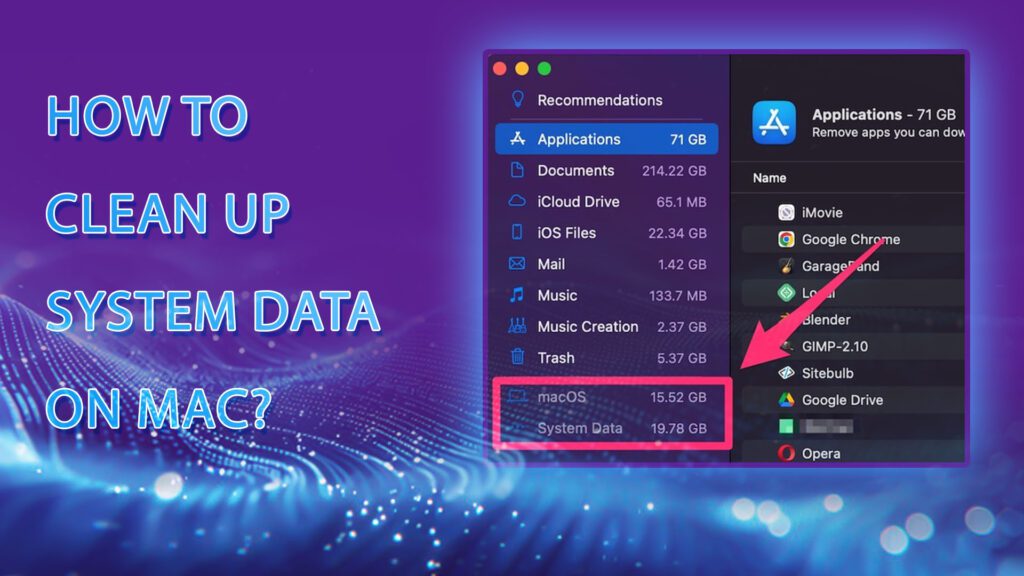
How to clear system data on Mac is a common question when your MacBook or iMac starts running out of storage and System Data takes up a significant amount of space. However, System Data is not a single folder that you can simply delete. It is a macOS storage category that can include caches, logs, temporary files, application support data, backups, and other system-related resources.
In this article, DIGI-TEXX will help you understand what System Data is, why it can become so large, and how to safely free up system data on Mac without deleting essential files or affecting your Mac’s performance.
>>> See more:
- What Is Master Data Management (MDM)? Benefits, Process & Use Cases
- 10 Types of Data Entry Services for Modern Businesses
- Enterprise Data Management: 6 Core Pillars, Benefits & Tools
What Is System Data On Mac?
System Data is a macOS storage category for files that do not fit into categories such as Applications, Documents, Photos, Music, or Messages. It can include caches, logs, temporary files, virtual memory, application support files, plug-ins, fonts, and other system or app-related data. The exact size and contents vary depending on how the Mac and its applications are used.
System Data is not the same as the macOS operating system itself. macOS and System Data are listed as separate storage categories. There is also no fixed amount that can be considered “normal” because System Data changes with factors such as installed apps, temporary files, caches, backups, and Time Machine activity.
A large System Data number does not necessarily mean something is wrong. macOS automatically removes some caches and logs when storage space is needed, so the category can increase and decrease over time. The practical concern is whether it is taking up enough space to affect everyday use, such as preventing updates or saving files.
Why Is System Data So Large?
System Data can grow when temporary and supporting files accumulate over time. Common contributors include application caches, Time Machine local snapshots, iPhone and iPad backups, application support files, logs, and temporary system files.
- Caches: Apps and browsers store temporary data to improve performance. Frequently used applications can accumulate large caches over time.
- Time Machine snapshots: macOS can create local Time Machine snapshots when the backup disk is unavailable. These are automatically removed as they age or when space is needed.
- iPhone and iPad backups: Older local device backups can consume significant storage. Apple recommends managing them through Finder rather than manually deleting backup folders.
- Application support files: Apps may store databases, libraries, plug-ins, templates, and other supporting data outside the main application.
- Logs: macOS and applications generate logs for system operations and troubleshooting. Many are automatically managed by macOS.
- Temporary files: Installation files, update data, temporary databases, and other working files may remain until macOS determines that they can be removed.
>>> See more:
- 20 Best Data Governance Tools In 2026
- Automatic Data Processing (ADP): How It Works & Key Benefits
- Data Validation & Verification: Key Differences, Examples & Benefits
How To Check System Data On Mac?
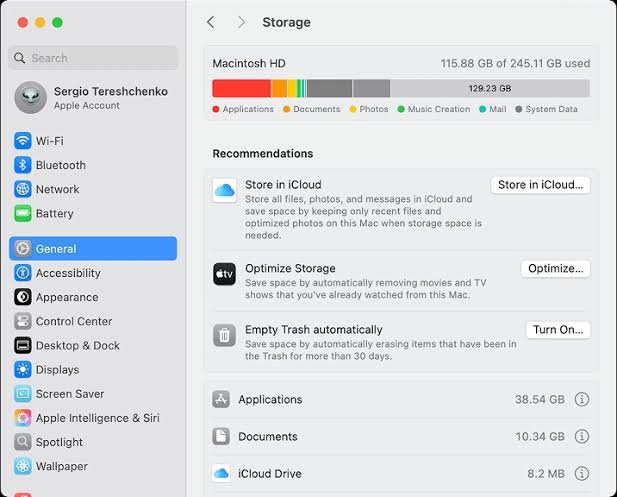
Before trying to clear System Data on Mac, check how much space it actually occupies.
On macOS Ventura 13 and later:
- Click the Apple menu.
- Select System Settings.
- Select General.
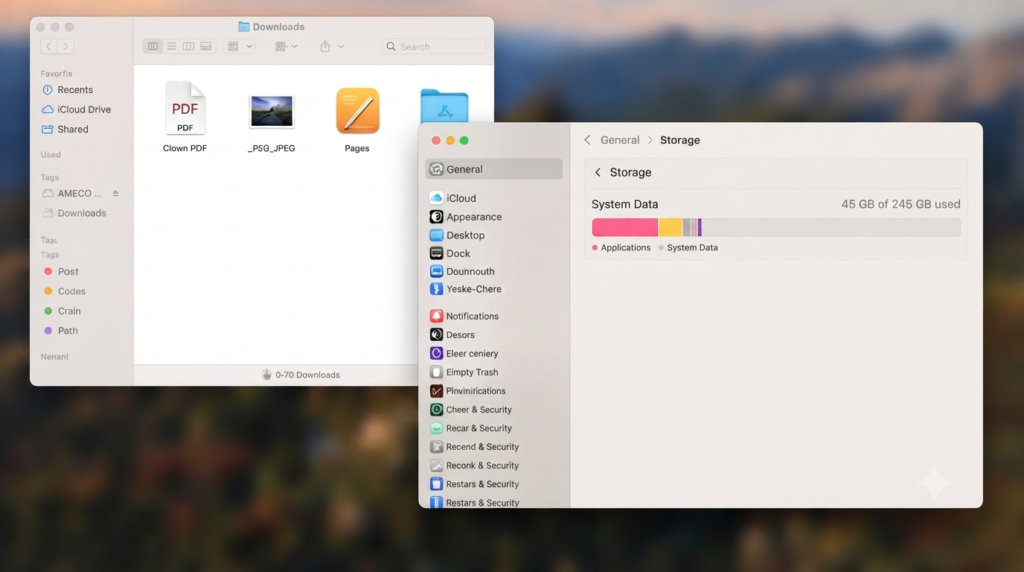
- Click Storage.
- Review the storage categories.
- Look for System Data.
Apple states that the Storage view updates automatically as files are removed and storage is reclaimed.
The Storage screen can also provide more useful information about categories such as Applications, Documents, Messages, Mail, and iOS Files. Those categories can often be managed directly, which is preferable to trying to manipulate System Data itself.
A useful rule before deleting anything
If System Data is large, do not immediately start deleting files from /System, /Library, or other protected macOS directories.
Instead:
- Check Storage.
- Identify large user-controlled categories.
- Review old device backups.
- Remove unnecessary downloads.
- Empty Trash.
- Review application data.
- Clear appropriate caches.
- Check Time Machine behavior.
- Restart the Mac.
- Recheck Storage.
This approach is safer and usually more effective than trying to force the System Data number down.
How To Clear System Data On Mac?
There is no single “Clear System Data” button in macOS. Instead, macOS manages the System Data category automatically while users manage the files contributing to storage usage. Apple explicitly states that the contents of System Data itself cannot be directly managed from the Storage pane.
The following methods are the safest ways to reduce unnecessary storage associated with System Data.
1. Restart Your Mac
A restart is the simplest first step.
Some temporary files, caches, and processes are released during normal system operation. Apple also recommends Safe Mode as a way to temporarily free additional storage because macOS clears certain system caches during the process.
To restart:
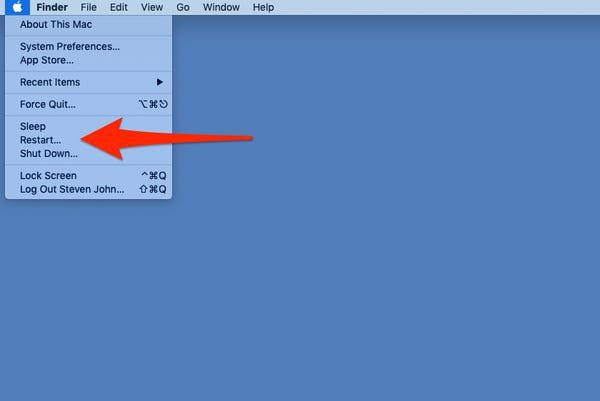
- Click the Apple menu.
- Select Restart.
- Wait for the Mac to boot normally.
- Open System Settings > General > Storage again.
Do not expect every restart to dramatically reduce System Data. The purpose is to allow macOS to complete normal cleanup and release temporary resources.
2. Empty Trash
Deleting a file does not immediately make its storage available if the file is still in Trash.
To permanently remove deleted files:
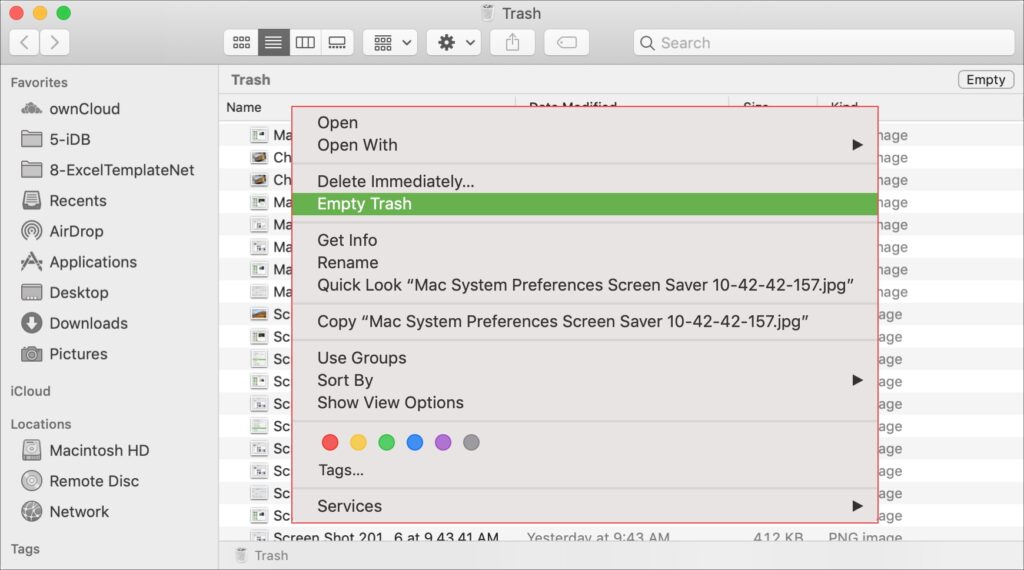
- Open Trash.
- Review the contents.
- Click Empty Trash.
- Confirm the deletion.
Apple notes that items remain in Trash until it is emptied, meaning their storage is not fully reclaimed beforehand.
>>> See more:
- What is Data Extraction? Definition, How It Works & Examples | DIGI-TEXX
- Data Integrity Definition: Meaning, Types, Examples & Best Practices 2026
- List Of 11 Free Data Cleansing Tools 2026 For Accurate Data
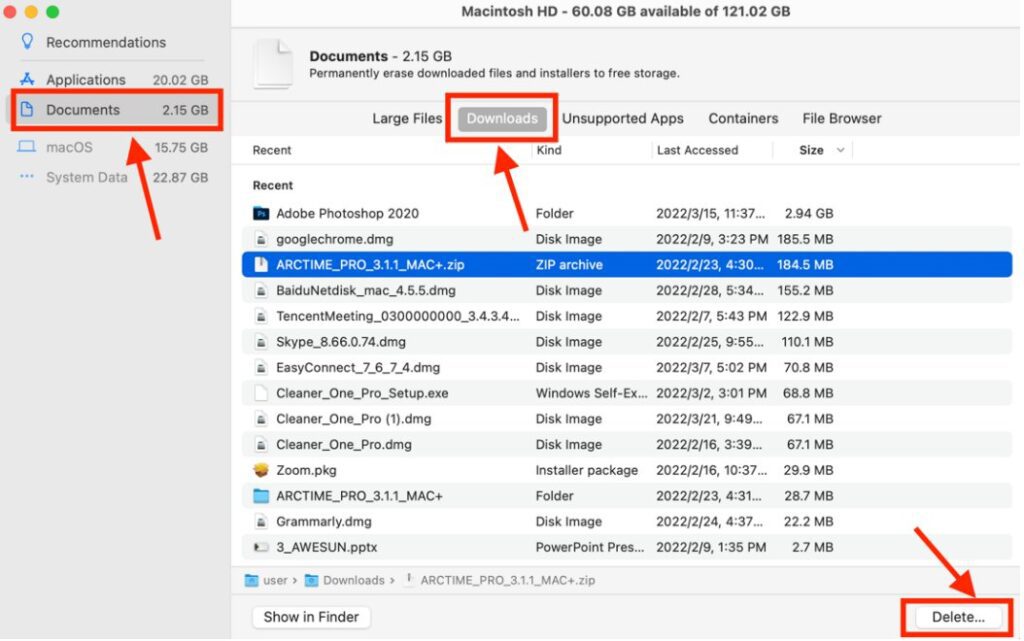
3. Delete Unnecessary Downloads
The Downloads folder is one of the easiest places to recover storage.
Large installers, ZIP archives, DMG files, videos, PDFs, and duplicate documents can remain there long after they are needed.
To review Downloads:
- Open Finder.
- Select Downloads.
- Sort files by Size.
- Remove files that are no longer needed.
- Empty Trash.
Apple specifically recommends deleting unnecessary files from the Downloads folder when freeing storage on a Mac.
This does not technically mean every deleted download was part of System Data. However, reducing unnecessary storage elsewhere can give macOS more room and may reduce pressure on the startup disk.
4. Delete Old iPhone And iPad Backups
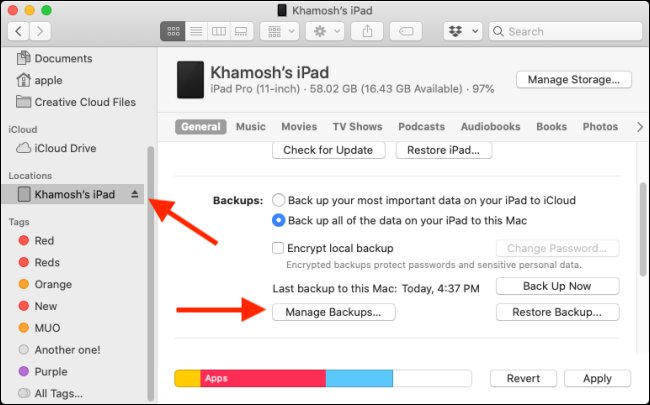
Old local iPhone and iPad backups can be surprisingly large.
To manage them:
- Connect the iPhone or iPad to the Mac if necessary.
- Open Finder.
- Select the device.
- Open the General tab.
- Select Manage Backups.
- Review existing backups.
- Delete backups that are no longer needed.
Apple documents this as the supported way to manage local iPhone and iPad backups. Before deleting an old backup, confirm that a newer backup exists or that the older backup is no longer needed.
Do not delete the MobileSync backup folder blindly. Use Finder’s backup-management interface whenever possible.
5. Clear Caches Carefully
Cache cleanup is one of the most common answers to how to clean System Data on Mac, but it is also an area where users can make unnecessary changes. A safer approach is to focus on application-specific caches that are clearly no longer needed.
For example, if a particular application has accumulated a very large cache, check whether the application itself provides a Clear Cache, Reset, or similar option. macOS also performs its own cache cleanup. Apple states that when additional space is required, macOS can clear caches and logs that are safe to remove, including temporary database files, interrupted downloads, staged macOS and application updates, and Safari website data.
Therefore:
- Do not delete random files from protected system directories.
- Avoid removing cache folders belonging to applications that are currently running.
- Prefer application-level cleanup tools.
- Restart after major cleanup.
- Recheck storage rather than expecting the System Data figure to change immediately.
6. Remove Application Leftovers
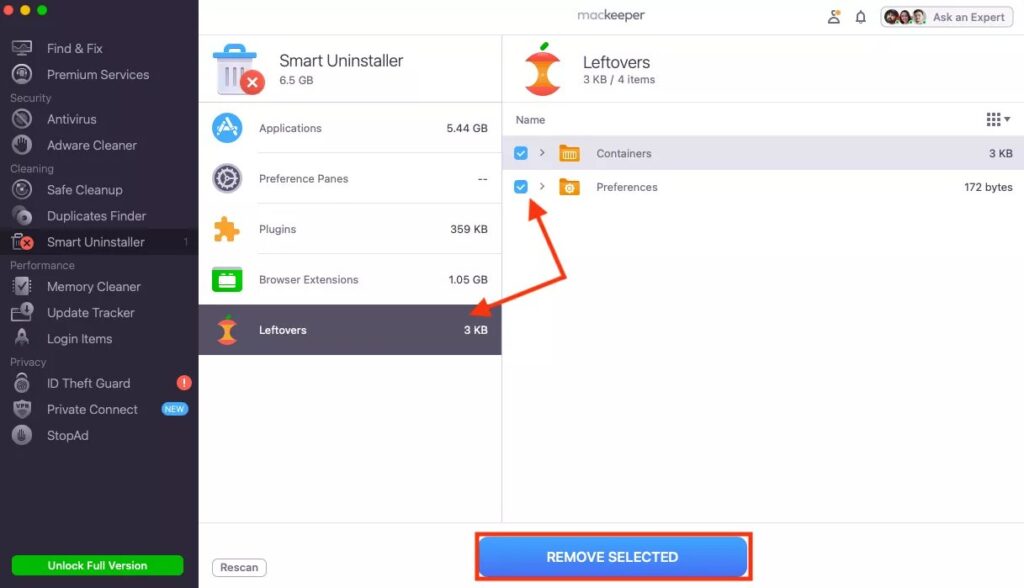
If an application has been permanently uninstalled, some associated support data may remain.
Potential locations include the user’s Library folders, but the contents should be reviewed before deletion.
A practical approach is:
- Identify applications that are no longer used.
- Uninstall them properly.
- Check whether the application provides an official uninstall utility.
- Review remaining application-specific data.
- Delete only files that clearly belong to software that is no longer installed.
This is especially important for professional software such as development environments, creative applications, virtual machines, and enterprise tools because supporting files can be large and may be required independently of the main application.
7. Delete Unnecessary Mail Attachments
Mail can accumulate substantial attachment data over time.
Apple’s Storage tools include a Mail category for emails and attachments, while its storage optimization features can keep only recent email attachments locally when space is needed.
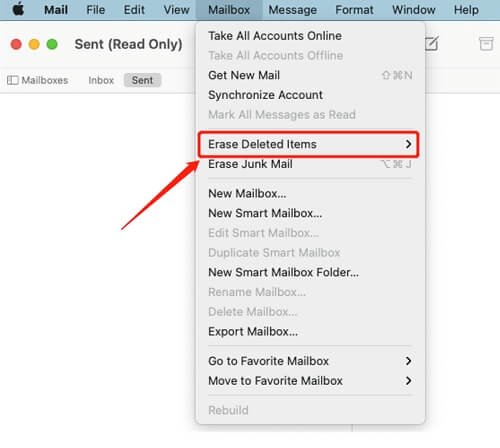
You can also use Mail’s built-in cleanup options:
- Open Mail.
- Choose Mailbox from the menu bar.
- Select Erase Junk Mail.
- Select Erase Deleted Items.
Apple includes these actions among its recommended ways to free storage on Mac.
>>> See more:
- Top 15 Best Big Data Tools For Analytics In 2026
- Top 14 Data Entry Skills To Put On Your Resume In 2026
- 5 Best Data Parsing Software in 2026 | Features & Comparison
8. Reduce Time Machine Local Snapshots
Time Machine snapshots can look like a large storage consumer, but they are generally self-managing. Apple says local snapshots are automatically deleted as they age or when space is needed.
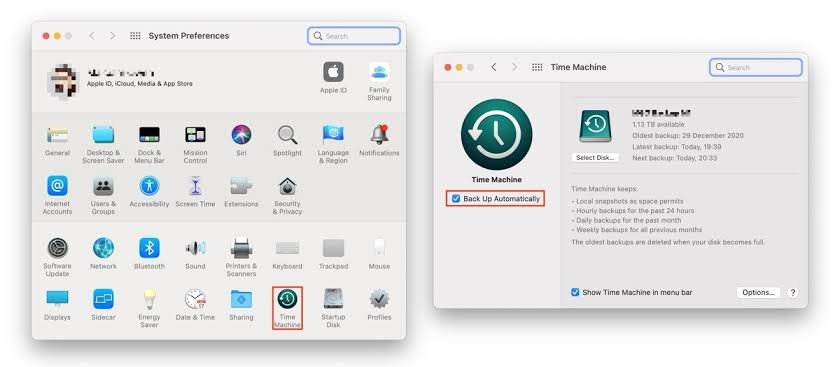
If you need to manually encourage macOS to remove local snapshots, Apple recommends temporarily turning off automatic Time Machine backups:
- Open System Settings.
- Select General.
- Select Time Machine.
- Open the backup options.
- Temporarily set backup frequency to Manually on supported newer macOS versions.
- Wait several minutes.
- Turn automatic backups back on.
Apple documents this as a way to manually trigger removal of local snapshots. Avoid permanently disabling Time Machine simply to reduce System Data. Local snapshots provide a recovery mechanism when the backup disk is unavailable.
9. Start Your Mac In Safe Mode
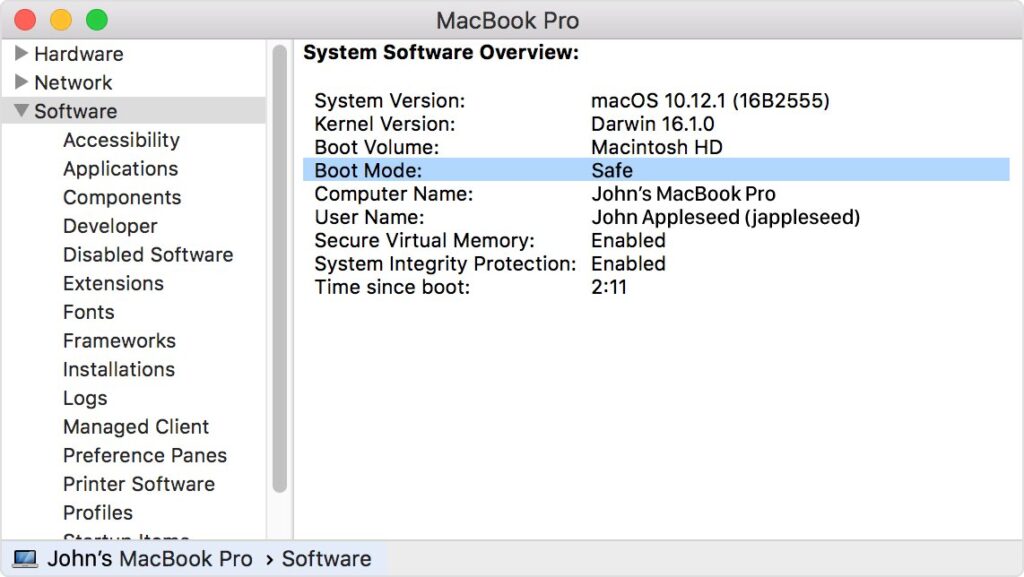
Safe Mode can be useful when storage appears unusually low or when System Data remains high despite normal cleanup.
Apple says starting a Mac in Safe Mode can temporarily free additional storage because certain system caches are cleared.
Apple silicon Mac
- Shut down the Mac.
- Press and hold the power button.
- Continue holding until Loading startup options appear.
- Select the startup volume.
- Hold Shift.
- Select Continue in Safe Mode.
Intel-based Mac
- Restart or turn on the Mac.
- Immediately hold the Shift key.
- Keep holding it until the login screen appears.
- Log in.
After using Safe Mode, restart normally. Safe Mode should be viewed as a troubleshooting and temporary cleanup measure rather than a permanent storage-management strategy.
10. Use Optimize Storage
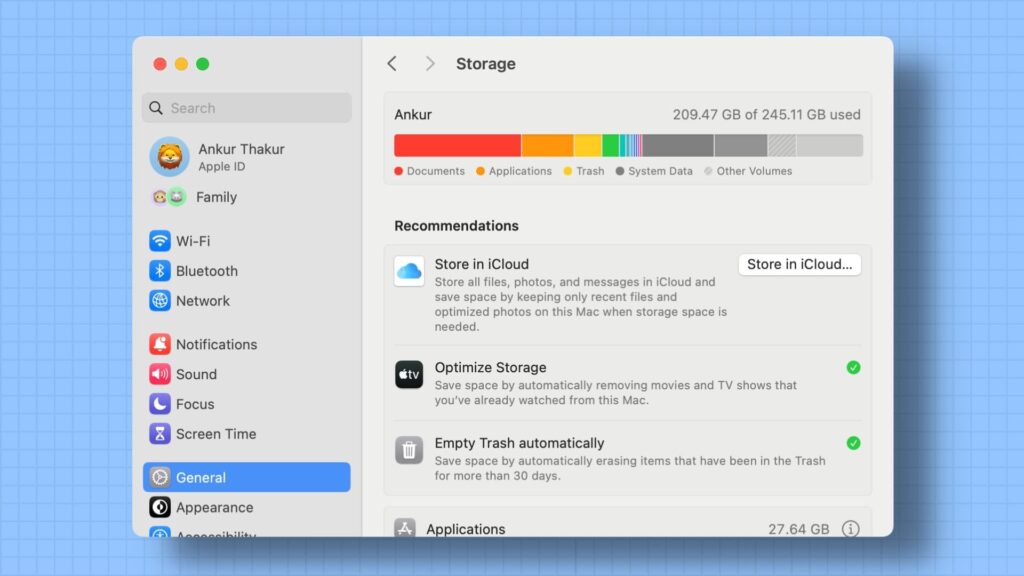
macOS includes built-in storage recommendations that can reduce the amount of unnecessary local data.
Go to:
Apple menu > System Settings > General > Storage
Depending on the Mac and macOS version, available recommendations may include:
- Store in iCloud
- Optimize Storage
- Automatically empty Trash
- Review large files
- Remove downloaded content
Apple’s Optimize Storage feature can automatically remove watched Apple TV content and keep only recent Mail attachments locally when storage space is needed. macOS can also use iCloud to keep certain files, photos, videos, and attachments available on demand instead of storing every original locally. This is often a better long-term approach than repeatedly deleting system files.
11. Review Large Files Outside System Data
Sometimes the fastest way to solve a storage problem is not to reduce System Data at all.
Go to:
System Settings > General > Storage > Documents
Apple’s Storage interface can help identify large files and downloads, and users can sort content by size or access information through the File Browser.
Look for:
- Old installers
- Large video files
- Duplicate archives
- Virtual machine images
- Old project files
- Application packages
- Large downloads
- Unused disk images
Removing a few large user files may recover more practical storage than attempting to manipulate System Data.
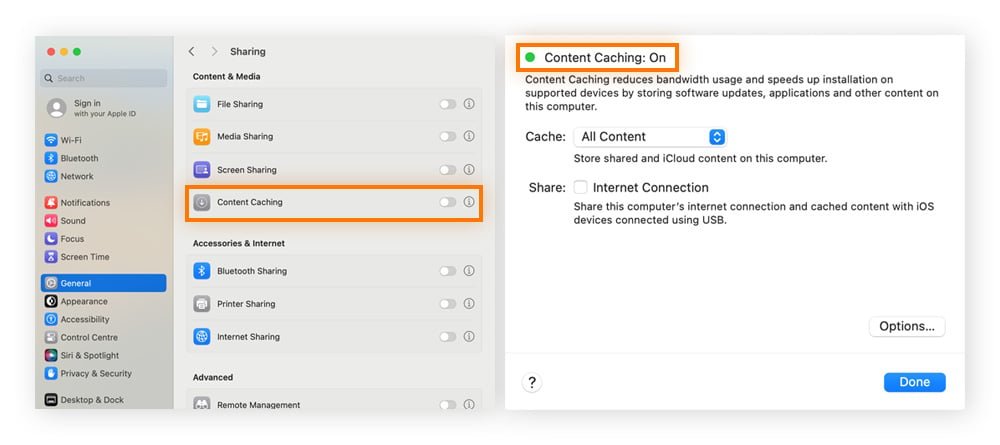
12. Check Content Caching If It Is Enabled
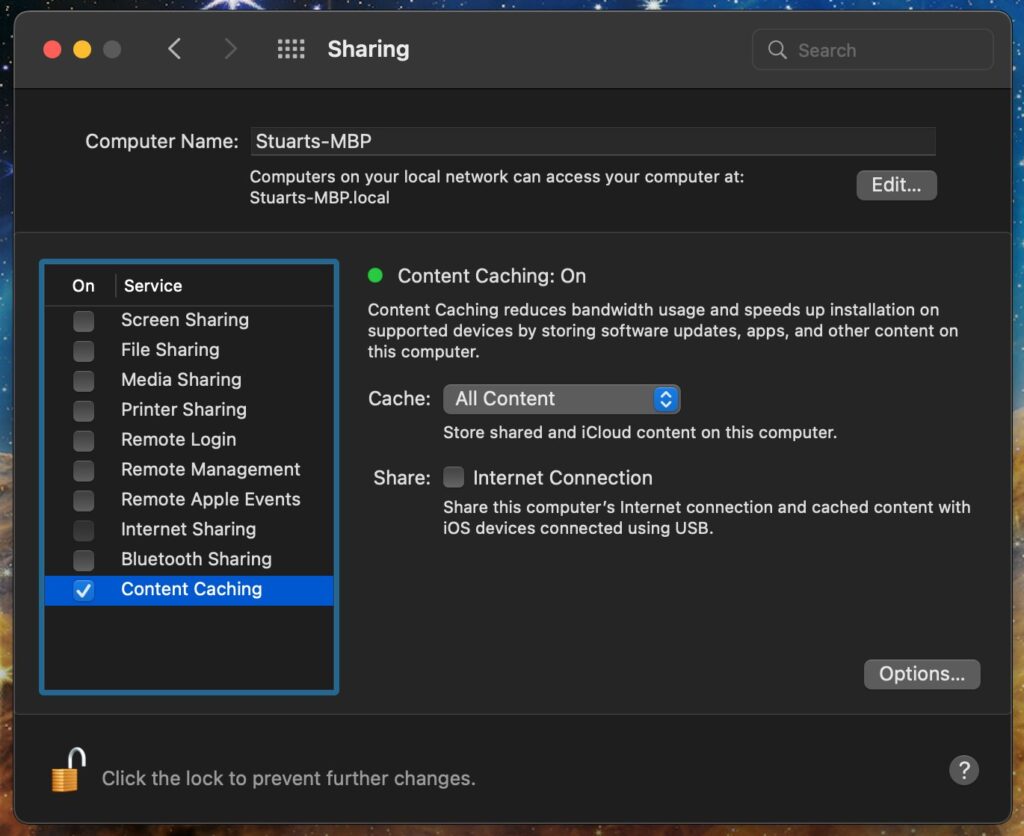
Some Macs are configured as a Content Caching server for Apple devices.
Content caching can store downloaded Apple software updates, applications, and other supported content locally. macOS provides controls for the cache location, size, and reset behavior.
If Content Caching is intentionally enabled:
- Open System Settings.
- Go to General > Sharing.
- Open Content Caching.
- Select the information button.
- Open Options.
- Review storage usage.
- Use Reset if the cached content can safely be regenerated.
This is particularly relevant for Macs used in offices, schools, labs, or environments with multiple Apple devices.
>>> See more:
- 11+ Top Data Quality Management Tools and Software for Businesses
- Financial Data Quality Management: Strategies & Best Practices
- Top 20 Data Entry Outsourcing Companies to Hire in 2026 [List]
What Can You Safely Delete?
The safest files to remove are generally user-controlled data that is clearly no longer needed, rather than core macOS files.
| Data type | Usually safe to remove? | Recommended approach |
| Old Downloads | Yes | Review and delete unnecessary files |
| Files in Trash | Yes, if no longer needed | Empty Trash |
| Old iPhone/iPad backups | Yes, if no longer needed | Use Finder > Manage Backups |
| Unused applications | Yes | Uninstall properly |
| Old Mail/Junk | Yes | Use Mail’s cleanup tools |
| Application cache | Usually | Prefer app-specific cleanup |
| Time Machine local snapshots | Usually managed automatically | Let macOS manage them; temporarily disable automatic backups if necessary |
| Random files in /System | No | Do not manually delete |
| Unknown Library files | Not without verification | Identify the application or process first |
| Current application support data | Not necessarily | Check whether the app still uses it |
| macOS system files | No | Leave them managed by macOS |
Apple specifically states that the System Data category itself cannot be directly managed from the Storage pane. That is an important safety boundary: the goal is not to delete System Data itself, but to remove unnecessary data that contributes to storage pressure.
Can You Completely Delete System Data?
No. You cannot completely delete System Data on a Mac, and you should not try to. System Data is a storage category managed by macOS. It can include caches, logs, temporary files, virtual memory, application support files, fonts, and plug-ins. Some of these files are required for macOS and applications to function properly.
You can safely remove unnecessary files to free up storage, but System Data will not remain at zero. macOS and applications may recreate caches, temporary files, and other system resources during normal use.
The goal is therefore to reduce unnecessary System Data rather than eliminate it completely. There is also no fixed “normal” size because System Data varies based on the Mac’s storage capacity, installed applications, usage patterns, and current system activity.
Avoid deleting random files from system folders simply to reduce the System Data figure. Removing files required by macOS or applications can cause errors, affect system stability, or result in the files being recreated later.
A large System Data figure is not necessarily a problem. If your Mac has sufficient available storage and is working normally, there may be no need to reduce the category further.
How To Prevent System Data From Growing?
Once unnecessary files have been removed, a few simple storage habits can help prevent System Data and overall disk usage from growing unnecessarily.
1. Review The Downloads Folder Regularly
Check the Downloads folder periodically and remove old installers, ZIP archives, videos, and other large files that are no longer needed. This keeps unnecessary data from accumulating on the startup disk.
2. Keep Only Useful Device Backups
Review locally stored iPhone and iPad backups and remove outdated copies that are no longer needed. Keeping multiple old backups can gradually consume a significant amount of storage.
3. Let macOS Manage System Caches
Do not routinely delete system caches or other files from macOS system folders. macOS manages many caches, logs, and temporary resources automatically and can remove certain files when additional storage is required.
4. Monitor Storage-Heavy Applications
Applications used for video editing, photo processing, software development, virtual machines, or large databases can generate substantial supporting data. Check storage periodically to identify applications that are consuming more space than expected.
5. Use macOS Storage Recommendations
Check System Settings > General > Storage periodically. macOS provides recommendations such as Optimize Storage that can help manage available space and reduce the need for manual maintenance.
6. Keep Time Machine Backups Enabled
If Time Machine is part of your backup strategy, keep it enabled rather than disabling it solely to reduce the System Data figure. macOS automatically manages local Time Machine snapshots and removes them when they are no longer needed or when their storage space is required.
7. Avoid Aggressive Cleaning Tools
Be cautious with third-party utilities that promise to remove large amounts of System Data with one click. Some may flag caches, logs, or application files that are still useful. For routine maintenance, Apple’s built-in storage and backup tools provide a safer starting point.
Following these habits can help keep storage under control without repeatedly deleting files that macOS needs to function properly.
FAQs About How To Clear System Data On Mac
Why Is My Mac System Data So High?
Mac System Data can become large because macOS groups various hidden and temporary files into this category. Common sources include app caches, cloud-sync data, Time Machine local snapshots, system logs, temporary files, and local AI models. These files can accumulate over time, especially when using resource-intensive apps or cloud storage services.
How To Clear 100GB Of System Data On A Mac?
To clear 100GB of System Data on a Mac, start by removing unnecessary cache files, old Time Machine snapshots, temporary files, and leftover app data. Check hidden Library folders carefully, as deleting essential system files can cause problems. macOS may also automatically reclaim some System Data when additional storage is needed.
Why Do I Have 200 GB Of System Data On My Mac?
Having 200 GB of System Data usually means your Mac has accumulated a large amount of hidden or temporary data. Common causes include Time Machine local snapshots, application caches and logs, locally stored cloud files, and old iPhone or iPad backups. In some cases, these files can build up over time and take up significant storage space.
How Can I Clear System Data On My Mac In 2026?
To reduce System Data on a Mac, remove unnecessary app caches, old iPhone or iPad backups, and Time Machine local snapshots. You can also check hidden Library folders in Finder for temporary files, delete only data that is safe to remove, then restart your Mac so macOS can recalculate the available storage.
Knowing how to clear system data on Mac can help you reclaim storage without affecting essential macOS files. By removing unnecessary caches, backups, temporary files, and other data, you can clean system data on Mac and keep your Mac running smoothly. Remember that some System Data is normal, so the goal is to free up unnecessary space rather than eliminate it completely.
DIGI-TEXX Contact Information:
🌐 Website: https://digi-texx.com/
📞 Hotline: +84 28 3715 5325
✉️ Email: [email protected]
🏢 Address:
- Headquarters: Anna Building, QTSC, Trung My Tay Ward
- Office 1: German House, 33 Le Duan, Saigon Ward
- Office 2: DIGI-TEXX Building, 477-479 An Duong Vuong, Binh Phu Ward
- Office 3: Innovation Solution Center, ISC Hau Giang, 198 19 Thang 8 street, Vi Tan Ward
Reference:
- Apple. (n.d.). Change Storage settings on Mac. Apple Support. Retrieved September 3, 2026, from https://support.apple.com/guide/mac-help/change-storage-settings-mchl3d437fbc/mac
- Apple. (2026, July 6). Free up storage space on Mac. Apple Support. https://support.apple.com/en-us/102624