
Do you find yourself staring at a scanned PDF or a screenshot, manually retyping paragraphs of text into a Word document? It is a common workplace frustration. Spending hours on repetitive manual data entry not only drains your energy but also bottlenecks your entire workflow.
McKinsey reports that knowledge workers spend 20% of their week searching for and gathering information, while Behavior Research Methods identifies a 1% to 4% error rate in manual data entry[6][12]. This is where modern digital solutions like an online OCR image to text converter become essential.
Optical Character Recognition (OCR) technology allows you to turn non-editable formats into fully searchable, editable text within seconds. In this step-by-step guide, we will explore how online OCR tools directly improve productivity and how you can select the right one for your workflows.
Key Takeaways:
- Elimination of Retyping: Online OCR converters instantly transform unsearchable images (PNGs, JPEGs) and static PDFs into editable text documents, recovering hours of lost administrative time.
- Significant Time Savings: Transitioning from manual data entry to automated OCR systems has been shown to reduce processing times by up to 43.9%[9].
- Enhanced Searchability: Converting legacy scans into searchable formats directly addresses the information-retrieval gap, where workers typically waste an average of two hours daily searching for paper-based or locked files.
- Widespread Industry Adoption: Modern organizations are rapidly moving toward automation, with 78% of businesses already utilizing AI-driven document processing to optimize front- and back-office pipeline[1].
- Critical Selection Criteria: When choosing an online OCR tool, prioritizing data privacy, multi-language support, processing speed, and batch-upload capabilities is paramount.
What Is An Online OCR Converter And How Does It Work?
An online OCR image to text converter is a cloud-based software that extracts letters and numbers from digital images (such as JPEG, PNG, or scanned PDFs) and converts them into machine-readable, editable text (like TXT or DOCX).
Unlike heavy desktop applications of the past, modern online OCR converters operate entirely within your web browser. This means you can process documents on the go, from any device with an internet connection, without installing complex software.
>>> See more:
- What is Optical Character Recognition (OCR) and How Does It Work?
- How Optical Character Recognition Works? A Complete Guide
- How Intelligent Document Recognition Improves Data Accuracy and Speed
Understanding OCR Technology
An OCR engine processes documents through three primary phases:
- Image Preprocessing: The software cleans the raw image by adjusting the alignment (deskewing), removing digital noise, and optimizing contrast to make the text outlines as sharp as possible.
- Character Recognition: The core algorithm analyzes individual pixels to isolate glyphs (characters)]. It translates these shapes using two methods:
- Pattern Matching: Comparing the isolated glyphs to an internal library of known fonts and characters.
- Feature Extraction: Breaking the glyph down into distinct geometric characteristics, such as closed loops, line intersections, and angles, to identify the letter regardless of font variations.
- Post-Processing: The engine cross-references the recognized characters against specialized dictionaries to resolve ambiguities and output a structured format, such as Word, Excel, or searchable PDF.
Why “Online” Converters Are Gaining Popularity
Historically, OCR software required expensive local installations and heavy computing hardware. Today, cloud-hosted online converters are widely preferred for several reasons:
- Zero Installation Costs: Users can access the technology instantly via any web browser without needing IT deployment.
- Device Independence: Because the computing occurs on secure cloud servers, employees can easily convert files using desktop computers, tablets, or mobile devices. This is crucial given that roughly 80% of employees regularly access work documents on mobile devices[4].
- Scalability: Cloud architectures handle everything from single-image conversions to complex, multi-thousand-page batch uploads without slowing down local systems.
How Online OCR Image To Text Converters Improve Productivity
1. Eliminating Manual Retyping and Reducing Errors
Instead of forcing employees to spend 10 – 15 minutes manually transcribing a single paper invoice, an OCR tool completes the task in seconds[3]. Moving from manual data entry to automated AI-driven extraction minimizes human typing errors to near-zero levels. Research indicates that implementing automated document processing tools can reduce a company’s total document handling costs by 65% – 80%, primarily by eliminating manual input errors and subsequent correction workflows[7].
>>> See more:
- How Automated Invoice Processing Saves Time and Reduces Errors?
- 16 Key Factors To Improve Data Accuracy
- In-House vs. Outsourced Data Entry: Which One is Right for Your Business?
2. Making Scanned Documents Searchable (OCR Indexing)
When documents are stored as flat images or non-OCR PDFs, they are invisible to search functions. Workers frequently waste up to 20% of their working hours searching for disorganized or physically filed information[1]. By processing images through an OCR image to text converter, companies can inject an invisible, searchable text layer directly into their files. This practice, known as OCR indexing, allows employees to locate any document instantly by typing a keyword, a client’s name, or an invoice number into their database.
>>> See more:
- Document Indexing Services
- Document Scanning Services – Digitize Your Business Documents Efficiently
- Intelligent Document Scanning Solution
3. Accelerating Document Digitization and Archiving
Relying on physical filing systems is expensive and operationally limiting. Transitioning physical archives to digital records saves physical square footage and makes files secure from physical loss or damage. In fact, research shows that organizations leveraging document digitization and automation experience an average increase of 40% in overall employee productivity[11].
>>> See more:
- The Importance of Preserving Historical Archives for Future Generations
- How Digitization Can Facilitate Historical Research?
- Case Study | Historical archive library
4. Streamlining Collaboration and Workflows
Nitro’s survey revealed that only 3% of knowledge workers are fully satisfied with their organization’s current document management processes, citing broken, fragmented, and paper-heavy workflows[5].
When documents are locked in static paper or image formats, cross-departmental sharing becomes difficult and slow. Converting these documents to editable digital files (like Google Docs or Microsoft Word) allows multiple team members to access, review, annotate, and update files simultaneously, accelerating operational approval speeds by up to 25%[11].
>>> See more:
- Top 17 Document Management Software Solutions
- Document Control Process: A Step-by-Step Guide for Efficient Workflow
- Document Workflow Automation: Benefits, Use Cases & How to Start
5. Translating and Processing Multi-Language Documents Instantly
Global supply chains, shipping departments, and multinational corporations often handle operational records printed in foreign languages. Modern online OCR image to text converters feature robust multi-language dictionaries. They can recognize, extract, and instantly feed foreign character sets (such as Kanji, Cyrillic, or Arabic) into translation software, allowing logistics and administrative teams to comprehend import/export documents immediately without needing external translation agencies.
>>> See more:
- Unlocking the Power of Natural Language Processing (NLP)
- Challenges of Digitizing Handwritten Historical Documents in Multilingual Scripts
Real-World Use Cases: Who Benefits the Most?
| Administrative/ Legal | Rapid e-discovery converts massive court, briefs & archives into searchable text |
| Students / Researchers | Instantly digitizes physical texts, books, and handwritten class notes |
| Finance / Accounting | Processes hundreds of invoices in bulk; cuts processing from 15 minutes to seconds |
Administrative And Legal Professionals
Legal departments routinely manage thousands of physical contracts, legacy case files, and court transcripts. Online OCR allows administrative staff to run fast electronic discoveries (e-discovery) across thousands of converted digital pages, instantly isolating key clauses, precedent citations, or witness testimonies without manually flipping through physical binders.
Students And Researchers
Academic researchers, historians, and students deal with extensive printed material, rare physical library books, and handwritten records. OCR tools allow them to quickly snap pictures of book pages, extract quotes, compile citations directly into their word processors, and build fully indexable digital research databases.
>>> See more:
- The Role of Historical Archives in Supporting Genealogy Research
- How Schools & Universities Use Handwriting-to-Text Converters for Notes
Financial And Accounting Teams
Accounting and billing clerks process massive volumes of structured documents. A recent survey by Parseur indicated that approximately 8.4% of finance professionals report working more than 20 hours per week solely on repetitive manual data entry tasks[8]. Using automated OCR platforms to extract invoice dates, line items, and totals reduces data entry times from 10–15 minutes per document down to a few seconds, drastically reducing processing latency[3].
>>> See more:
- Global Invoice Processing
- 5 Signs Your Business Needs Automated Invoice Processing Now
- Beyond Cost Savings: Unlocking Strategic Growth Through Financial Accounting Outsourcing
Key Factors To Consider When Choosing An Online OCR Image To Text Converter
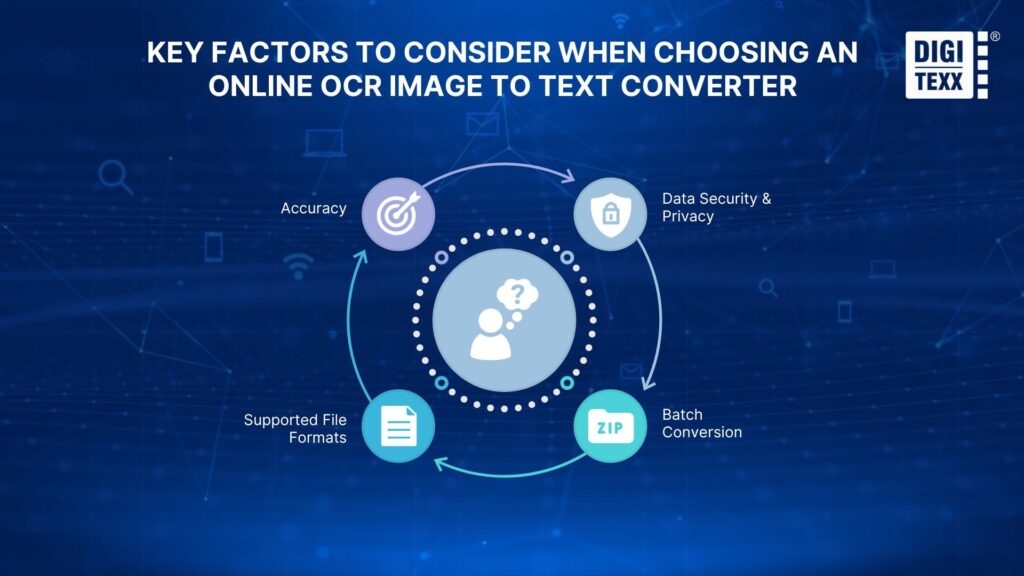
Selecting the right online converter requires careful evaluation of your daily business needs. Look for platforms that prioritize the following four pillars:
Accuracy
The primary value of any OCR tool is how reliably it recognizes characters. Advanced solutions use AI and machine learning to achieve accuracy rates exceeding 95% to 99%, even when dealing with low-resolution scans, unusual fonts, or complex layouts[10]. Test several files with your specific document types to ensure the converter handles the fonts and terms common in your industry.
Data Security & Privacy
Many free online converters are monetized by saving your files or sharing user data with third-party networks. If your documents contain proprietary financial information, client social security numbers, or health records, using a non-secure tool can lead to severe data breaches and compliance fines. Seek out platforms that offer:
- End-to-end SSL/TLS encryption.
- Clear privacy policies ensuring automatic file deletion from cloud servers within a set timeframe (e.g., 1 hour or immediately after download).
- Compliance standards like GDPR, HIPAA, or SOC 2.
>>> See more:
- What Is Data Security? Key Elements and Best Practices
- Creating a Culture of Data Security: From Leaders to All Employees
- Why Secure Data Processing Solutions Are Critical for Modern Businesses
Batch Conversion
If you only need to process one image occasionally, a basic single-upload tool is sufficient. However, if your business handles dozens of invoices or medical charts daily, select an online platform that supports batch conversion. This feature allows you to upload a compressed ZIP folder containing hundreds of images and process them in a single, automated batch.
Supported File Formats
Verify that your tool easily processes all common image extensions (JPEG, PNG, WebP, TIFF) and multi-page PDF files. Additionally, look for flexible export capabilities. A versatile tool should allow you to download output files as formatted Microsoft Word files (.docx), Microsoft Excel spreadsheets (.xlsx) for tables, plain text files (.txt), or fully searchable PDFs.
>>> See more:
Quick Recommendations: Which One Fits You Best?
To save you time and prevent analysis paralysis, here are three highly recommended tools aligned with the criteria we just discussed:
- Best for Quick, Everyday Tasks (Free & Fast): Adobe Acrobat Online OCR – A highly reliable option for single scans, receipts, or quick browser-based conversions without requiring complex software installations.
- Best for Businesses & Sensitive Data (Security First): DIGI-XTRACT – Ideal for teams requiring enterprise-grade security, batch processing capabilities, and precise layout preservation for complex documents.
- Best for Automation & Developers (Integration): Google Cloud Vision API – The premier choice if you need to integrate powerful OCR capabilities directly into your existing software or custom business applications.
Looking for a deeper comparison of more tools? Read our comprehensive guide on the [Complete Guide to OCR Document Conversion] to find in-depth feature breakdowns, user reviews, and pricing plans.
How To Use An Online OCR Image To Text Converter: A Step-by-Step Guide
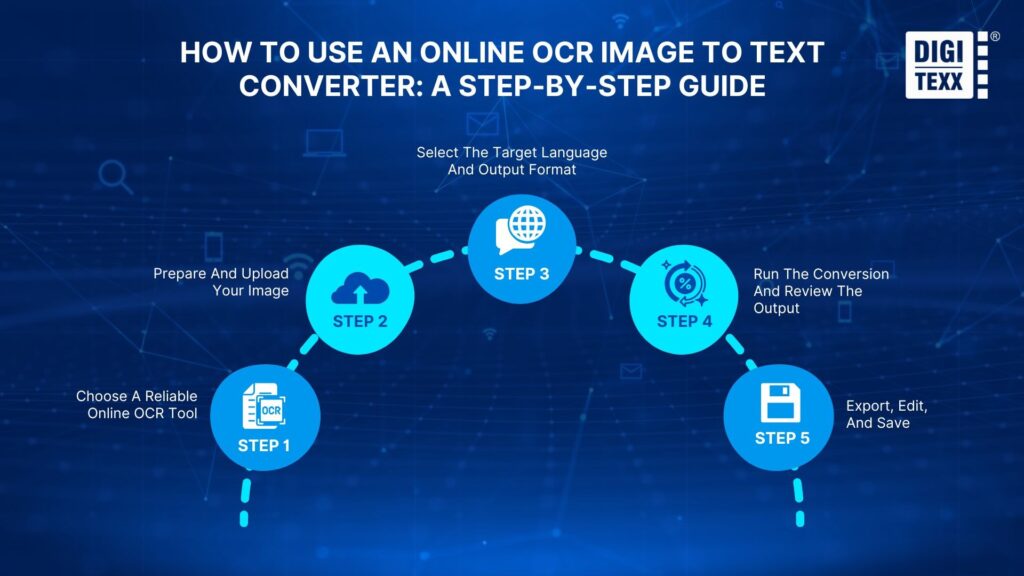
Step 1: Choose A Reliable Online OCR Tool
Open your chosen, secure online OCR website in your browser. Ensure the connection is secure (indicated by https:// in the URL and a padlock icon).
Step 2: Prepare And Upload Your Image
Before uploading, open your image file. Use a basic image editor to crop out heavy borders, background desk items, or extreme shadows. Ensure the document is right-side up so the software can scan characters along horizontal lines. Click the upload or “drag and drop” button on the OCR website to import your image.
Step 3: Select The Target Language And Output Format
Navigate to the tool’s settings. Select the language that matches the text in your image. This prompts the algorithm to look for language-specific characters, accent marks, and spelling patterns. Choose your preferred output file type (e.g., Word document, Excel spreadsheet, or Searchable PDF) based on how you plan to use the data.
Step 4: Run The Conversion And Review The Output
Click the “Convert,” “Process,” or “Run OCR” button. Once the tool finishes processing, most sites will display a side-by-side preview of your original image and the extracted text. Take a brief moment to review the text for any formatting issues or minor character misinterpretations before saving.
Step 5: Export, Edit, And Save
Download the completed document to your computer or copy the text directly to your clipboard. You can now format the layout, save it to your local system, or upload it to your company’s centralized cloud-based content management system (CMS).
Best Practices To Maximize Your OCR Productivity Workflow
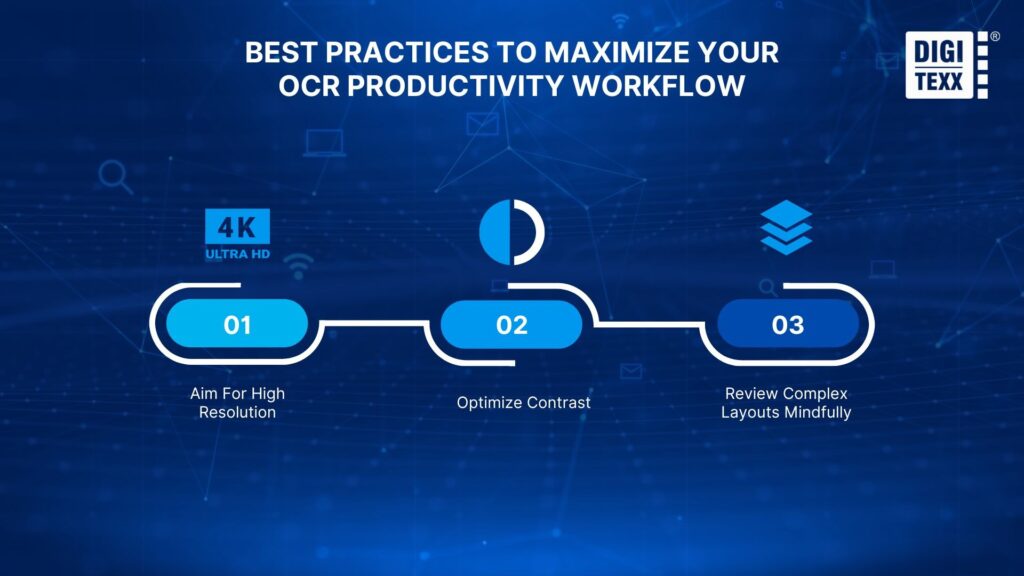
Getting highly accurate results from your OCR software depends heavily on the quality of the incoming file. Apply these operational best practices to optimize your success rates:
Aim For High Resolution
The most critical factor in character recognition accuracy is pixel density. Scanning or photographing documents at a minimum of 300 DPI (dots per inch) is recommended. Low-resolution, pixelated, or blurry images make it very difficult for the software to identify the borders of characters, leading to common letter-merging errors (such as mistaking “cl” for “d”).
Optimize Contrast
OCR engines require a clear visual distinction between text characters and the background document material. Ensure your scanned documents feature dark, crisp text on a bright white or light-colored background. When taking photos of physical paperwork with a mobile phone, avoid shadows, bright glare, and uneven ambient lighting, which can obscure character outlines.
Review Complex Layouts Mindfully
While modern OCR tools are highly advanced, complex multi-column newsletter layouts, dense tables, and embedded diagrams can sometimes confuse standard character flow. If you are converting financial statements or multi-column reports, look for specialized OCR platforms that feature table-boundary detection or layout-preservation algorithms to prevent columns from merging incorrectly.
Common Pitfalls To Avoid
To ensure your transition to automated document processing is as smooth as possible, watch out for these three common mistakes:
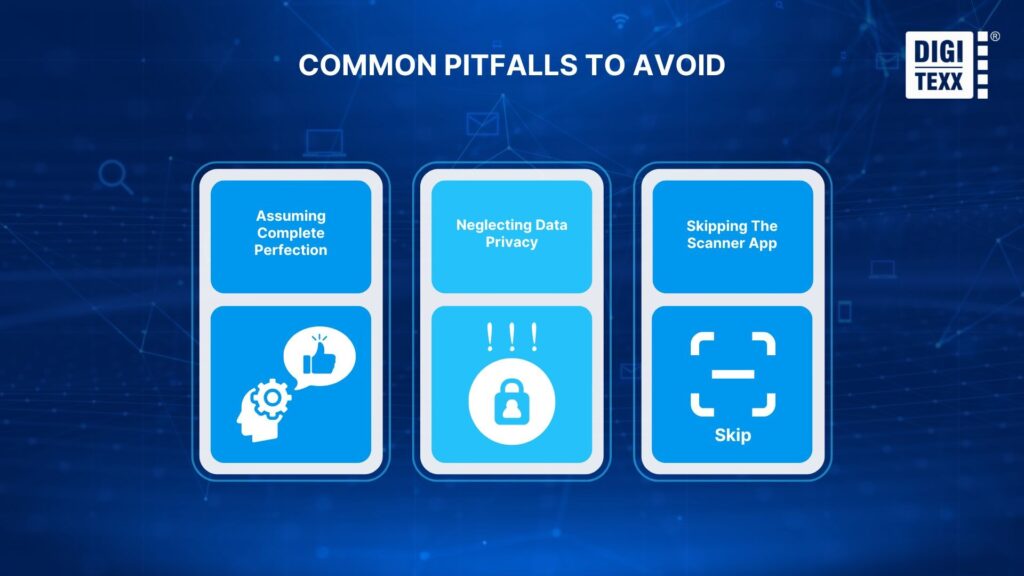
Assuming Complete Perfection
While advanced machine-learning OCR systems achieve extremely high accuracy, they are not completely infallible. Highly stylized fonts, complex mathematical symbols, heavily faded print, and hand-written notes can occasionally cause small errors. Always build a quick “human-in-the-loop” review step into your workflow to double-check spelling and verify numerical fields on critical business documents.
Neglecting Data Privacy
Avoid uploading proprietary data, financial spreadsheets, or customer identification details to unverified, ad-supported free websites. Some of these platforms retain your files on their servers indefinitely, leaving sensitive data vulnerable. Always verify that your online converter uses end-to-end encryption and has a clear, legally binding data-deletion policy.
Skipping The Scanner App
If you capture physical pages using only your smartphone’s default camera app, the resulting images are often skewed, distorted, or tilted. Standard OCR algorithms can struggle to trace warped or curved text lines. Instead, use a free mobile scanning application (such as Adobe Scan, Microsoft Lens, or Google Drive’s built-in scanner). These apps automatically crop, flatten, and correct the perspective of the document page before you upload it for text conversion.
>>> See more:
Ready To Streamline Your Document Workflow?
Wasting hours on manual data entry and document “hide-and-seek” is a silent drain on both business revenue and employee morale. Today, 78% of forward-thinking organizations have transitioned to operational AI-driven document workflows to eliminate these exact friction points.
By incorporating a secure, fast, and accurate online OCR image-to-text converter into your day-to-day routine, you can immediately reclaim hours of cognitive time, eliminate entry errors, and build a highly organized, searchable digital database.
Why let valuable data remain locked inside static images? Experience the difference in your personal and team productivity by testing an online OCR converter today.
FAQs About Online OCR Image To Text Converters
Can Online OCR Image To Text Converters Recognize Handwritten Text?
Yes, many modern online OCR image to text converter engines equipped with ICR (Intelligent Character Recognition) can recognize handwritten text. However, the accuracy of handwriting conversion is highly dependent on the legibility of the writing. Clear, printed block letters yield much higher accuracy than complex, running cursive script.
>>> See more:
- How to Convert Handwritten Notes to Digital Text: Step-by-Step Guide
- Even the smallest space can change everything your handwriting says.
Are Free Online OCR Tools Safe To Use?
It depends entirely on the platform’s security architecture and privacy policies. While many reputable tools offer free tiers with secure SSL connections and automated file deletion, some unauthorized free platforms may store, log, or compile your uploads. Avoid processing sensitive personal identity, financial, or healthcare records on tools that do not explicitly guarantee immediate file deletion and strict data security compliance.
Does Image Quality Affect OCR Accuracy?
Absolutely. Image quality is the single most important factor determining the accuracy of the final text output. Low-resolution, blurry, skewed, or poorly contrasted images make it difficult for the software to identify where character shapes begin and end, resulting in higher spelling errors and broken text fields. Ensuring crisp, well-lit, 300 DPI source images will drastically reduce formatting cleanup times.
Reference
- AIIM (2025). AIIM Study Reveals AI-Driven Transformation in Document Processing. [online] Available at: https://info.aiim.org/aiim-study-reveals-ai-driven-transformation-in-document-processing.
- cottrillresearch.com. (n.d.). Various Survey Statistics: Workers Spend Too Much Time Searching for Information – Cottrill Research, LLC. [online] Available at: https://cottrillresearch.com/various-survey-statistics-workers-spend-too-much-time-searching-for-information/.
- Ferraz, A. (2026). The Hidden Cost of Manual Data Entry: What CFOs Need to Know. [online] Available at: https://www.avantit.pt/en/blog/hidden-cost-manual-data-entry-cfos/.
- FOXITBLOG (2024). Just the Numbers: 10 Document Management Stats You Need to Know. [online] Foxit PDF Blog. Available at: https://www.foxit.com/blog/just-the-numbers-10-document-management-stats-you-need-to-know/.
- Kostya, D. (2024). 100 Document Management Statistics to Make You Rethink Your Processes in 2025. [online] FileCenter Blog. Available at: https://www.filecenter.com/blog/document-management-statistics/.
- McKinsey Global Institute (2012). The social economy: Unlocking value and productivity through social technologies. [online] McKinsey & Company. Available at: https://www.mckinsey.com/industries/technology-media-and-telecommunications/our-insights/the-social-economy.
- Mehta, R. (2025). Splashgain Technology Solutions Pvt Ltd. [online] AI Document Reader to Extract and Process Information from Digital Documents. Available at: https://docuexprt.com/hidden-costs-manual-document-processing/.
- Neha Gunnoo (2025). Manual Data Entry Costs U.S. Companies $28,500 Per Employee Each Year. [online] Parseur.com. Available at: https://parseur.com/blog/manual-data-entry-report.
- Prompak Nitayavardhana, Liu, K., Kiyomitsu Fukaguchi, Fujisawa, M., Koike, I., Tominaga, A., Iwamoto, Y., Goto, T., Suen, J.Y., Fraser, J.F. and Ng, P.Y. (2025). Streamlining data recording through optical character recognition: a prospective multi-center study in intensive care units. Critical Care, 29(1). doi:https://doi.org/10.1186/s13054-025-05347-1.
- ReticaAdmin (2024). Manual Data Entry: An Obstacle to Growth – Retica. [online] Retica – Elaborazione intelligente di documenti tramite IA. Available at: https://retica.ai/en/blog/manual-data-entry-an-obstacle-to-growth/.
- SenseTask (2025). 75 Document Processing Statistics for 2025: Market Size, Trends & Automation ROI. [online] Sensetask.com. Available at: https://sensetask.com/blog/document-processing-statistics-2025/.
- Talal Bazerbachi (2026). Human Error in Data Entry: 7 Statistics & Error Rates (2026). [online] Parsli.co. Available at: https://parsli.co/blog/human-error-statistics.