OCR software can turn text in images, scanned documents, and PDFs into information that can be searched, edited, and used more effectively. However, choosing the best OCR software depends on specific business needs, from quick text extraction to automated document processing. In this article, DIGI-TEXX compares 10 OCR software tools across different use cases to help businesses identify the right solution for their workflows.
>>> See more:
- Data Labeling Service: Benefits, Top Providers & How to Choose
- Top Document Scanning Software for 2026: Features, Pros & Cons
- What Is Business Process Outsourcing (BPO)? Definition & Benefits
What Is OCR Software?
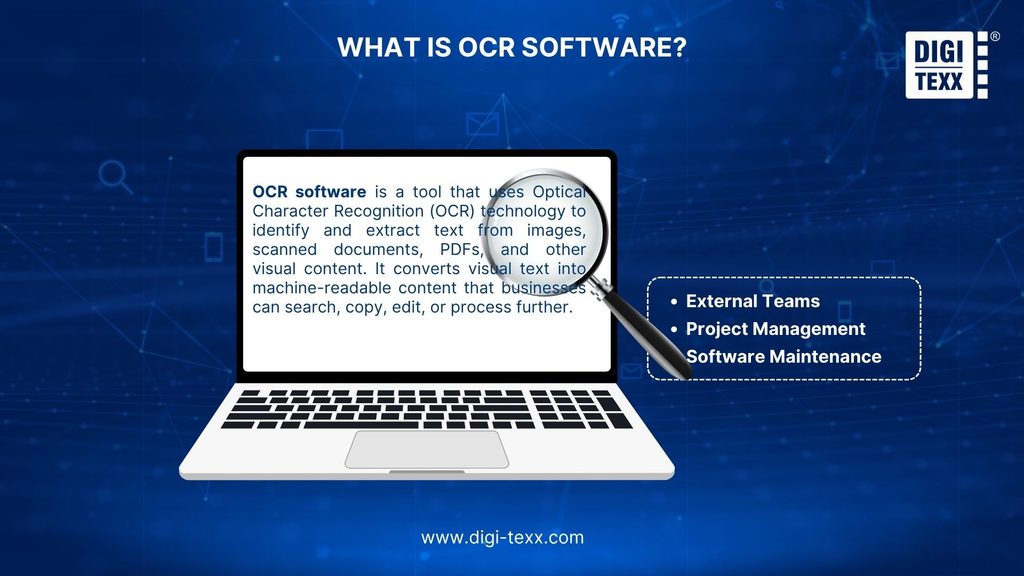
OCR software is a tool that uses Optical Character Recognition (OCR) technology to identify and extract text from images, scanned documents, PDFs, and other visual content. It converts visual text into machine-readable content that businesses can search, copy, edit, or process further.
For example, when a business scans a paper document, the resulting PDF may initially contain only an image of the page. OCR software can recognize the characters in that image and create searchable, selectable, and editable text.
Modern OCR software can also do more than basic text recognition. Depending on the tool, it may help businesses:
- Convert scanned PDFs into searchable or editable documents
- Extract text from screenshots and images
- Recognize complex document layouts
- Process tables and forms
- Recognize handwritten text
- Extract specific data fields from business documents
- Integrate text recognition into applications and automated workflows
>>> See more:
- Leading Intelligent Document Processing Companies Reviews 2026
- Top 11 Free AI Business Document Analysis Tools 2026
Types Of OCR Software By Use Case
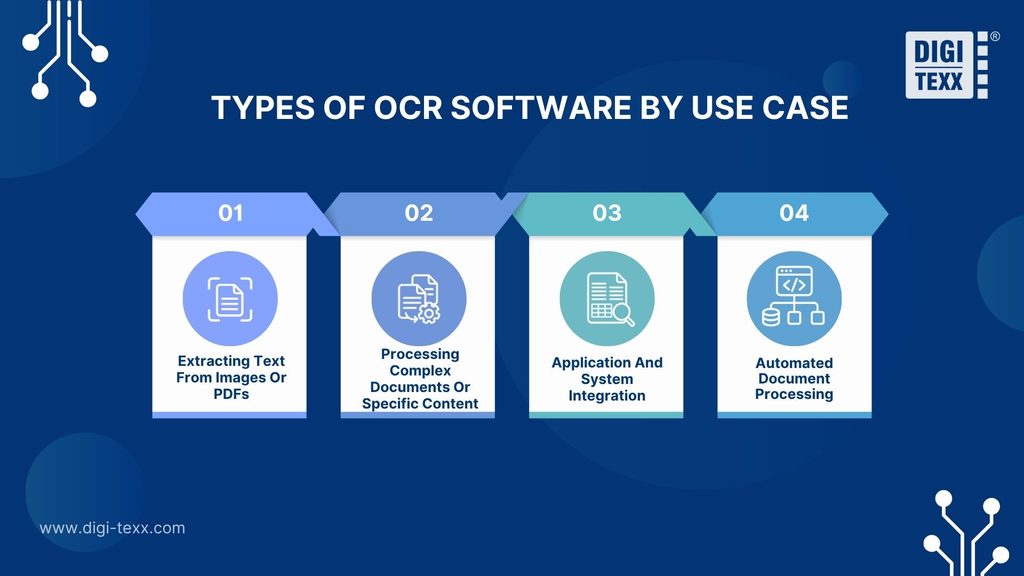
The right OCR software depends on the type of content a business needs to process and how the output will be used. Before comparing individual tools, it is helpful to identify the use case that best matches specific business requirements.
1. Best OCR Software For Extracting Text From Images Or PDFs
This type of OCR software is suitable for straightforward text recognition tasks, such as:
- Extracting text from screenshots or images
- Converting scanned PDFs into selectable or editable text
- Making scanned documents searchable
These tools are typically easy to use and well suited to occasional or everyday tasks. For businesses with basic text extraction or PDF conversion needs, advanced automation and document processing capabilities may not be necessary.
Best for: Businesses and professionals with basic text extraction and PDF conversion needs.
2. Best OCR Software For Processing Complex Documents Or Specific Content
Some documents require more specialized OCR capabilities due to their content or structure. This may include:
- Tables or multi-column layouts
- Documents in multiple languages
- Handwritten text
- Low-quality scans or complex document formats
OCR performance can vary depending on document quality, layout, language, and content type. When processing these materials, businesses should prioritize tools that support their specific document requirements and provide an appropriate level of accuracy.
Best for: Businesses and organizations working with complex documents or content that requires specialized OCR capabilities.
3. Best OCR Software For Application And System Integration
When OCR capabilities need to operate as part of an existing application or business system, a standalone desktop tool may not be sufficient.
Key capabilities to consider include:
- API access
- Support for relevant input and output formats
- Integration with existing systems
- Scalability for the required processing volume
These solutions allow developers and businesses to incorporate OCR capabilities into broader applications and workflows.
Best for: Developers and organizations integrating OCR capabilities into their applications or business systems.
4. Best OCR For Automated Document Processing
For some organizations, converting a document into text is only the first step. Additional requirements may include document classification, specific data extraction, and routing results into other systems or workflows.
A document processing workflow may include: Document input → Classification → Data extraction → Validation → System or workflow output
These solutions are particularly relevant for recurring or high-volume document workflows where businesses require structured, usable data rather than raw text alone.
Best for: Organizations processing large volumes of invoices, forms, financial documents, or other business records.
>>> See more:
- How to Automate Documentation in 2026: Step By Step Guide
- Back Office Support Services For Streamlined & Efficient Operations
How AI Enhances OCR Software
AI can support several stages of document processing. Machine learning models help recognize text, while layout analysis identifies elements such as paragraphs, headings, and tables. Additional extraction models can identify specific information, such as invoice numbers, dates, and totals.
For example, a system may recognize the number “1,250.00” on an invoice. A field extraction model can then identify whether that value represents a subtotal, tax amount, or total due.
Capabilities vary by product, model, language, and document type. Businesses should evaluate the specific tasks a tool supports and test the results on their own documents.
10 Best OCR Software Tools In 2026
Below are 10 OCR software tools suitable for a range of business needs and use cases:
| OCR Software | Supported Documents | Output | Best For | Pricing |
| ABBYY FineReader PDF | Scans, images, and PDFs | Searchable PDFs and editable files, including Word and Excel | Individuals and teams converting scanned documents into editable files | From $99/year |
| Adobe Acrobat Pro | Scanned paper documents and image-based PDFs | Searchable and editable PDFs, with export options for Word and Excel | Users who regularly work with PDFs and need to make scans searchable or editable | From $19.99/month |
| PowerToys Text Extractor | On-screen text in images, videos, and other visual content | Text copied to the clipboard | Windows users who need quick text extraction from their screen | Free |
| DIGI-XTRACT | Structured, semi-structured, and unstructured business documents* | Extracted data for downstream document workflows* | Organizations that need to automate document processing and data extraction | Contact for pricing |
| Google Lens | Images, screenshots, and camera-captured text | Recognized text that can be copied or used for other actions | Users who need quick OCR from images or physical text | Free |
| Snipping Tool | Screenshots and captured images | Selectable and copyable text | Windows 11 users extracting text from screenshots | Free |
| Tesseract OCR | Supported image files and scanned document images | Plain text, hOCR, searchable PDFs, and other supported formats | Developers who need a free, self-hosted OCR engine | Free and open source |
| Google Document AI | PDFs and images, including handwriting; selected pre-trained document types | JSON with text, layout, tables, and extracted entities | Developers building OCR or document processing into applications | From $1.50 per 1,000 pages |
| Amazon Textract | Scanned documents and images, including forms and tables | JSON with text, layout information, and structured data | Developers building document extraction workflows on AWS | From $1.50 per 1,000 pages |
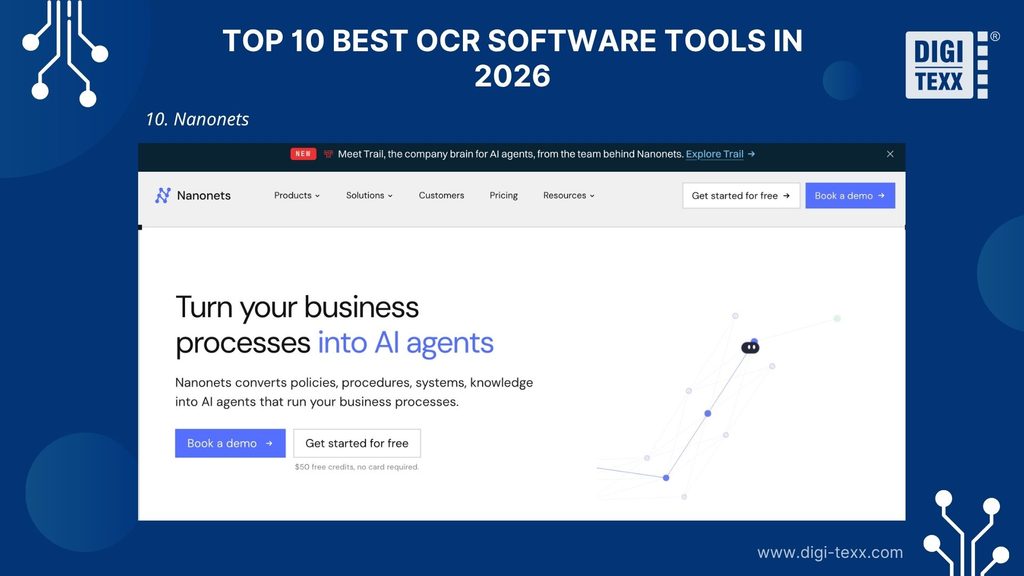
| Nanonets | Business documents, including invoices, purchase orders, claims, emails, and scans | Extracted data for workflows and integrations | Teams automating recurring business document workflows | $50 free credits; from $100/month |
1. ABBYY FineReader PDF
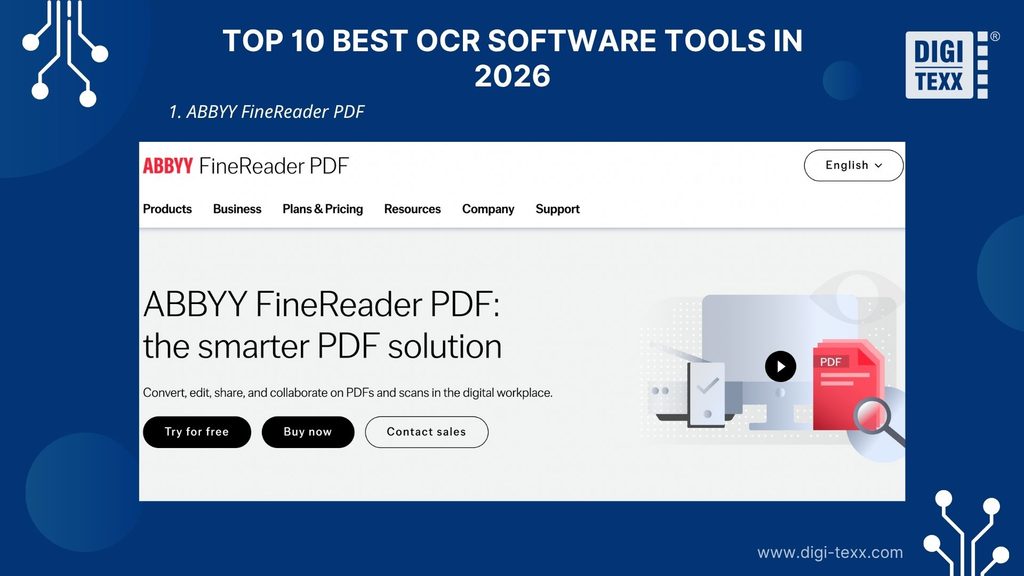
ABBYY FineReader PDF is designed for professionals and businesses that regularly work with scanned documents and PDFs. It combines OCR technology with PDF tools to help convert document images into searchable and editable files.
What it reads: Scanned PDFs, document images, and other supported image-based files.
Output: Searchable PDFs and editable documents, including formats such as Word and Excel.
Pricing: From $99/year.
Best for: Businesses, professionals, and teams that regularly convert scanned documents into searchable or editable files.
>>> See more: Document Indexing Services For Efficient Search & Data Access
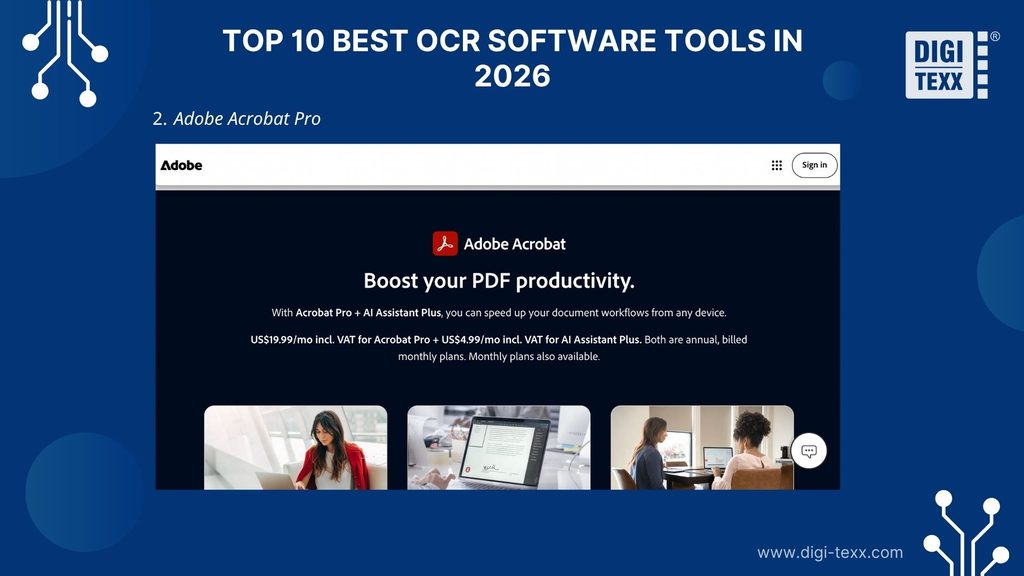
2. Adobe Acrobat Pro
Adobe Acrobat Pro provides OCR and PDF tools for businesses and professionals working with scanned documents. It helps convert scanned files into searchable and editable PDFs while supporting broader document management tasks.
What it reads: Scanned PDFs and image-based documents supported by Adobe Acrobat.
Output: Searchable and editable PDF documents.
Pricing: From $19.99/month.
Best for: Businesses and professionals that need OCR capabilities as part of a broader PDF management workflow.
3. PowerToys Text Extractor
PowerToys Text Extractor is a lightweight tool for Windows-based workflows that require text to be copied directly from a screen. Instead of uploading a file or opening a separate application, an area containing text can be selected and processed using a keyboard shortcut.
What it reads: On-screen text in images, videos, and other visual content.
Output: Recognized text copied directly to the clipboard.
Pricing: Free.
Best for: Professionals and teams using Windows who need a simple way to copy text from content displayed on their screens.
4. DIGI-XTRACT
DIGI-XTRACT is designed for organizations that need to do more than convert documents into plain text. It supports document processing workflows that involve extracting information from business documents and preparing that data for further use.
DIGI-XTRACT uses machine learning and deep learning to support document classification, data extraction, and quality control. Its Auto Classify, Auto Extract, and Auto QC components can support different stages of a configured document processing workflow
What it reads: Structured, semi-structured, and unstructured business documents, depending on the document processing workflow.
Output: Extracted data that can be used in downstream systems and business workflows.
Pricing: Contact DIGI-TEXX for pricing.
Best for: Organizations that need to automate document processing and data extraction as part of a broader workflow.
>>> See more:
- Professional E-commerce Data Entry Services by DIGI-TEXX
- Data Validation & Verification: Differences With Clear Examples
5. Google Lens
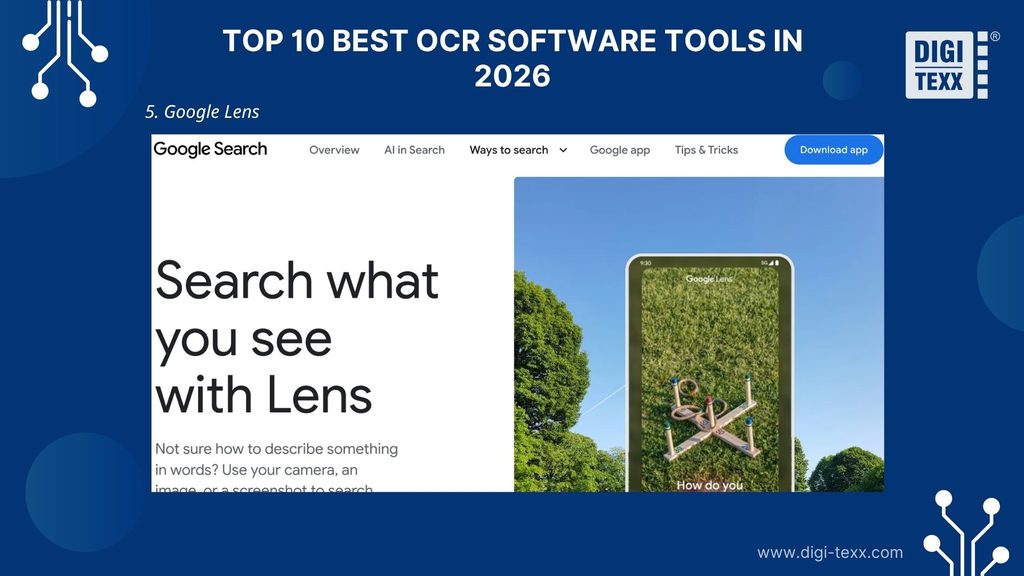
Google Lens provides a convenient way to recognize text from images, screenshots, and camera input. It is particularly useful for capturing text from everyday visual content without setting up a dedicated OCR workflow.
What it reads: Images, screenshots, and text captured through a device camera.
Output: Recognized text that can be copied, translated, or used with other available actions.
Pricing: Free.
Best for: Professionals who need quick OCR capabilities for images, screenshots, or physical text.
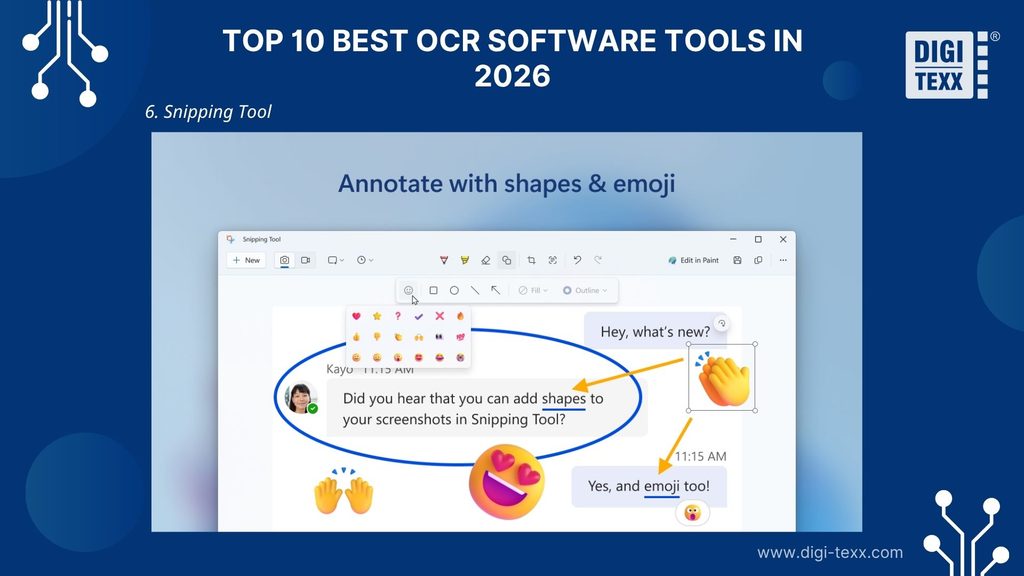
6. Snipping Tool
The Snipping Tool provides a simple way to extract text from screenshots without installing a separate OCR application. Its Text Actions feature can detect text in a captured image and make it available for copying.
What it reads: Screenshots and images captured with the Snipping Tool.
Output: Selectable and copyable text.
Pricing: Free.
Best for: Windows-based teams and professionals who need to extract text from screenshots quickly.
7. Tesseract OCR
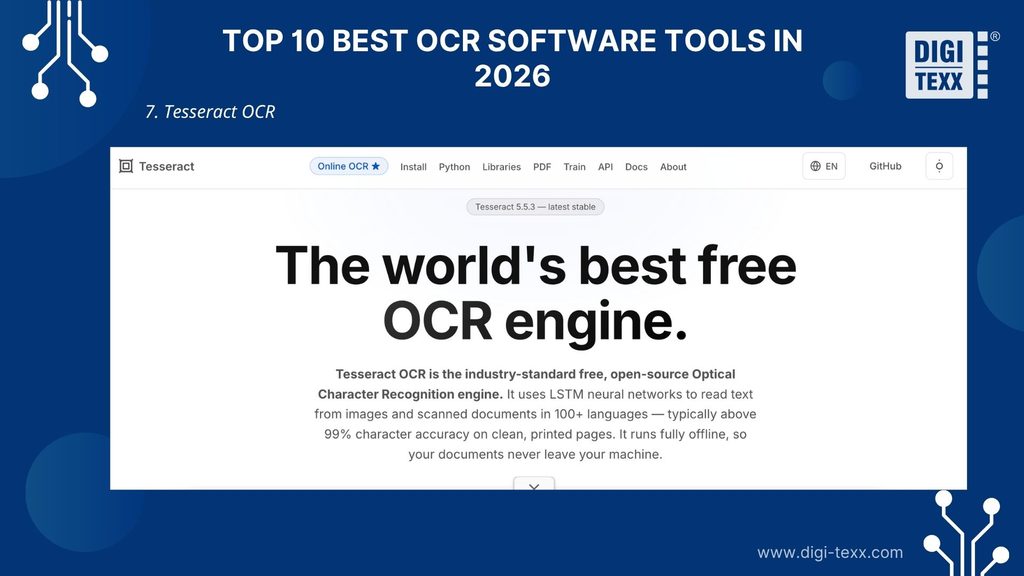
Tesseract is an open-source OCR engine widely used by developers and technical teams. Unlike consumer OCR applications, it is primarily designed to be integrated into applications or custom workflows.
What it reads: Supported image files and scanned document images, including formats such as PNG, JPEG, TIFF, and WebP.
Output: Recognized text and other supported output formats, including searchable PDFs.
Pricing: Free and open source.
Best for: Developers and technical teams that need a customizable, self-hosted OCR engine.
8. Google Document AI
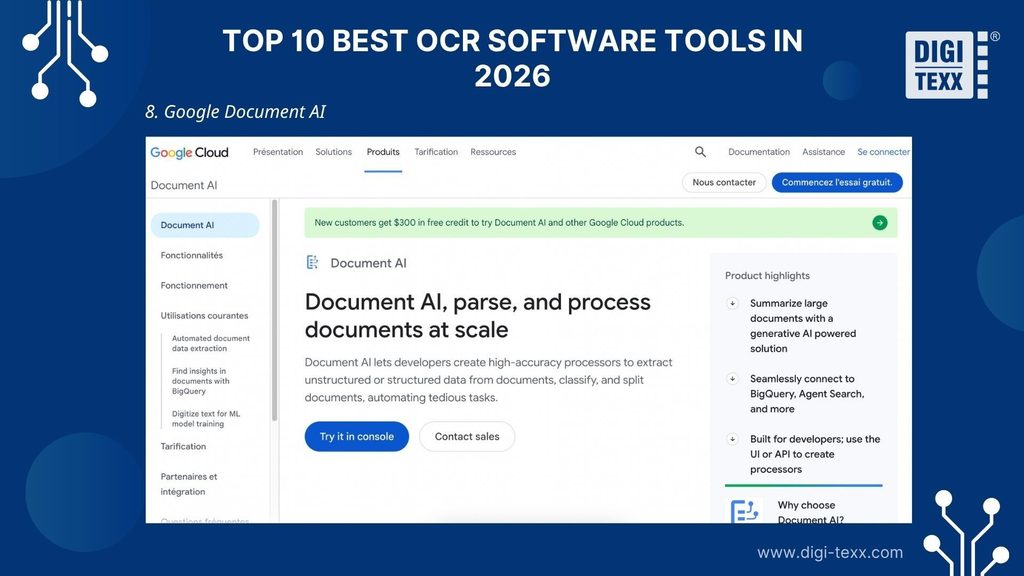
Google Document AI is a cloud-based platform for processing documents programmatically. It is designed for developers and organizations that want to incorporate OCR and document understanding capabilities into applications and automated workflows.
What it reads: Documents and scanned files, including PDFs and images. Supported document types can vary depending on the processor used.
Output: Structured document data that can include recognized text, layout information, tables, and other extracted information.
Pricing: From $1.50 per 1,000 pages for Enterprise Document OCR.
Best for: Developers and organizations integrating document OCR into applications or automated workflows.
>>> See more:
- Best Business Process Automation Solutions & Tools 2026
- AI Training Data Service: Benefits, Workflow & Top Providers
9. Amazon Textract
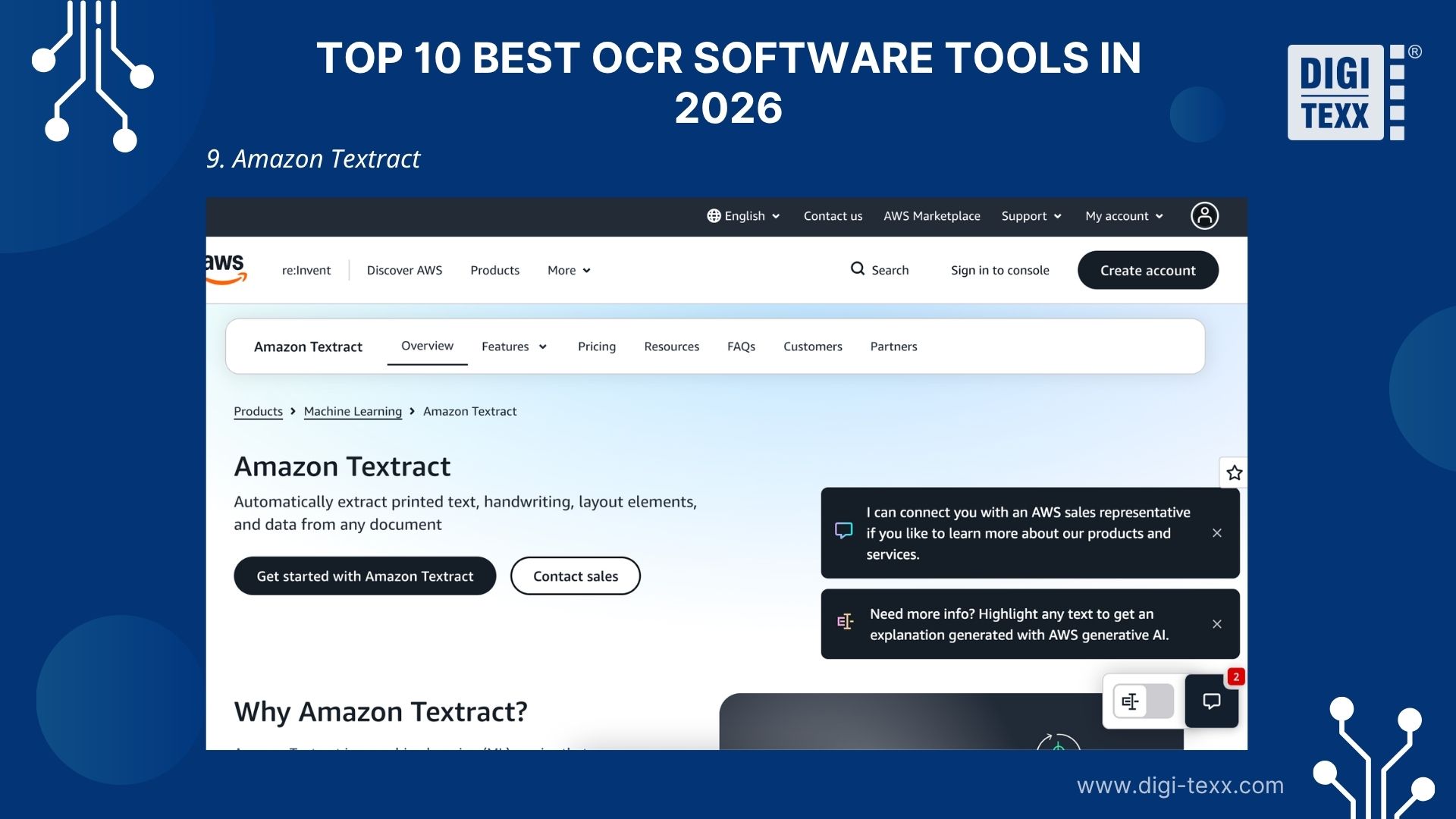
Amazon Textract is a cloud-based service that uses machine learning to extract text and information from documents. In addition to basic text recognition, it can identify document elements such as forms and tables.
What it reads: Scanned documents and supported image or PDF files, including forms and tables.
Output: Recognized text and structured document data that can be returned for further processing.
Pricing: From $0.0015 per page for basic text detection, with pricing varying by feature and usage.
Best for: Organizations and developers building document data extraction workflows on AWS.
10. Nanonets
Nanonets is designed for businesses that want to extract information from documents and automate document-based workflows. It is more suitable for recurring business processes than one-time text extraction.
What it reads: Business documents and forms used in operational workflows.
Output: Extracted data that can be used in business workflows and connected systems.
Pricing: $50 in free credits, paid plans start from $100/month.
Best for: Teams and businesses that need to automate recurring document processing and data extraction.
>>> See more:
- 17 Best Data Labeling Service Providers In 2026
- Top 10 Best Data Entry Outsourcing Companies in USA 2026
How To Choose The Right OCR Software For Your Business
The best OCR software is not necessarily the tool with the most features. The right choice depends on the type of content you need to process, the output you need, and how the software fits into your workflow. Here are 5 factors to consider when choosing an OCR solution.
Consider The Type Of Content You Need To Process
First, businesses should identify the type of content that needs to be recognized, such as:
- Screenshots or on-screen text
- Scanned PDFs or document images
- Images containing text
- Tables and forms
- Handwritten documents
- Invoices or other business documents
A basic OCR tool may be sufficient for processing screenshots or simple document images. However, tables, forms, handwritten content, and documents with complex layouts may require more specialized capabilities.
If handwriting recognition is an important requirement, businesses should choose a solution that supports this type of content. Recognition performance can vary depending on the quality and characteristics of handwritten materials. For more complex document processing needs, solutions such as DIGI-XTRACT can support a range of document types, including certain types of handwritten documents, while also combining data extraction with other document processing capabilities.
Check The Output You Need
The output is just as important as the input. Before selecting an OCR tool, businesses should consider how the recognized content will be used.
For example, output requirements may include:
- Plain text for copying and pasting
- A searchable PDF
- An editable document
- Specific data fields extracted from a form
- Structured data for another application or system
A tool that performs well when extracting a paragraph from an image may not be the right choice for extracting invoice numbers, dates, or payment information from thousands of documents.
Consider The Volume Of Content To Process
Processing volume can affect both the type of OCR solution a business requires and the overall cost.
For occasional use, a free OCR tool or built-in feature may be sufficient. Businesses that process documents regularly may benefit from a dedicated OCR program with more suitable features and workflow options.
For high-volume document processing, businesses should consider factors such as automation, scalability, and integration. When using a cloud-based OCR service with usage-based pricing, processing a larger number of pages can also increase overall costs.
Evaluate Integration Requirements
Businesses should consider how OCR will fit into existing workflows and systems.
For workflows that only require document uploads and manual review of results, a standalone OCR application may be sufficient. However, when OCR needs to operate as part of an application or automated workflow, capabilities such as API access and system integration should be considered.
Integration is particularly important for businesses that need to process documents automatically and send the results to other systems.
Consider Accuracy For Different Document Types
OCR accuracy can vary depending on factors such as document quality, layout, language, and the type of content being recognized.
Before selecting a tool, businesses should evaluate how well it performs with the specific types of documents they need to process. A tool that works well with clear, printed text may produce different results when processing handwriting, low-quality scans, or complex layouts.
For high-value or business-critical data, OCR accuracy alone may not be sufficient. Additional capabilities for data extraction, validation, or quality control may also be required.
Check Validation and Review Capabilities
Evaluate how the software handles uncertain or inconsistent results. Useful capabilities may include field-level confidence scores, validation rules, access to the source document, and routing for human review.
During testing, record how often corrections are needed and how long reviewers spend resolving them. This helps estimate the effort required to make extracted data usable.
>>> See more:
- Top 10 Data Processing Software For Business 2026 – Best Tool Reviewed
- Top 10 Data Cleansing Companies for Businesses in 2026
Why Choose DIGI-XTRACT For Document Processing?
Basic OCR software can convert text from an image or document into machine-readable content. However, businesses with complex or high-volume document workflows may need additional capabilities to classify documents, extract specific data, and maintain data quality.
DIGI-XTRACT is a document processing solution that uses Machine Learning and Deep Learning technologies to support document classification, data extraction, and quality control. It is designed for organizations that need to turn different types of documents into usable data for their business workflows.
Process Different Types Of Documents
DIGI-XTRACT can process structured, semi-structured, and unstructured documents. The solution also supports customization for specific document types based on a client’s business requirements and languages.
Supported documents can include invoices, receipts, bank statements, purchase orders, contracts, inspection notes, handwritten documents, and other specialized document types.
Go Beyond Basic Text Recognition
Rather than focusing only on converting images into text, DIGI-XTRACT supports multiple stages of document processing. Its components can be used individually or as part of a broader workflow:
- Auto Classify: Automatically identifies and classifies different document types.
- Auto Extract: Extracts relevant data from documents.
- Auto QC: Supports quality control for extracted data.
The solution can also include image quality enhancement during preprocessing and API integration to connect document processing with other business systems.
Support Flexible And Reliable Workflows
DIGI-XTRACT supports automated processing workflows as well as workflows that include human involvement when additional review is required. This gives organizations more flexibility when processing documents with different levels of complexity or quality requirements.
The solution can be securely hosted remotely at DIGI-TEXX’s Data Center or deployed at the client’s premises, depending on business and security requirements.
>>> See more:
- Data Extraction Solution for Customer Onboarding Straight-Through Process
- Intelligent Document Scanning Solution
- DIGI-Scan: Automated Scanning & Capture Outsourcing
FAQs About OCR Software
What Is The Most Accurate OCR Tool?
ABBYY FineReader PDF is a strong choice for businesses and professionals that prioritize OCR accuracy when processing scanned documents and PDFs. However, the most accurate tool can vary depending on factors such as document quality, language, layout, and content type.
What Is The Best Free OCR Software?
The best free OCR software depends on the intended use case. PowerToys Text Extractor and Snipping Tool are suitable for quick text extraction on Windows, while Google Lens can recognize text from images and camera input. Tesseract is a suitable option for developers and businesses that need a customizable, open-source OCR engine.
What Is The Best OCR Software For Scanned Documents And PDFs?
The best option depends on the intended workflow. Businesses and professionals that regularly work with scanned PDFs may prefer document-focused tools such as ABBYY FineReader PDF or Adobe Acrobat Pro.
For basic text extraction from screenshots or images, lightweight tools such as PowerToys Text Extractor or Snipping Tool may be sufficient.
What Is The Best OCR Software For Windows?
For quick text extraction on Windows, PowerToys Text Extractor and Snipping Tool are convenient free options. If you need to process scanned PDFs and documents, ABBYY FineReader PDF or Adobe Acrobat Pro may be more suitable.
Can OCR Software Recognize Handwritten Text?
Yes, some OCR software can recognize handwritten text, but accuracy can vary depending on factors such as handwriting style, image quality, language, and OCR technology. DIGI-XTRACT supports the processing of various handwritten document types, while the capabilities of other OCR tools may vary.
What Is The Difference Between OCR And Document Processing?
OCR converts text in images or documents into machine-readable content. Document processing goes further by combining OCR with tasks such as document classification, data extraction, validation, and workflow automation. Businesses with more complex document workflows may also consider intelligent document processing services to manage these additional stages.
>>> See more:
- Back Office Support Services For Streamlined & Efficient Operations
- Professional E-commerce Data Entry Services by DIGI-TEXX
- Outsourced Order Processing Services – Fast & Accurate
Through this article, DIGI-TEXX hopes to provide businesses with useful information to help them better understand the different types of OCR software and select the best OCR software for their specific needs.
For businesses seeking additional guidance or expert support with document processing and data extraction, please feel free to contact DIGI-TEXX using the information below.
DIGI-TEXX Contact Information:
🌐 Website: https://digi-texx.com/
📞 Hotline: +84 28 3715 5325
✉️ Email: [email protected]
🏢 Address:
Headquarters: Anna Building, QTSC, Trung My Tay Ward
- Office 1: German House, 33 Le Duan, Saigon Ward
- Office 2: DIGI-TEXX Building, 477-479 An Duong Vuong, Binh Phu Ward
- Office 3: Innovation Solution Center, ISC Hau Giang, 198 19 Thang 8 street, Vi Tan Ward
Reference:
- Introduction to OCR and Searchable PDFs: An Introduction to OCR. https://guides.library.illinois.edu/
- Optical Character Recognition (OCR): An Introduction : OCR Software. https://guides.libraries.psu.edu/