

Adobe Illustrator enables non-destructive editing by letting you hide specific image sections without permanently deleting objects. While learning how to make a clipping path in Illustrator gives you total control to isolate elements and adapt to last-minute design changes, high-volume workflows often require dedicated support.
DIGI-TEXX provides a professional clipping path service, alongside comprehensive product photo editing services and image processing services, ensuring your visuals are flawless and ready to publish.
What Is A Clipping Path In Illustrator?
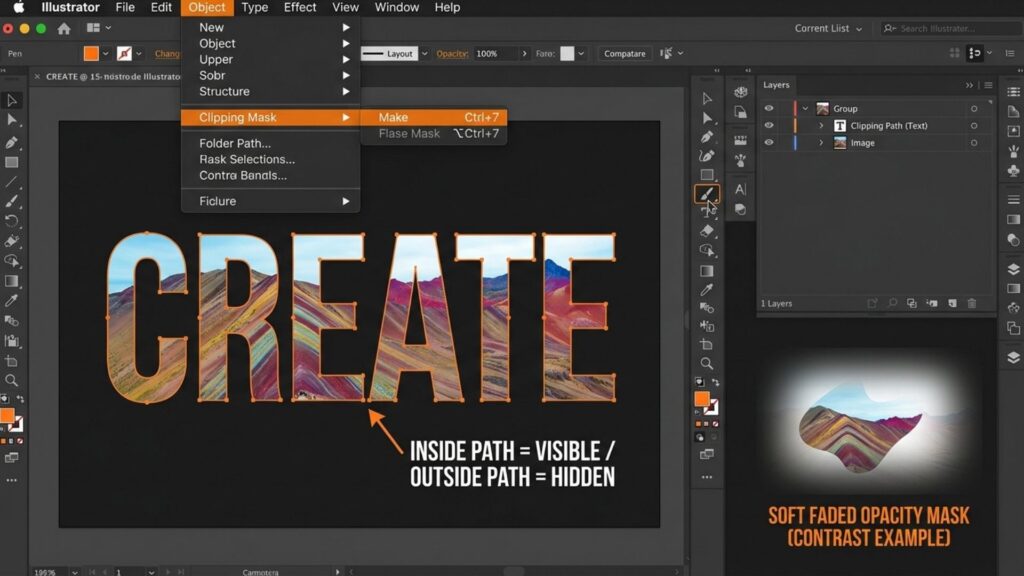
A clipping path in Illustrator is an invisible vector outline or shape used to define the visible area of an underlying artwork. When applied, any part of the image that falls inside this path remains visible, while everything outside the boundary is completely hidden from the background.
Unlike an opacity mask illustrator tool, which uses black and white values to create soft, semi-transparent gradients, a clipping path always creates hard, sharp vector edges.
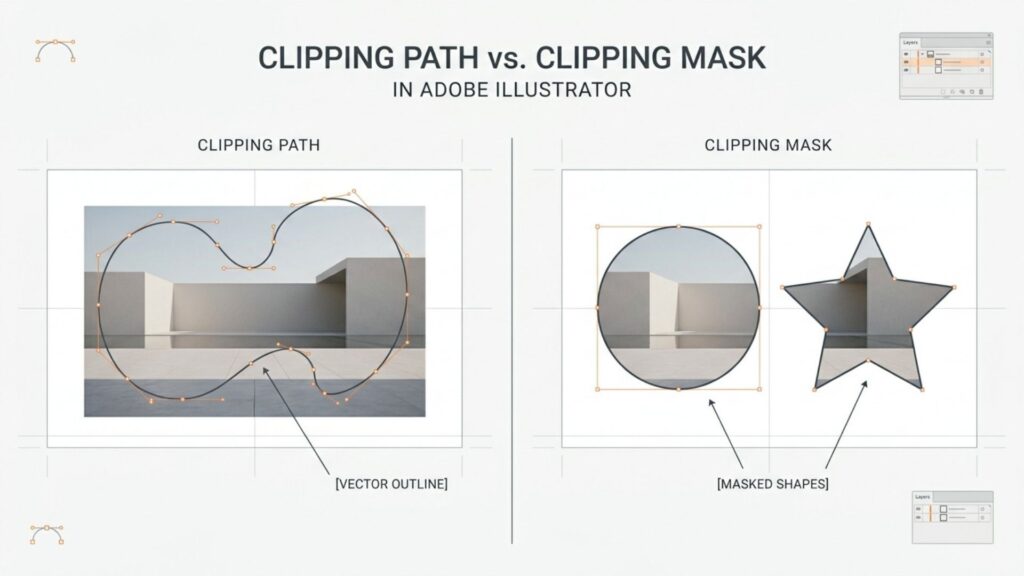
What Is The Difference Between Clipping Path And Masking Path?
While designers often use these terms interchangeably, there is a clear technical distinction in Adobe Illustrator:
- Clipping Path: The actual vector shape or line (the frame) that dictates what will be seen.
- Clipping Mask: The final vector object created when the path and the underlying artwork are combined. For complex designs, you can even apply this to an entire group using a clipping mask layer. Illustrator makes it easy to organize these sets in your Layers panel.
Why Use A Clipping Path?
Mastering this tool is essential for non-destructive editing. Common real-world applications include:
- Isolating Subjects: Cutting out a specific object from its background, such as extracting a clean headshot from a full-body picture.
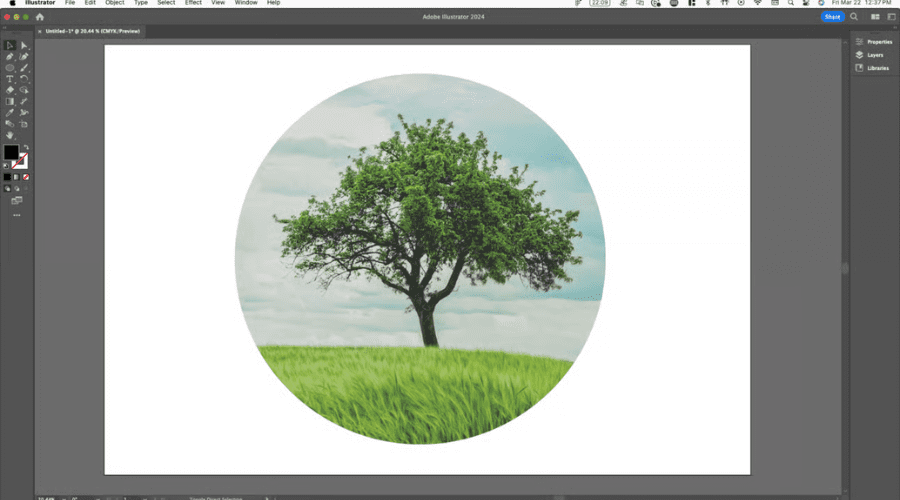
- Custom Framing: Applying an illustrator clipping mask to shape to fit a standard photo into a circle, star, or custom geometric layout.
- Advanced Cut-outs: While standard masks hide the outside, you will also learn how to invert clipping mask illustrator paths later in this guide to create hollow “cut-out” holes in your designs.
>>> See more:
- 25 Styles Of Photo Editing For Photographers
- Professional E-commerce Photo Editing Services to Boost Your Online Sales
- Top 10 Best Free AI Photo Retouching Tools Online In 2026
Step-By-Step: How To Make A Clipping Path In Illustrator?
Learning how to create a clipping path in Illustrator allows you to edit images accurately and achieve clean, professional cut-outs. This technique employs a vector shape to hide some portions of an image and reveal only your desired section.
The Golden Rule of Masking: The clipping path (vector shape) must always be on top of the underlying image. If your image sits above the path, the masking process will fail. – Adobe Illustrator
Open Or Import Your Image
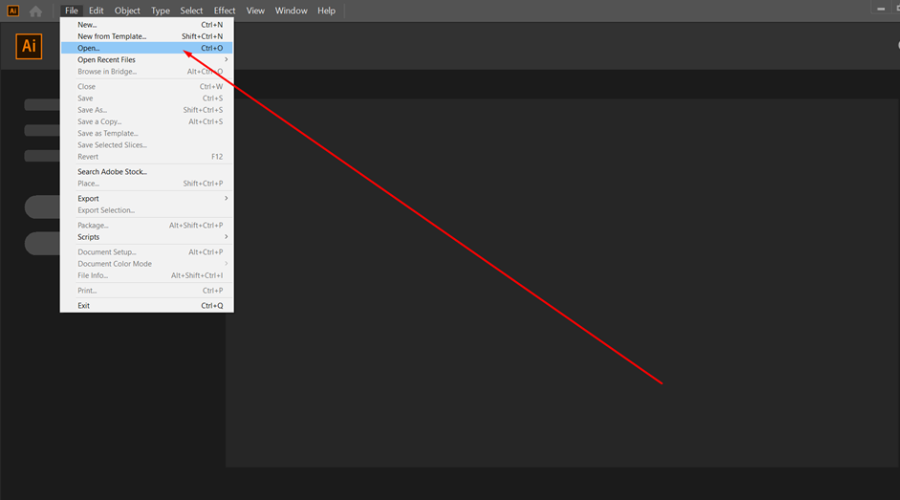
To start making a clipping path in Illustrator, create a new document and navigate to File > Open to place the image you wish to modify. This is the image upon which your clipping mask lies.
Create The Clipping Path Shape
Next, use the Pen Tool or any Shape Tool (like the Ellipse or Rectangle tool) to draw a closed vector outline around the area you wish to preserve. This is the crucial step where you prepare your illustrator clipping mask to shape by defining the exact boundaries of your custom frame.
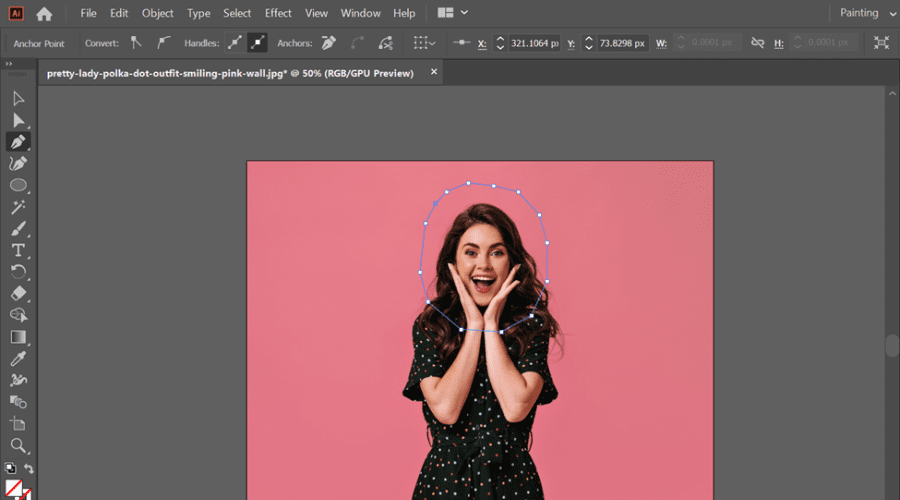
Position The Clipping Path Above The Image
One of the essential steps in creating a clipping path in Illustrator is placing the vector shape above the photo in the layers list. You can do it using the Layers panel or right-click > Arrange > Bring to Front.
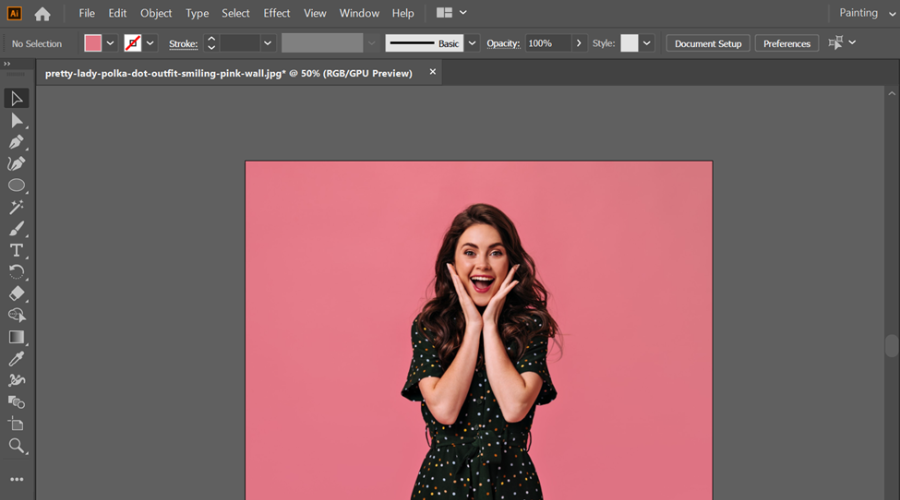
Select Both The Path And The Image
Using the Selection Tool (V), click and drag to highlight both the vector shape and the base image. Alternatively, you can hold Shift and click them separately. Both elements must be actively selected before applying the effect.
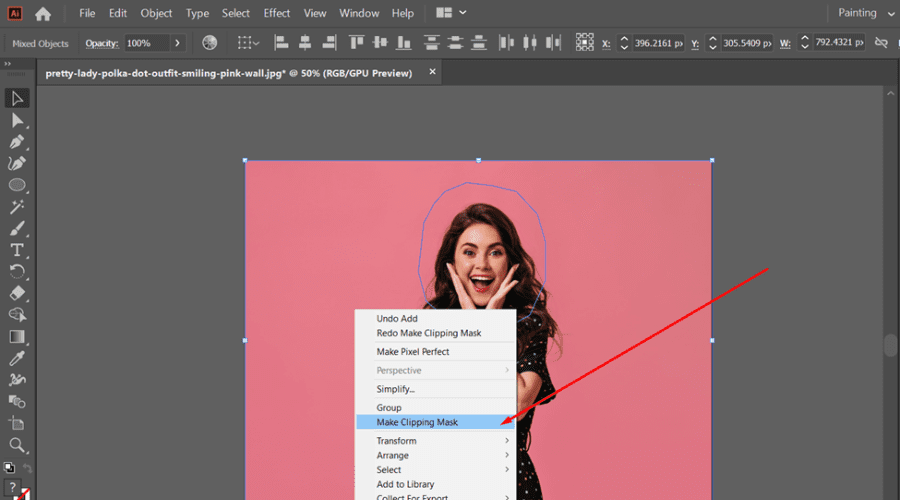
Create The Clipping Mask
To finish off the tutorial on creating a clipping path in Illustrator, select Object > Clipping Mask > Make, or press Ctrl+7 (Windows) / Cmd+7 (Mac). The image is now masked to fit the shape of your clipping path.
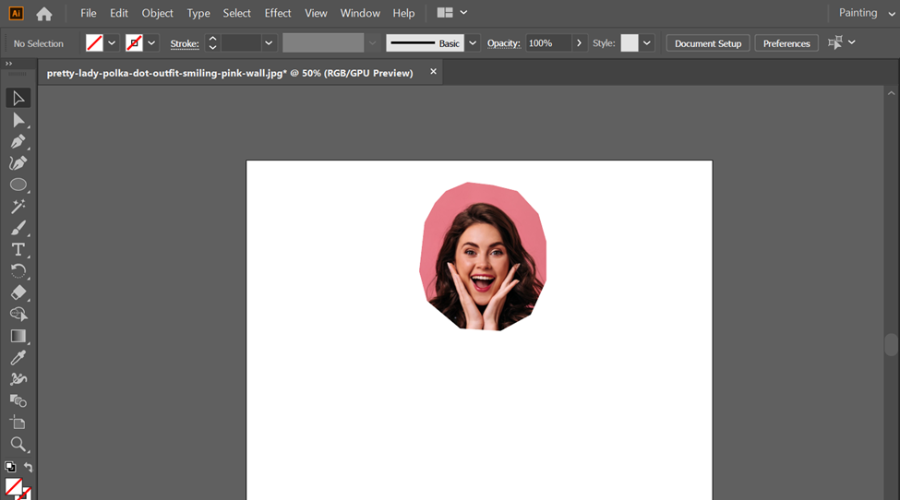
>>> See more:
- Professional Image Retouch and Restoration Services
- Fashion Photo Retouching: Key Techniques, Benefits, and Tips
- Top 7 Ecommerce Product Photo Retouching Services Compared
When To Use Clipping Paths?
Knowing how to create a clipping path in Illustrator is only half the battle; knowing exactly when and how to apply its variations is what separates beginners from professionals. Clipping paths are extensively applied in design, photography, and online marketing for the following reasons:
- Removing Backgrounds & Custom Framing: The clipping path is ideal for isolating a product from its background. For instance, if you are designing an online catalog, applying an illustrator clipping mask to shape allows you to perfectly frame product photos into unified circles, rounded rectangles, or any custom geometry for a distraction-free layout.
- Managing Intricate Graphic Design Projects: When working with complex vector files, managing multiple design elements can become chaotic. By applying a clipping mask layer, Illustrator lets you neatly contain dozens of logos, icons, or sublayers within a single boundary, keeping your artwork organized without compromising crisp, clean edges.
- Dealing With Challenging Backgrounds & Transparency: Clipping paths provide absolute precision for subjects with hard, precise edges. However, if your image requires soft, fading edges or complex transparency (like smoke or glass) rather than a sharp cut, you should switch to an opacity mask illustrator tool to achieve that seamless blend.
- Print-Ready Cutouts & Advanced Layouts: Pure cutouts are unavoidable in print preparation. A clipping path provides spotless, sharp results that appear excellent on paper materials. Furthermore, if your print layout requires a creative “window” showing the background underneath, you can invert clipping mask illustrator paths to punch perfect hollow holes through your design.
- Product Photography: They enable accurate cutouts so that you can place products within new environments or merge them into composite images. Flawless clipping paths are also the foundation for advanced e-commerce technologies, such as preparing data for a virtual try-on AI model.
>>> See more:
- Best Document Image Scanning Software For Fast & Secure Digitization 2026
- What Is A Clipping Path? Learn To Use Professional Image Isolation
- How to Edit Street Style Photos Like a Pro
Tips For Better Clipping Paths In Illustrator
Once you understand the fundamentals of making a clipping path in Illustrator, streamlining your process through precise methods and intelligent tools can get your design tasks completed faster and more neatly. Here are some real tips to work more effectively:
- Enable Smart Guides: Activate Smart Guides (View > Smart Guides or Ctrl/Cmd + U) to snap path segments and anchor points automatically. This will assist you in creating paths more intuitively and harmoniously.
- Practice the Pen Tool: Becoming proficient with the Pen Tool is a requirement while learning to create a clipping path in Illustrator. The earlier you practice it, the more proficient you’ll be at adding anchor points and controlling curves using handles.
- Use the Direct Selection Tool: After drawing your path, use the white arrow (Direct Selection Tool) to tweak individual anchor points or curve segments for fine adjustments.
- Turn on Snap to Point: Enable “Snap to Point” (View > Snap to Point) to keep paths aligned with key reference points, which is especially helpful when working with geometric or symmetrical layouts.
- Edit Inside Clipping Masks with Isolation Mode: Double-click on a clipping group to go into Isolation Mode, where you can edit what’s inside the clipping mask without modifying the mask itself.
- Use Feathering for Soft Edges: For smooth visual transitions, use feathering on your clipping mask (Effects > Stylize > Feather). This creates soft edges of the mask and provides a natural look.
- Create Compound Paths for Intricate Shapes: Under Object > Compound Path > Make, combine several paths into one clipping shape. Employ this feature when masking holes or multi-part objects.
- Release and Rebuild Clipping Masks When Necessary: When a lot of editing will be involved, release the clipping mask (Object > Clipping Mask > Release), make adjustments to single paths, and rebuild the mask after modification is complete.
- Vector Objects Only: While you can mask any type of artwork (including raster images like JPEGs or PNGs), the clipping path itself must be a vector object.
- The Top-Object Rule: The first object (the top-most shape) in a layer or group automatically becomes the clipping mask for all its underlying sublayers or subgroups.
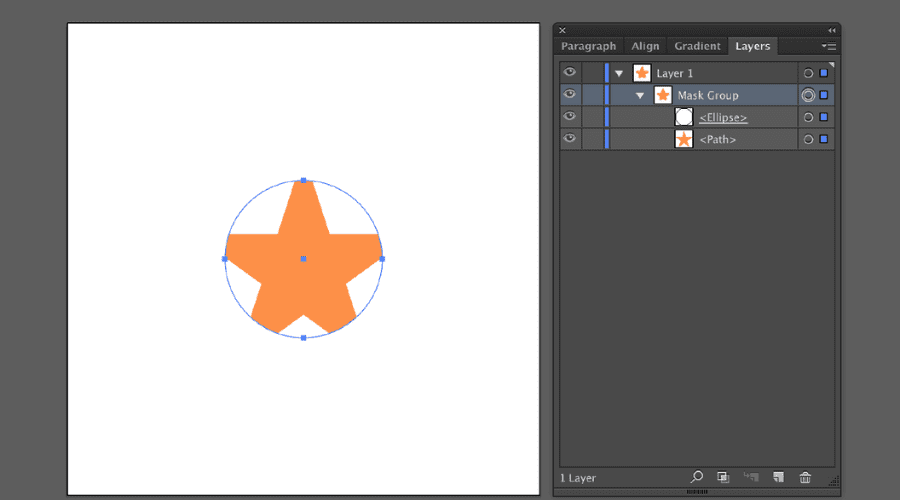
- Automatic Grouping: Once applied, masked objects move automatically into a dedicated clipping mask group within your Layers panel. This keeps your workspace organized.
- Lost Properties: Don’t panic if your shape loses its color! Fill and stroke are removed automatically when you convert an object into a clipping mask.
=> Or simply check out the video below for a quick demo:
=> You can also check out our article on top clipping path service providers if you’re looking to outsource this task efficiently.
Being able to create a clipping path in Illustrator not only improves your design, but it creates new areas of creativity in every element of online shop design, through to print design. Employing the correct tools, methods, and shortcuts along with each other, you can achieve professional-grade, clean cuts that elevate the quality of your work to new heights. If you’re looking to save time or need high-volume edits, you can also explore our clipping path services for professional, scalable results.
If you need to automate big-scale image editing or professional assistance in digital production, benefit from working together with DIGI-TEXX — a professional data processing and digital content solutions provider. With immense experience in dealing with complicated visual workflow, DIGI-TEXX assists companies in saving time and ensuring uniformity on all media channels.
>>> See more:
- A Beginner’s Guide to Multiple Clipping Path Service
- Beginner’s Guide to Retouching Photos on iPhone
- Boost Your Website Performance With Optimized Images: A Quick Tip For Image Processing Services
FAQs About Clipping Path Illustrator
How To Make A Clipping Mask In Illustrator With Multiple Shapes?
To create a clipping mask from multiple separate shapes in Adobe Illustrator, you must first combine them into a Compound Path before applying the mask.
Quick Steps:
- Select all the shapes you want to use as the mask.
- Go to Object > Compound Path > Make (or use the shortcut Ctrl + 8 / Cmd + 8). The shapes are now treated as a single unified path.
- Ensure this Compound Path is placed on top of the image or design element you want to clip.
- Select both the newly created Compound Path and the object underneath it.
- Go to Object > Clipping Mask > Make (or use the shortcut Ctrl + 7 / Cmd + 7) to complete the process.
Can’t Make Clipping Mask In Illustrator?
If you can’t create a clipping mask in Illustrator, ensure your masking object is a vector shape and placed at the very top of your selection. You must select both the top mask and the underlying object before applying it (Ctrl/Cmd + 7). Additionally, if your mask consists of multiple separate shapes, you must first combine them into a Compound Path (Ctrl/Cmd + 8) before creating the mask.
How Do I Cut Part Of A Path In Illustrator?
You can cut a path using the Scissors Tool (C) by clicking directly on the anchor points or path segments you want to split. Alternatively, you can use the Knife Tool to slice freely through a shape, or the Eraser Tool (Shift+E) to remove specific parts of the path entirely.
How To Use A Clipping Path?
You use a clipping path to non-destructively hide unwanted parts of an image. It is commonly used to isolate a subject from its background, fit a photograph into a custom geometric shape, or keep complex vector designs neatly contained within a specific layout boundary.
DIGI-TEXX Contact Information:
🌐 Website: https://digi-texx.com/
📞 Hotline: +84 28 3715 5325
✉️ Email: [email protected]
🏢 Address:
- Headquarters: Anna Building, QTSC, Trung My Tay Ward
- Office 1: German House, 33 Le Duan, Saigon Ward
- Office 2: DIGI-TEXX Building, 477-479 An Duong Vuong, Binh Phu Ward
- Office 3: Innovation Solution Center, ISC Hau Giang, 198 19 Thang 8 street, Vi Tan Ward
Reference:
- Adobe Help Center. Illustrator User Guide: Editing objects with clipping masks. https://helpx.adobe.com/illustrator/desktop/manage-objects/edit-objects/about-clipping-masks.html
- World Wide Web Consortium (W3C). CSS Masking Module Level 1 (Clipping and Masking for SVG & HTML). https://www.w3.org/TR/css-masking-1/