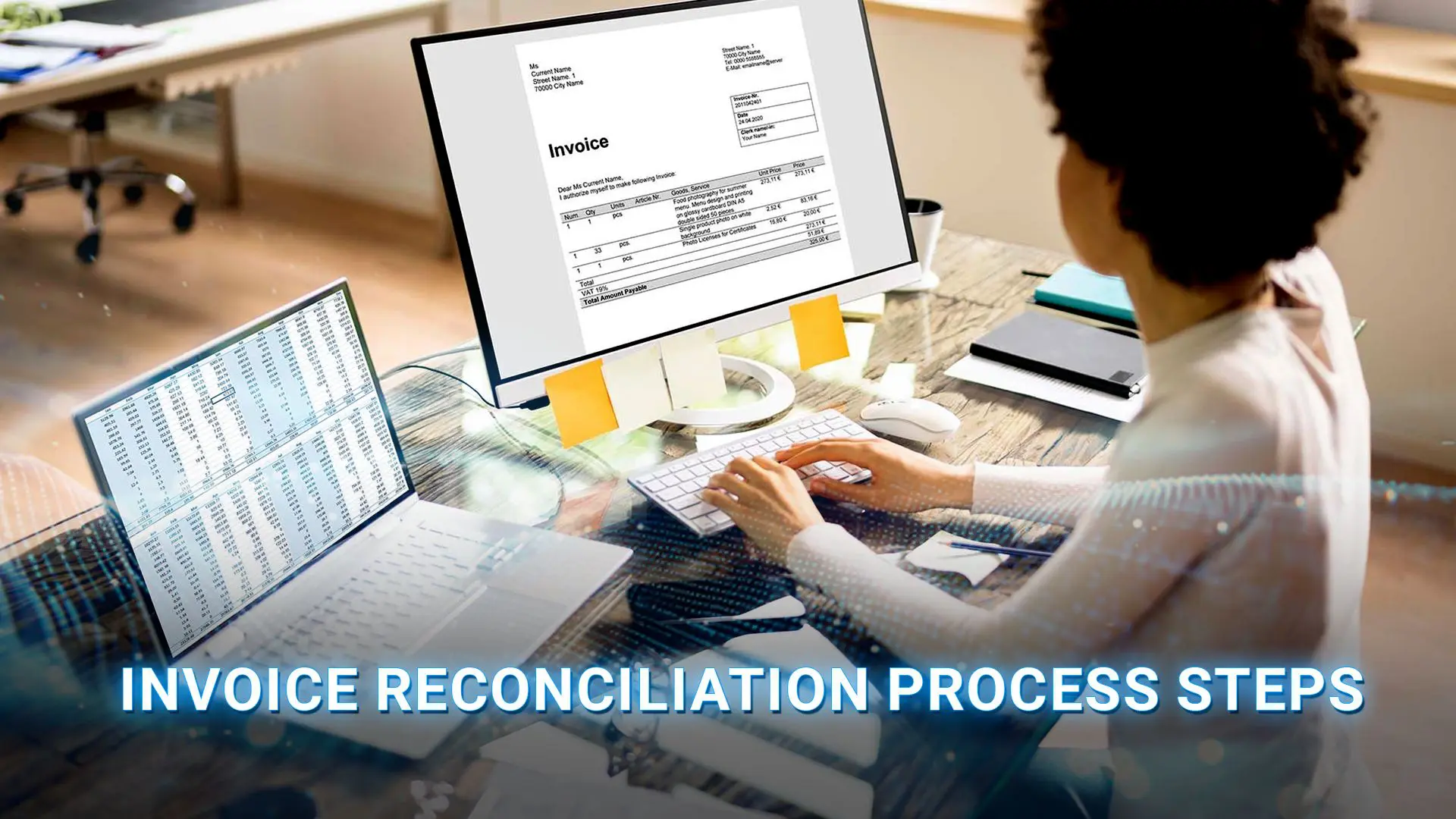

Surprisingly, a significant portion of enterprise workflows is still heavily dependent on paper. According to AIIM, over 45% of organizations continue to rely on paper-based processes in some part of their daily operations[11].
But in today’s digital-first world, clinging to physical documents is draining your budget. On average, it costs a business $20 to file and store a single document[14], with a 7.5% chance of it getting lost forever[4]. Add $1,500 annually for every new filing cabinet[9], the salary of a new hire just to manage every 12 cabinets, and the hidden costs become staggering.
To eliminate these unnecessary expenses and streamline your workflows, adopting a digital transformation strategy is no longer optional. And the foundational first step of any digitalization process is document scanning.
But how do you scan documents efficiently, securely, and at scale without wasting your budget?
The answer lies in adopting the right technology. In this comprehensive guide, we will answer exactly “What is document scanning software?”, break down how it works behind the scenes, and reveal the undeniable benefits it brings to your bottom line.
From Physical Paper To Digital Workflows: The Core Concept
Document scanning software is a helpful tool that can convert physical documents like papers, receipts, and images into electronic files like PDF, JPEG, or TIFF that can be stored on the cloud, on your servers, or in your document management system, where they can then be used and added into your workflows.
It uses a scanner or a mobile device camera to capture the document image and then applies OCR technology to recognize the text and convert it into a searchable and editable format.
This allows users to search within documents, copy and paste text, and integrate the content into digital workflows. OCR is essential for document-heavy environments such as accounting, legal, healthcare, HR, and compliance-driven industries.
Advanced scanning software can automatically identify key information, such as invoice numbers, dates, client names, or totals, and categorize documents without manual input.
This significantly speeds up retrieval and reduces human error.
Document scanning software can benefit businesses that need to digitize and manage large volumes of business documents, improve document security and accessibility, and reduce paper clutter and storage costs.
>>> See more:
- Digital Document Transformation: Meaning, Benefits & How It Works
- How Optical Character Recognition Works? A Complete Guide
3 Main Types Of Document Scanning Software
Which scanning software actually fits your workflow? Here is a quick overview to help you decide at a glance:
| Type | Key Features | Best for | Top Tools |
| Mobile Scanning Apps | ▪️Edge Detection & Auto-cropping ▪️Basic OCR (Optical Character Recognition) ▪️Mage, Enhancement ▪️Cloud Sync & Quick Share | On-the-go Individuals | Adobe Scan Microsoft Lens Genius Scan |
| Desktop Scanning Programs | ▪️Batch Processing ▪️Advanced OCR ▪️Document Separation & Barcode Routing ▪️Advanced Image Processing | SMBs | ABBYY FineReader Adobe Acrobat DC PaperScan Readiris |
| Enterprise Intelligent Document Processing (IDP) Platforms | ▪️AI-Driven Data Extraction ▪️Auto-Classification ▪️Automated Workflows & Validation ▪️ERP/CRM Integrations ▪️High Compliance & Security | Large Enterprises | DIGI-SCAN DocStar |
Let’s break down each option so you can pinpoint the exact types of document scanning software that fit your business workflow:
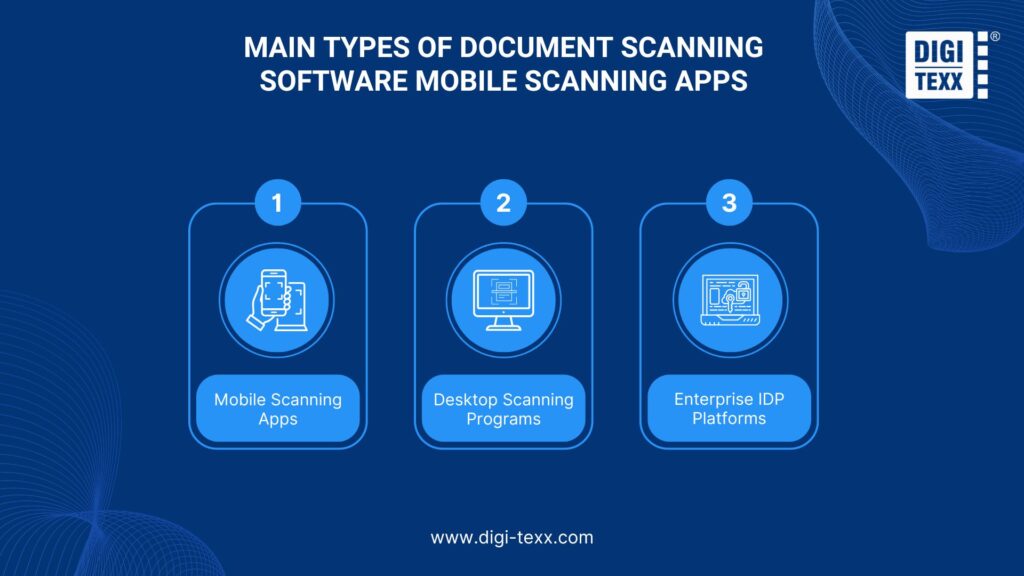
Mobile Scanning Apps
Mobile scanning apps are applications designed for smartphones or tablets that utilize the device’s camera lens to turn them into pocket portable scanners. Instead of needing bulky hardware, users can digitize paper documents into PDF or JPEG files anytime, anywhere.
Key Capabilities:
- Edge Detection & Auto-cropping: Automatically detects document edges, crops out excess background, and adjusts angles to create a smooth image, just like a machine scan.
- Basic OCR (Optical Character Recognition): Extract text from images to support quick searching or copying/pasting content.
- Image Enhancement: Automatically enhances contrast, removes shadows, and clarifies text.
- Cloud Sync & Quick Share: Store directly on cloud services (Google Drive, OneDrive, Dropbox) or share quickly via email or messaging apps.
Best for:
- Individuals, students, freelancers.
- Salespeople and on-the-go professionals often need to quickly scan business cards, invoices, receipts, or urgent contracts.
Top Tools:
- Adobe Scan: Perfect for the PDF ecosystem, with top-notch automatic sharpening.
- Microsoft Lens: Option number 1 is to scan the whiteboard and export directly to Word/PowerPoint.
- Genius Scan: Scanning multiple pages continuously is fast and highly secure.
Desktop Scanning Programs
Desktop scanning programs are software installed directly on a computer (PC, Mac). Unlike mobile devices, this software acts as a controller and connects directly to physical scanners via standard protocols such as TWAIN or WIA to digitize large volumes of paper documents.
Key Capabilities:
- Batch Processing: Process hundreds of document pages simultaneously at extremely high speed and resolution (high DPI).
- Advanced OCR: Advanced optical character recognition capabilities, support for dozens of languages, and the ability to preserve complex formatting (tables, columns, fonts) when exporting to Word/Excel.
- Document Separation & Barcode Routing: Automatically separate different sets of documents based on barcodes or blank pages inserted in between.
- Advanced Image Processing: Removes speckles, black borders, and punch marks, resulting in the cleanest scans for long-term storage.
Best for:
- Small and medium-sized enterprises (SMBs), human resources and administration departments, and accounting departments.
- Archivists or departments need to digitize large volumes of legal documents, contracts, and certificates into a digital data repository.
Top Tools:
- ABBYY FineReader: The standard for desktop OCR, with near-perfect accuracy.
- Adobe Acrobat DC: Powerful in managing, scanning, and editing professional PDF files.
- PaperScan: Flexible and compatible with almost all types of physical scanners on the market.
- Readiris: Intelligent, high-performance PDF scanning and processing speed.
Enterprise Intelligent Document Processing (IDP) Platforms
Going beyond the conventional concept of scanning, Enterprise IDP is a comprehensive, large-scale digitalization platform. It combines document capture technology with Artificial Intelligence (AI), Machine Learning, and Natural Language Processing (NLP).
IDP not only transforms paper documents into images, but also reads and understands them, automatically extracting data and integrating it into business processes.
Key Capabilities:
- AI-Driven Data Extraction: Automatically extract key data fields (e.g., Customer Name, Invoice Number, Total Amount) from unstructured documents without manually creating templates.
- Auto-Classification: AI automatically recognizes which are invoices, contracts, and complaints, directing documents to the correct department for processing.
- Automated Workflows & Validation: Cross-reference data (e.g., match invoices with purchase orders) and automatically trigger the approval workflow.
- ERP/CRM Integrations: Data is seamlessly synchronized via APIs into the enterprise’s core management systems (SAP, Oracle, Salesforce).
- High Compliance & Security: Meets the most stringent security standards (GDPR, HIPAA, ISO).
Best for:
- Large corporations (Enterprises), banks, financial institutions, hospitals, insurance companies, and supply chains.
- Business process offices (BPOs) need process automation (RPA) to completely eliminate manual data entry.
Top Tools:
- DIGI-SCAN: A centralized digital platform optimized for businesses, integrating powerful OCR for automatic data classification and extraction.
- DocStar: ECM platform(Enterprise content management) with superior workflow automation capabilities.
Ultimately, choosing the right document scanning software isn’t about finding the tool with the most features.
It’s about finding the perfect match for your operational scale. Whether you need the on-the-go agility of a Mobile App, the high-volume batch processing of a Desktop Program, or the AI-driven automation of an Enterprise IDP Platform, your choice will directly dictate how efficiently your team handles data.
Understanding these three categories is the crucial first step. The next step is evaluating the specific solutions available on the market today.
If you are ready to move beyond theory and see exactly which platforms are leading the industry, dive into our comprehensive breakdown of the Best Document Image Scanning Software In 2026.
In that guide, we compare real-world performance, core strengths, pros and cons, and specific use cases to help you make a confident, ROI-driven decision for your business.
>>> See more:
- Top Scanning Apps You Need in 2025: Turn Your Phone Into a Portable Scanner
- Top 14 Enterprise Document Solutions for Your Business Processes
How Does Document Scanning Software Work?
| Steps Of Document Scanning Software | Which types belong |
| Step 1: Document Capture | ▪️Mobile Scanning Apps ▪️Desktop Scanning Programs ▪️Enterprise IDP Platforms |
| Step 2: Image Processing | ▪️Mobile Scanning Apps ▪️Desktop Scanning Programs |
| Step 3: Classification | ▪️Enterprise IDP Platforms |
| Step 4: OCR & Data Extraction | ▪️Mobile Scanning Apps ▪️Desktop Scanning Programs ▪️Enterprise IDP Platforms |
| Step 5: Indexing | ▪️Desktop Scanning Programs ▪️Enterprise IDP Platforms |
| Step 6: Central Profiles Scan | ▪️Desktop Scanning Programs ▪️Enterprise IDP Platforms |
| Step 7: Data Validation | ▪️Enterprise IDP Platforms |
| Step 8: Export | ▪️Enterprise IDP Platforms |
To transform a lifeless physical document into an organized, automated, and seamlessly connected digital data source within a business system, document scanning software operates through a closed cycle consisting of the following 8 core steps:
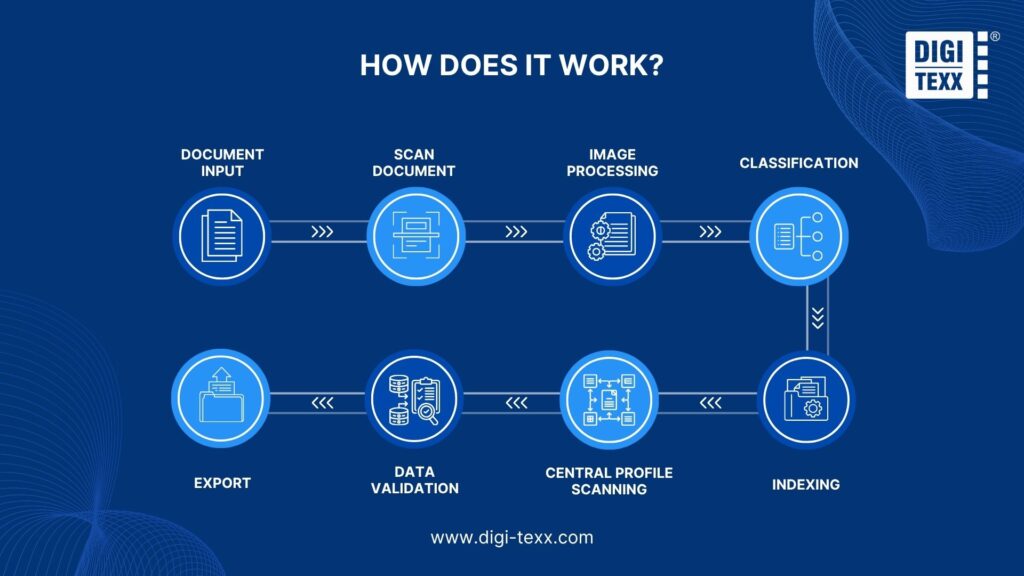
Step 1: Document Capture
This is the first and most important step (Input). The software will connect to and control the hardware devices to digitize paper documents.
Depending on the platform used, acquisition can occur via the camera lens of a phone (Mobile Apps), a dedicated scanner connected to a computer (Desktop Scanners via TWAIN/WIA standard), or a multifunction printer in the office (MFPs).
Additionally, the software can also capture electronic documents from email or cloud folders, bringing them all into a single processing funnel.
Step 2: Image Processing
Immediately after scanning, digital copies often encounter problems such as tilting, blurring, smudges, or ghosting.
At this stage, the software’s algorithm will automatically clean up the image (Image Cleanup/Enhancement).
The processing operations include: auto-cropping, deskew adjustment, despeckle removal, gray background removal, and binarization to optimize contrast and prepare the best possible foundation for computer-readable text.
Step 3: Classification
In a mixed file of hundreds of uploaded pages, how does the software know which page belongs to which category?
Instead of manual classification by humans, advanced software applies Artificial Intelligence (AI) and Machine Learning to analyze the visual structure and keywords on the page.
It will automatically identify and separate documents (Document Separation): distinguishing between invoices, contracts, and job applications, and then direct them to different processing workflows.
Step 4: OCR & Data Extraction
This is the heart of intelligent document scanning software. OCR (Optical Character Recognition) technology scans the image processed in Step 2 to convert pixels into digital text.
Then, the data extraction algorithm will search for and pick out the important information that the business needs (e.g., Tax ID, Customer Name, Total Amount on the Invoice) instead of having to retype it manually.
Step 5: Indexing
Saving documents as PDF files makes them difficult to search later. Indexing is the process by which software assigns information tags (Metadata/Tags) to documents based on the data extracted in Step 4.
For example, a PDF file would be tagged “Date: 12/10/2023”, “Type: Input Invoice”, “Department: Accounting”. Thanks to this automatic indexing, users can later retrieve the exact document from the vast archive in just a few seconds by typing a keyword.
Step 6: Central Profiles Scan
For large businesses with multiple branches, administrators will set up centralized scan profiles on the server system.
A profile will pre-define all parameters: Resolution (DPI), file format (PDF/TIFF), cropping rules, and destination storage directory. When employees open the software on their computer or mobile application, they simply select the correct Profile name (e.g., “Inventory Receipt Scan”).
The software will automatically apply these standards to control the scanner, ensuring 100% consistency in security and quality of documents from all departments without the need for manual setup.
Step 7: Data Validation
How do you know if the computer extracted the data (in Step 4) correctly?
In the Validation step, the software will automatically compare the extracted information with the company’s database (for example, comparing the purchase order number on the invoice with the ERP system).
The system also establishes logical rules (e.g., Total payment must equal Unit Price x Quantity). If the data matches, the document proceeds.
If an anomaly is detected or the AI is uncertain (Low confidence), the system will flag it in red and notify a human to check (Human-in-the-loop process).
Step 8: Export
The final step (Output). After the documents have been cleaned, indexed, and validated, the software will package them.
The document images themselves will be saved as searchable PDFs and uploaded to cloud storage or ECM repositories.
Meanwhile, the extracted raw data will be formatted as XML, JSON, or CSV and directly synced via API to the target enterprise system administration software, such as ERP, accounting software, or CRM.
>>> See more:
- What is Automated Document Processing and How Does It Work?
- Document Control Process: A Step-by-Step Guide for Efficient Workflow
8 Benefits Of Using Document Scanning Software
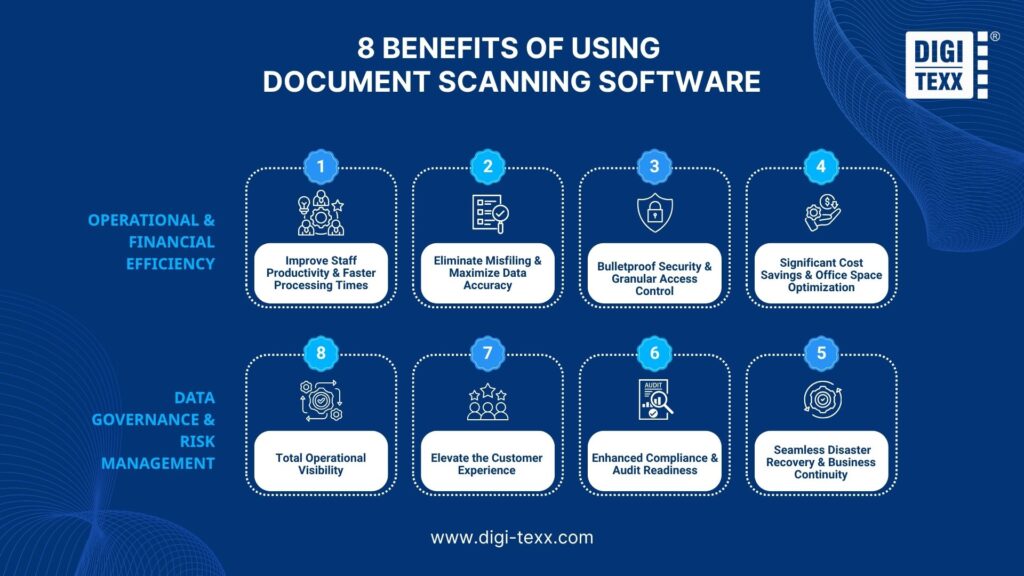
The shift from paper to digital documents is not simply an effort to protect the environment or “follow the trend.”
For modern businesses, it’s a vital strategy for optimizing operations. Whether you use a mobile app to quickly scan receipts while traveling or deploy a cloud-based Enterprise In-Device (EDP), document scanning software delivers enormous returns (ROI).
Below are eight core benefits explaining why every business needs to invest in document scanning software today.
Operational & Financial Efficiency
| 1. Improve Staff Productivity & Faster Processing Times | 2. Significant Cost Savings & Office Space Optimization | 3. Total Operational Visibility | 4. Elevate The Customer Experience |
Improve Staff Productivity & Faster Processing Times
According to McKinsey & Company, office workers spend nearly 20% of their workday searching for paper documents or retyping data[8]. Document scanning software completely solves this problem.
For individuals working remotely, Mobile Scanning Apps help them digitize contracts and send them to headquarters in just seconds. On a larger scale, Enterprise IDP platforms that integrate OCR will automatically extract data and import it directly into the system.
Replacing manual data entry with automation frees employees from repetitive tasks, thereby significantly increasing process speed and allowing them to focus on higher-value tasks.
Significant Cost Savings & Office Space Optimization
The “Paperless Office” model delivers direct financial benefits. Businesses can cut enormous costs associated with purchasing paper, ink, printer maintenance, and physical storage rentals.
This is achieved by digitizing all archived records using High-Powered Desktop Scanners; rooms filled with bulky filing cabinets can be cleared out to be converted into spacious workspaces for employees, or help businesses reduce their office rental space, saving on monthly real estate costs.
Total Operational Visibility
With paper documents, it’s difficult for managers to know whose desk an invoice is on or whether it has been approved.
By integrating document scanning software into digital workflows on Enterprise Resource Planning (ERP/ECM) systems, managers will have an intuitive dashboard.
You can track the document lifecycle in real time, instantly identify bottlenecks in the approval process, and make quick and effective operational adjustments.
Elevate The Customer Experience
In the digital age, customers expect immediate responses. If a customer service representative has to hang up to retrieve a paper contract, you lose credibility.
With digital scanning and storage software, employees can use full-text search to retrieve customer records in just 3 seconds while on the phone.
Simultaneously, the application of mobile scanning right at the point of sale, this helps shorten the onboarding process and maximizes customer satisfaction.
Data Governance & Risk Management
| 5. Eliminate Misfiling & Maximize Data Accuracy | 6. Bulletproof Security & Granular Access Control | 7. Seamless Disaster Recovery & Business Continuity | 8. Enhanced Compliance & Audit Readiness |
Eliminate Misfiling & Maximize Data Accuracy
Humans are prone to making mistakes. A file misplaced in a drawer can take days to find, and a misspelled zero on a bill can cause financial damage.
By using Desktop Scanning Programs combined with auto-indexing technology, documents are automatically categorized based on barcodes or AI keyword recognition.
The excellent readability of OCR on specialized software completely eliminates “fat-finger” errors (typing errors), ensuring that input data is always 99.9% accurate, eliminating information loss or inaccuracies.
Bulletproof Security & Granular Access Control
Paper documents are easily stolen, copied without authorization, or inadvertently read by unauthorized persons.
This is a significant advantage when using Cloud-based or On-premise document scanning platforms. Your digital documents will be protected by military-grade encryption algorithms.
The “Granular Access Control” feature allows administrators to grant viewing, editing, or downloading permissions to specific individuals/departments.
Every interaction with the document is logged by the system, ensuring that sensitive business data remains securely protected.
Seamless Disaster Recovery & Business Continuity
Natural disasters (fires, floods) or infrastructure failures can completely destroy paper document archives, pushing businesses to the brink of bankruptcy. Document scanning software plays a core role in Disaster Recovery plans.
With digitized files and regular backups to Cloud platforms (Cloud Servers), even if the physical office experiences a problem, employees can continue working and access all documents from any mobile device or computer with an internet connection, ensuring continuous business operation 24/7.
Enhanced Compliance & Audit Readiness
Complying with stringent legal regulations (such as GDPR, HIPAA, or accounting record-keeping laws) is a nightmare when managing paper documents.
Enterprise Document Management Platforms can be solved by setting up automatic retention policies.
The software will automatically lock documents that cannot be deleted or automatically destroy documents when their legal retention period expires. When audit agencies request it, instead of spending months sifting through the data, you only need a few clicks to extract the entire transaction history (Audit Trail) with absolute transparency and accuracy.
>>> See more:
- On-premise vs Cloud document management system
- What Is Data Security? Key Elements and Best Practices
Beyond the PDF: Selecting The Right Document Scanning Software For the Digital Future
The landscape of document scanning software is diverse, encompassing a variety of specialized tools. For individual users and smaller teams, free mobile applications and desktop software effectively address basic paper-to-digital conversion needs.
In these scenarios, established solutions like Adobe Scan and ABBYY FineReader provide reliable performance for their intended purposes.
However, the primary challenge for enterprise-level operations shifts from siCloud-basedzation to post-scan data management.
Organizations that achieve the true benefits of digitization do so by eliminating manual data entry. This is accomplished by bridging the initial scan layer with robust systems for data extraction, on-premises, and seamless integration into business workflows.
>>> See more:
- DIGI-TEXX – Trusted Intelligent Document Processing with 100% Data Security
- Document Management Outsourcing: Benefits, Services & Companies\
FAQs About Document Scanning Software?
Does The Software Store My Scans On Third-Party Servers, And How Can I Be Sure My Data Is Secure?
It depends entirely on your deployment choice. Cloud-based applications do store your scans on external servers managed by providers like Amazon or Microsoft.
However, premium enterprise platforms secure your data using AES 256 encryption. If you require absolute control, you should choose an on-premise solution where no data ever leaves your internal network.
Security is critical because the global average cost of a data breach reached 4.44 million USD in 2025[6].
Can I Use The Application To Scan And Save Documents Entirely Offline?
Yes. Desktop scanning programs and native mobile applications allow you to scan, crop, and save documents without any internet connection.
The files remain safely on your local hard drive or device storage. You only need an internet connection if you want to synchronize those files to a cloud drive or utilize advanced cloud-based Optical Character Recognition features.
Is The Software Compliant With Global Privacy Standards Such As GDPR And HIPAA?
Top-tier enterprise platforms are strictly compliant with GDPR and HIPAA. They achieve this by offering granular access controls, automated data retention policies, and detailed audit trails.
Free or basic mobile apps usually do not meet these rigorous legal standards. Compliance is mandatory for businesses, as European regulators issued approximately 1.2 billion EUR in GDPR fines in 2025 alone[2]. Always check the vendor compliance page before processing sensitive data.
How Can I Search For Specific Keywords Inside My Scanned PDF Files?
You must use software equipped with Optical Character Recognition. This technology converts the flat image of your document into a searchable PDF.
Once processed, you simply press Control F on Windows or Command F on Mac to locate any specific keyword instantly. Without Optical Character Recognition, your computer only sees a picture of text, making keyword searches impossible.
Does The Free Version Impose Page Limits Or Automatically Add Watermarks To My Scans?
Yes. The vast majority of free scanning applications impose strict daily page limits and embed visible watermarks on your final documents.
To remove these watermarks, unlock unlimited batch scanning, and access premium export features, vendors require you to upgrade to a paid subscription plan.
What File Formats Does The Software Support For Exporting Besides PDF, Such As Editable Word Or Excel Files?
Beyond standard PDFs, advanced scanning platforms export your documents into editable Word documents, Excel spreadsheets, PowerPoint presentations, and plain text files.
Enterprise systems also support structured data formats like XML, JSON, and CSV. This allows you to feed extracted information directly into your corporate databases or accounting software without manual typing.
References:
- DIGI-TEXX (2022). DIGI-Scan: Automated Scanning & Capture Outsourcing | DIGI-TEXX. [online] DIGI-TEXX | Advand Digital & BPO Services In Vietnam. Available at: https://digi-texx.com/digi-scan/
- DLA Piper. (2026). DLA Piper GDPR Fines and Data Breach Survey: January 2026 | DLA Piper. [online] Available at: https://www.dlapiper.com/en/insights/publications/2026/01/dla-piper-gdpr-fines-and-data-breach-survey-january-2026.
- Dokmee. (2025). What is Document Scanning Software? Best Tools With Integrated Capture. [online] Available at: https://www.dokmee.com/blog/document-scanning-software
- financesonline.com. (n.d.). 67 Cloud File & Document Management Statistics You Must Know: 2019 & 2020 Data Analysis & Market Share – Financesonline.com. [online] Available at: https://financesonline.com/cloud-file-document-management-statistics/.
- Hyland.com. (2025). What is Document Capture? | Hyland. [online] Available at: https://www.hyland.com/en/resources/terminology/data-capture/what-is-document-capture-software.
- Kirkham, T. (2026). Managed IT and Cybersecurity Services for Small and Large Businesses. [online] Kirkhamirontech.com. Available at: https://www.kirkhamirontech.com/ibm-data-breach-costs-2025-report/.
- Lucion Technologies (2022). The Complete Guide to Document Scanning Software. [online] FileCenter Blog. Available at: https://www.filecenter.com/blog/the-complete-guide-to-document-scanning-software/
- McKinsey & Company (2012). The social economy: Unlocking value and productivity through social technologies [online] Available at: https://www.mckinsey.com/industries/technology-media-and-telecommunications/our-insights/the-social-economy#/
- McGuire, L. (2022). Mind Blowing Paper Consumption Statistics | Formstack Blog. [online] www.formstack.com. Available at: https://www.formstack.com/blog/paper-statistics.
- Miller, T. (2024). AI & Automation Trends: 2024 Insights & 2025 Outlook. [online] Aiim.org. Available at: https://info.aiim.org/aiim-blog/ai-automation-trends-2024-insights-2025-outlook.
- Plan2Scan. (2025). Document Scanning Benefits | Improve Efficiency in 2025. [online] Available at: https://plan2scan.co.uk/document-scanning-benefits/
- Ricoh.com. (2026). A guide to scanning software – Ricoh Scanners. [online] Available at: https://www.pfu-us.ricoh.com/guide/scanning-software
- Suljak, N. (2023). Ensure Accuracy + Speed With Document Scanning Software. [online] Microblink. Available at: https://microblink.com/resources/blog/best-document-scanning-software/
- Vamshi Vadali (2023). Document Scanning Software: Best Tools in 2026 and What Enterprises Actually Need. [online] Klearstack.com. Available at: https://klearstack.com/blogs/document-scanning-software
- Xiong, E. (2021). The Sustainable Impact Of A Paperless Office. Forbes. [online] 11 May. Available at: https://www.forbes.com/councils/forbestechcouncil/2021/05/11/the-sustainable-impact-of-a-paperless-office/.